> For the complete documentation index, see [llms.txt](https://docs.stoik.io/llms.txt). Markdown versions of documentation pages are available by appending `.md` to page URLs; this page is available as [Markdown](https://docs.stoik.io/cyber-best-practices/harden-your-environment/readme/back-up-your-data-with-wasabi.md).
# Back up your data with Wasabi
This guide shows how to copy Veeam backups to Wasabi (S3-compatible object storage).
Target outcome: an offsite copy on immutable storage (Object Lock).
Keep retention aligned with your policy. If you follow Stoïk’s baseline, keep **at least 2 weeks** of immutable backups. See [Implement secure backups](file:///).
### Prereqs
* A Wasabi account with access to the console.
* Veeam Backup & Replication with Object Storage support.
* Outbound access from the Veeam server (or gateway) to your Wasabi endpoint.
* A place to store the Wasabi access key and secret key (password manager).
{% hint style="info" %}
Use least privilege when possible. Start with broad permissions to validate connectivity, then restrict the service account to the single bucket and prefix used by Veeam.
{% endhint %}
### Veeam Service Account
First of all, it is essential to create a dedicated Wasabi service account. This account helps secure the data and better manage access permissions to Wasabi resources.
Service accounts are specifically designed to be used by third-party applications or services and allow permissions to be limited to only what is necessary for the intended use, thereby reducing security risks.
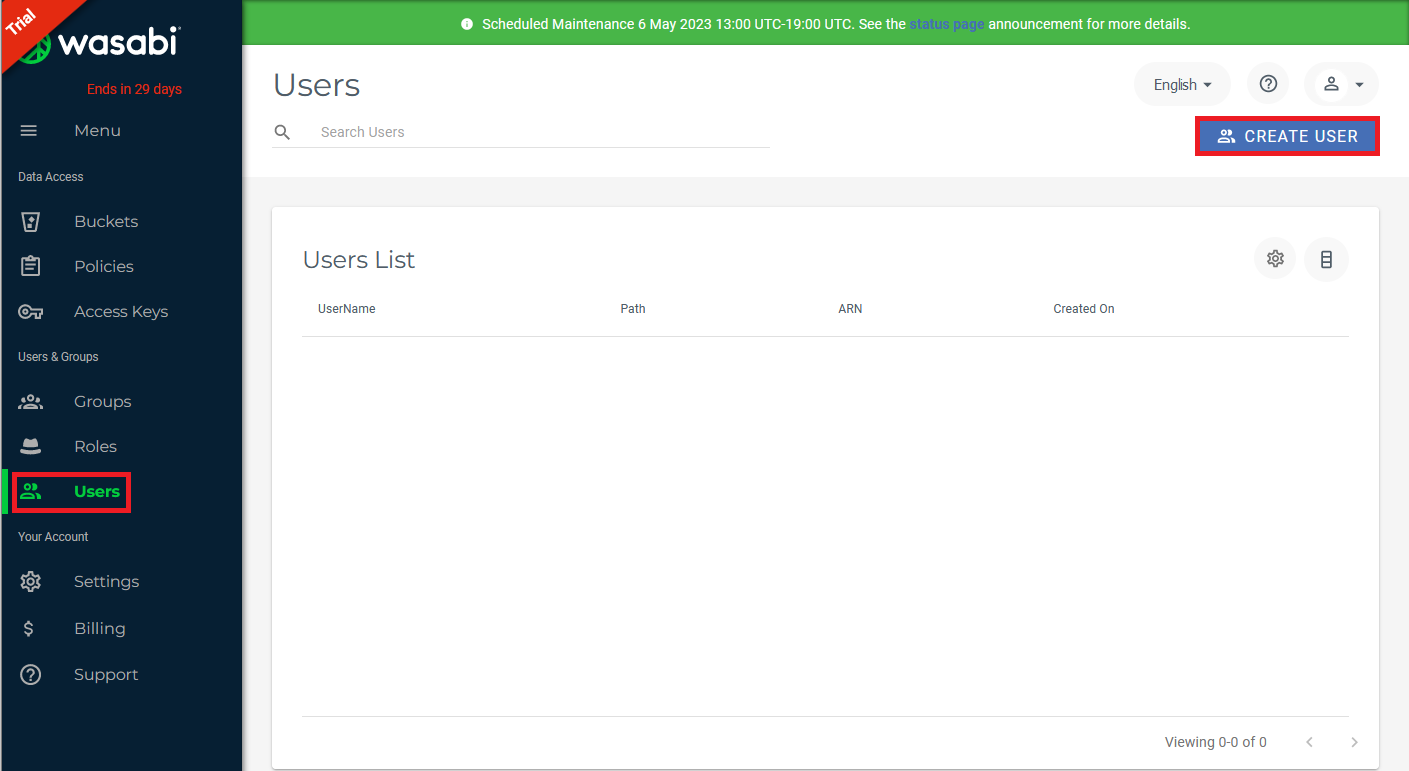
To do this, access the “Users” section from the [Wasabi console](https://console.wasabisys.com/), then the “Users” tab (directly accessible via the [following link](https://console.wasabisys.com/#/users)) as shown in the figure below:
Simply click on the “Create user” button to begin creating the service account.
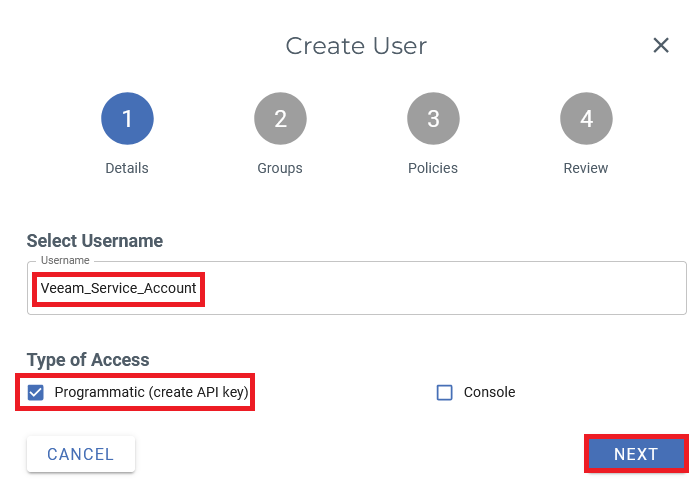
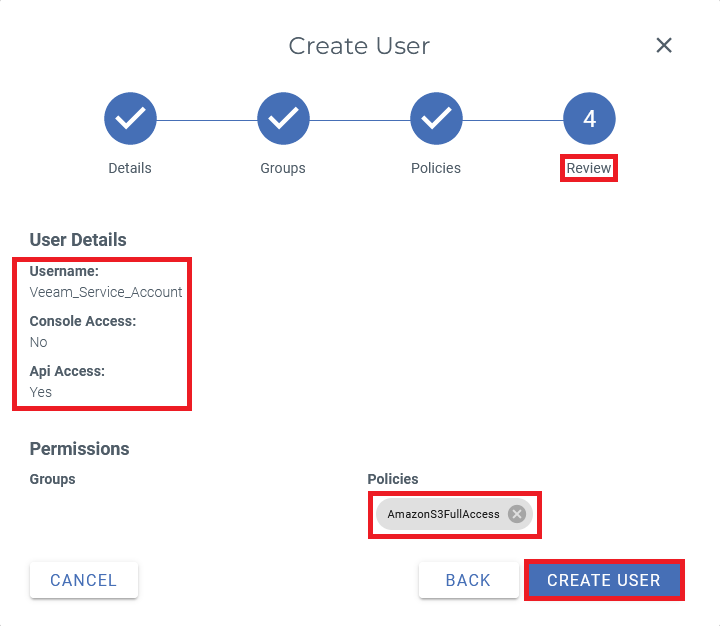
In the first section, you must define the service account name, for example “Veeam\_Service\_Account”.
Since the service account is intended to be used only with Veeam, it is also important to check the “Programmatic (create API key)” box before moving to the next section.
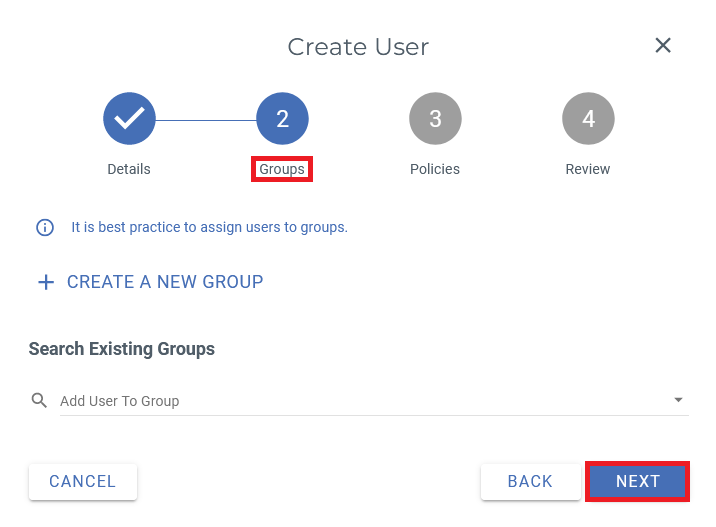
In this section, it is not necessary to define a group for the service account; you can proceed directly to the next step.
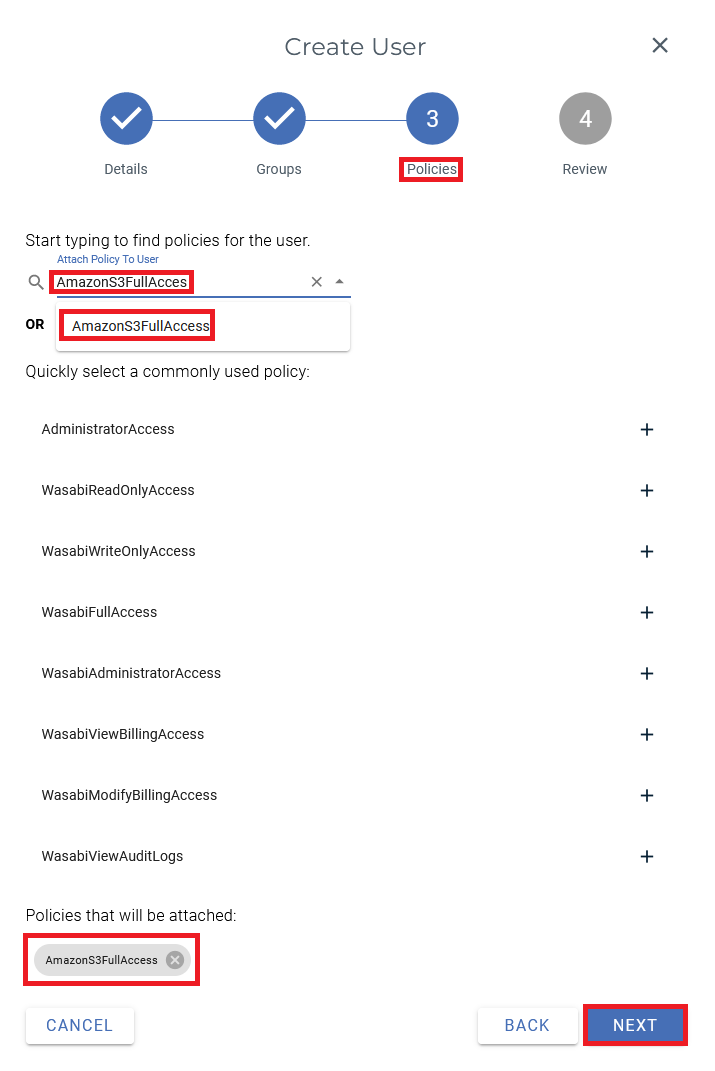
This part is dedicated to applying access policies to the service account. For the service account, only the “AmazonS3FullAccess” policy is required. Simply enter it in the available field and select it before proceeding to the next section.
{% hint style="warning" %}
“AmazonS3FullAccess” is easy, but broad.
Once your bucket exists, prefer a bucket-scoped policy (example below) and remove full access:
```json
{
"Version": "2012-10-17",
"Statement": [
{
"Sid": "ListBucket",
"Effect": "Allow",
"Action": ["s3:ListBucket", "s3:GetBucketLocation"],
"Resource": "arn:aws:s3:::YOUR-BUCKET",
"Condition": {"StringLike": {"s3:prefix": ["veeam/*"]}}
},
{
"Sid": "BucketObjects",
"Effect": "Allow",
"Action": [
"s3:GetObject", "s3:PutObject", "s3:DeleteObject",
"s3:AbortMultipartUpload", "s3:ListMultipartUploadParts"
],
"Resource": "arn:aws:s3:::YOUR-BUCKET/veeam/*"
},
{
"Sid": "ObjectLock",
"Effect": "Allow",
"Action": [
"s3:GetObjectRetention", "s3:PutObjectRetention",
"s3:GetObjectLegalHold", "s3:PutObjectLegalHold"
],
"Resource": "arn:aws:s3:::YOUR-BUCKET/veeam/*"
}
]
}
```
Adjust the `veeam/` prefix to match your repository folder.
{% endhint %}
The final section allows you to review all the service account information before confirming its creation by clicking “Create User”.
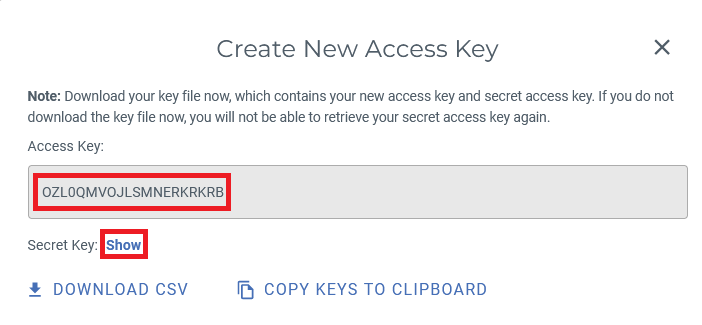
A final window will then display the service account’s access key and secret key.
You can click on the “Show” link to display the secret key or on the “Download CSV” button to download both the access key and its associated secret key.
This key pair must be stored securely, for example in a password manager, as it will be used later (the secret access key will no longer be visible).
### Creating a Bucket
A bucket is an object storage container that allows you to store, retrieve, and manage data reliably and securely. Creating a bucket tailored to the company’s needs enables efficient data management and ensures the resilience and durability of stored data. In addition, a properly configured Wasabi bucket offers advanced features such as versioning and access and permission management.
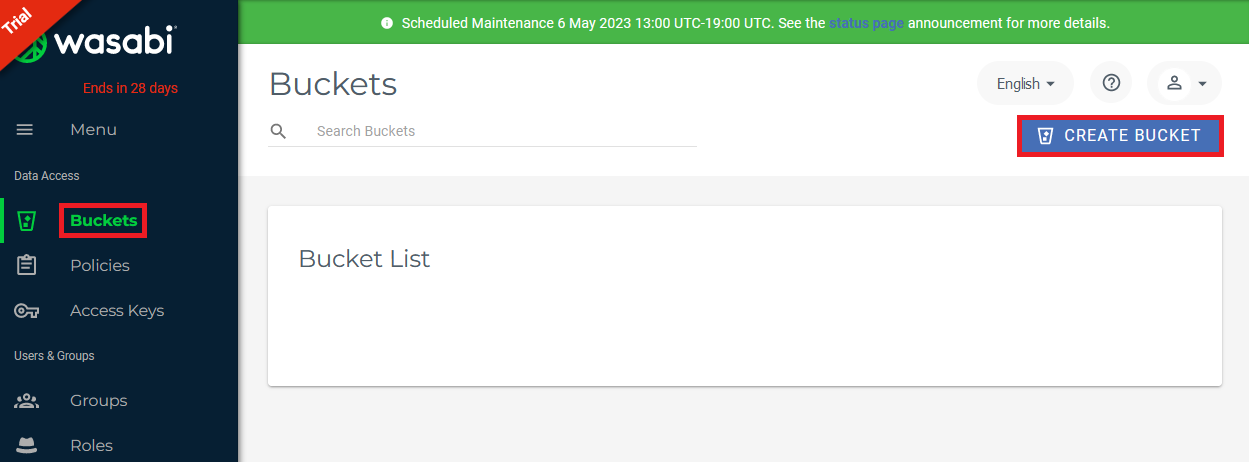
To begin creating a Wasabi bucket, access the [Wasabi console](https://console.wasabisys.com/), then open the “Buckets” section as shown in the figure below.
Then click on the “Create Bucket” button to start creating a bucket.
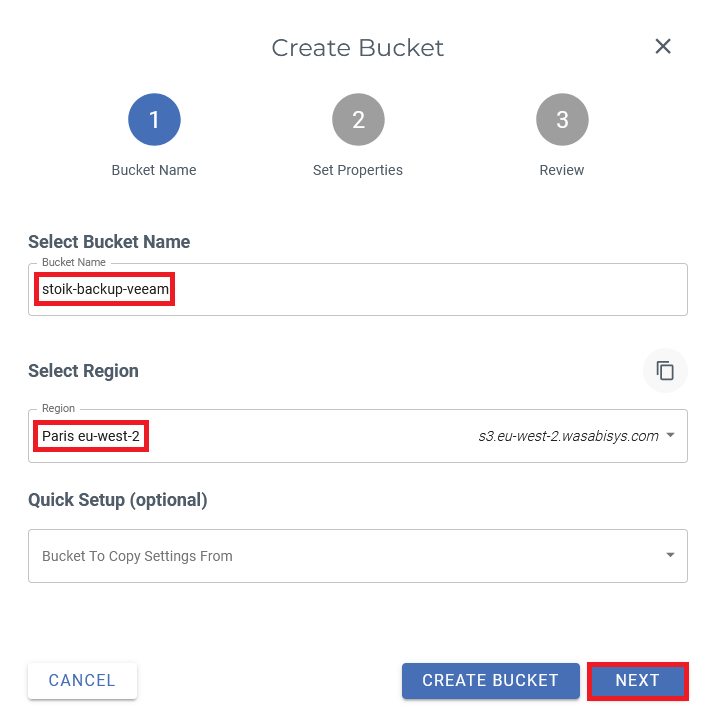
The first information to provide is the bucket name, which must be unique, for example `company-backup-veeam`.
Then choose the region closest to your Veeam infrastructure. Use the endpoint shown in the console (for example `s3.eu-west-2.wasabisys.com`).
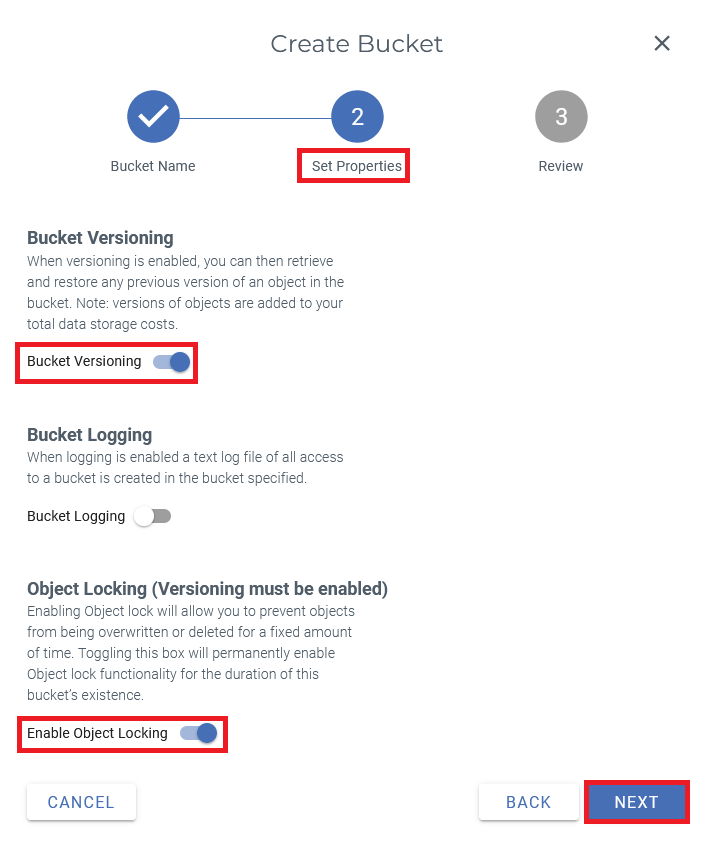
Next, you must enable bucket versioning and object lock by checking the appropriate boxes as illustrated above, in order to make future backups immutable. You may also enable event logging to track all actions on the bucket by checking the “Bucket Logging” box.
{% hint style="warning" %}
If you need immutable backups, enable **Object Lock at bucket creation**. Treat this as irreversible.
{% endhint %}
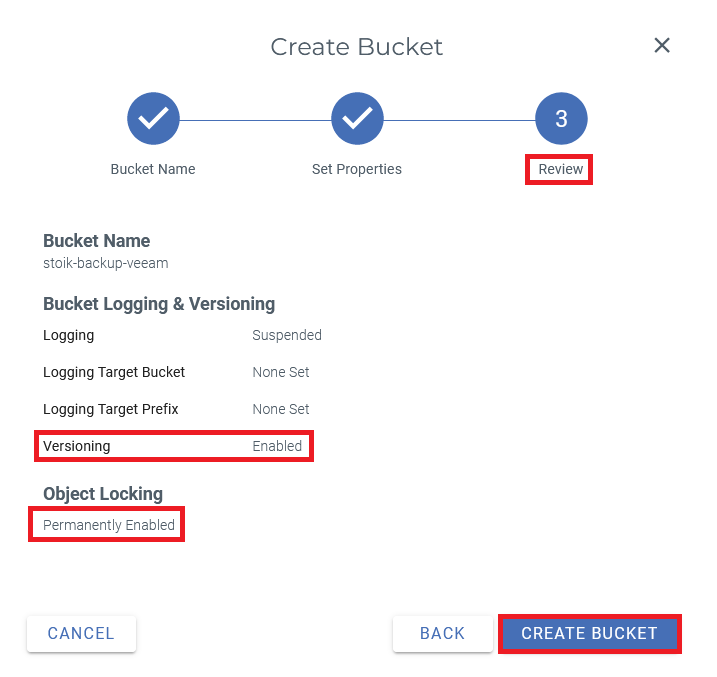
The final section allows you to review all bucket information before confirming its creation by clicking “Create Bucket”.
If the bucket does not appear in Veeam immediately, wait a few minutes and retry.
### Backups to a Wasabi Bucket via Veeam
Once the service account and the Wasabi bucket have been created, you can configure a new Veeam backup job to automate the backup of information system data and systems to the Wasabi Cloud.
Before creating this job, it is essential to create a Wasabi backup repository from the Veeam administration console.
### Creating a Backup Repository
A backup repository linked to the Wasabi bucket must be created from the Veeam tool.
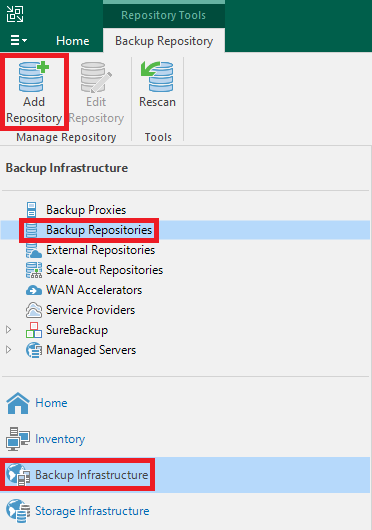
From the “Backup Infrastructure” interface in Veeam, select “Backup Repositories” and click “Add Repository”.
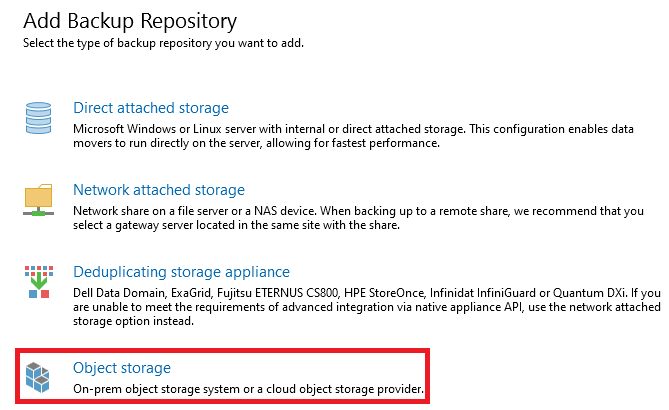
Then select the repository type “Object Storage”.
The cloud repository type to select is “Wasabi Cloud Storage”.

A new window opens, marking the start of the Wasabi backup repository configuration.

After defining the name and description, click “Next” to proceed.
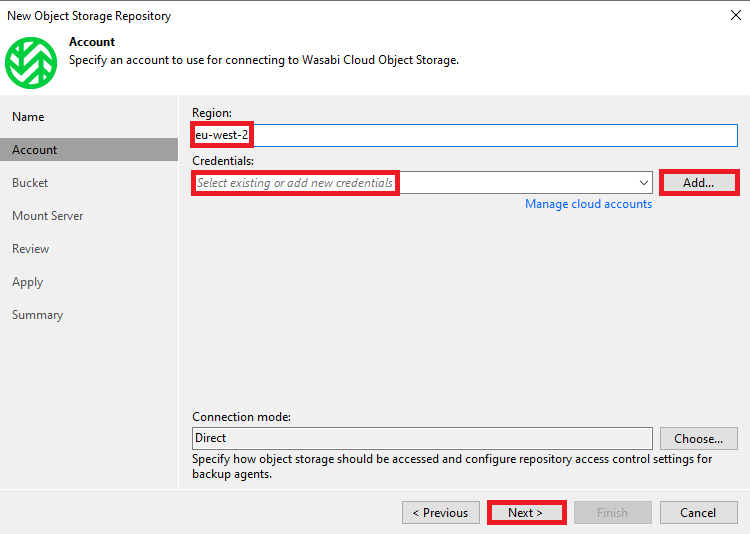
The region to select must match the previously created bucket (see above), namely “eu-west-2”.
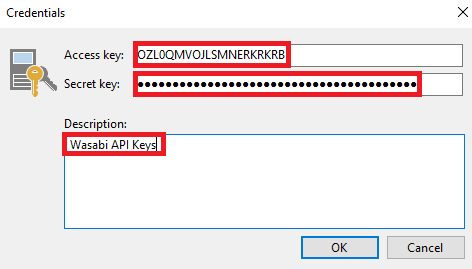
You must then add the Wasabi service account credentials. Click “Add…”, then enter the previously retrieved access and secret keys (see above), as shown in the figure below.
If a proxy is required from the backed-up machines, it can be configured by clicking “Choose”.
Once these steps are completed, click “Next” to continue configuring the backup repository.
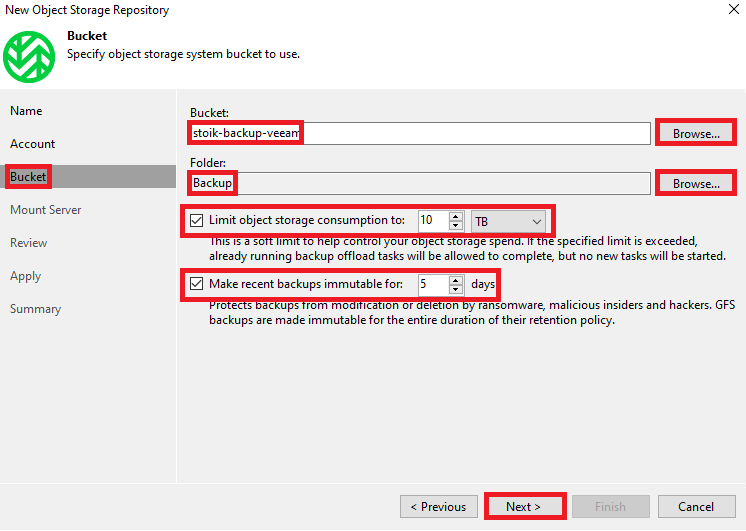
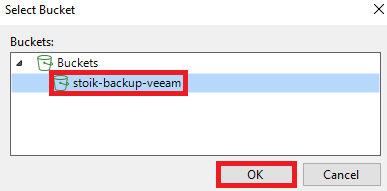
This step consists of configuring the Wasabi bucket. Click the “Browse” buttons to select the previously created Wasabi bucket and a folder within the bucket (create one if necessary).
Finally, set the options that match your capacity and retention policy:
* Optional: limit object storage consumption to a value that caps cost.
* Make recent backups immutable for: **14 days** (or more, depending on your policy).
Once the Wasabi bucket is configured, click “Next” to proceed.
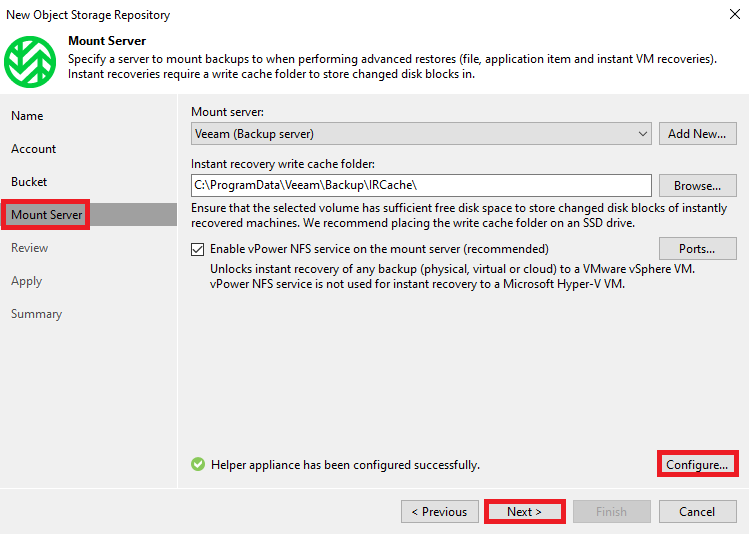
At this stage, you must specify the mount server and its write cache folder, which will be used during restoration, using the “Add New…” and “Browse…” buttons respectively. A helper appliance is already configured; it corresponds to the Veeam backup server. It can be changed by clicking “Configure” if necessary.
When using VMware, it is recommended to check the box “Enable vPower NFS service on the mount server” before moving to the next step.
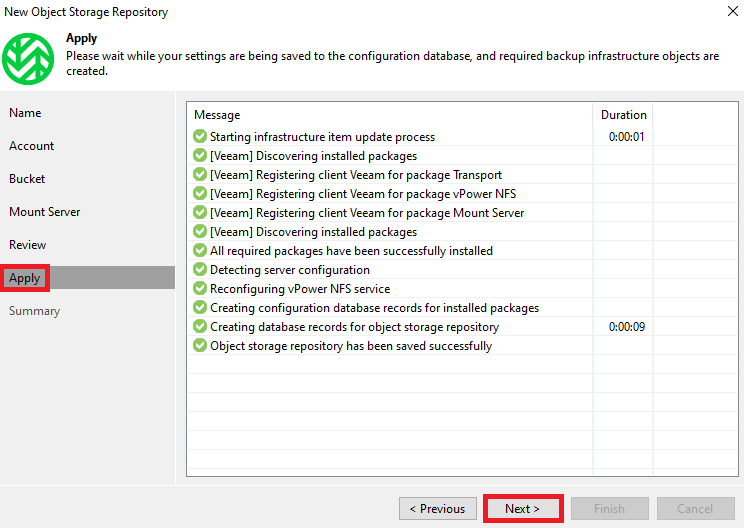
Click “Apply” to create the backup repository.
It may take a few minutes to create the repository before you can click “Next”.
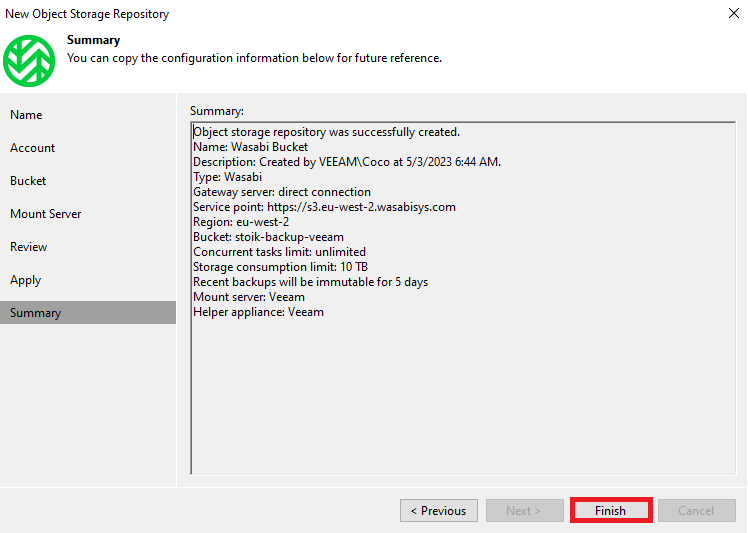
The backup repository is now created, and a summary of its information is displayed.
### Creating a Backup Copy Job
This section is dedicated to creating a backup job to the backup repository. In most cases, on-premise backup jobs and repositories already exist, which is why it is possible to create a backup copy job instead of creating a new backup job from scratch, as described below.
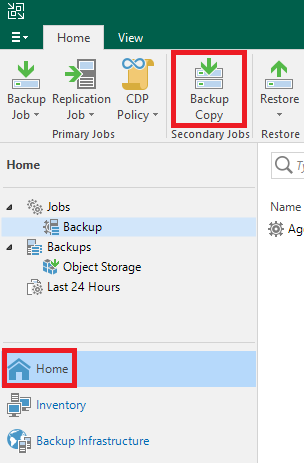
To do so, from the “Home” interface in Veeam, click “Backup Copy”.
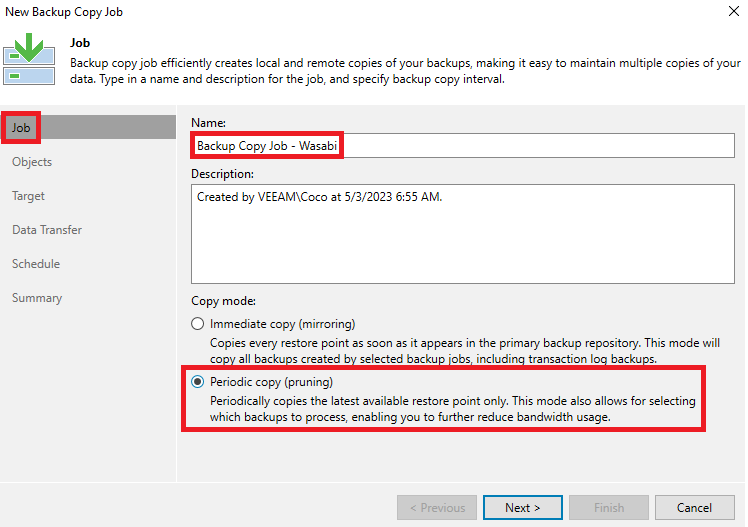
The first step is to specify the job name and select the copy mode, as shown in the figure below.
It is recommended to choose the “Periodic copy” mode in order to retrieve only the latest restore points before proceeding to the next step.
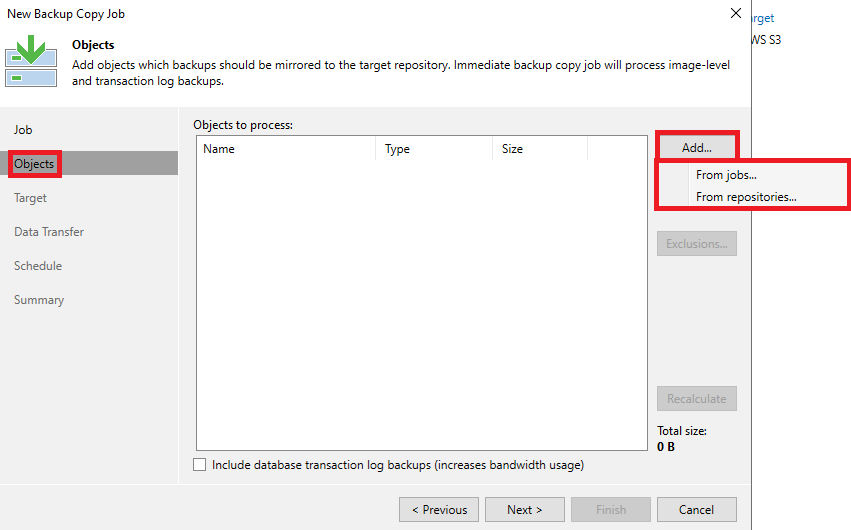
At this stage, you must choose whether to copy from an existing repository (“From repositories…”) or from an existing job (“From jobs…”).
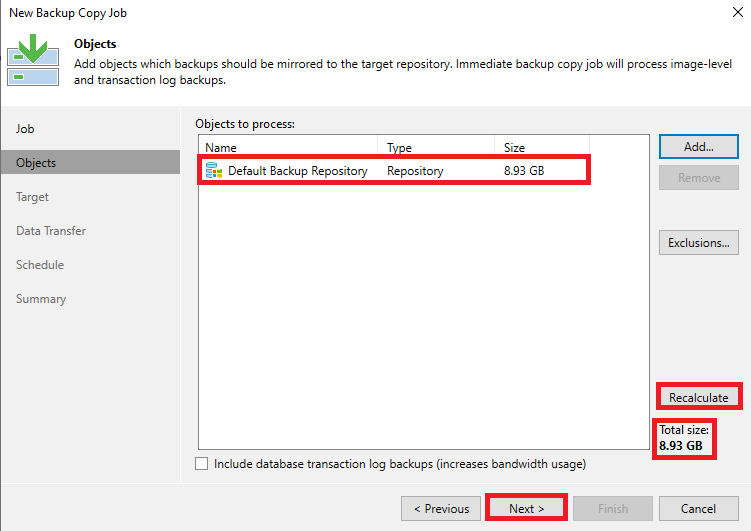
In the example above, a copy from a backup repository (specifically a Windows server) is selected.
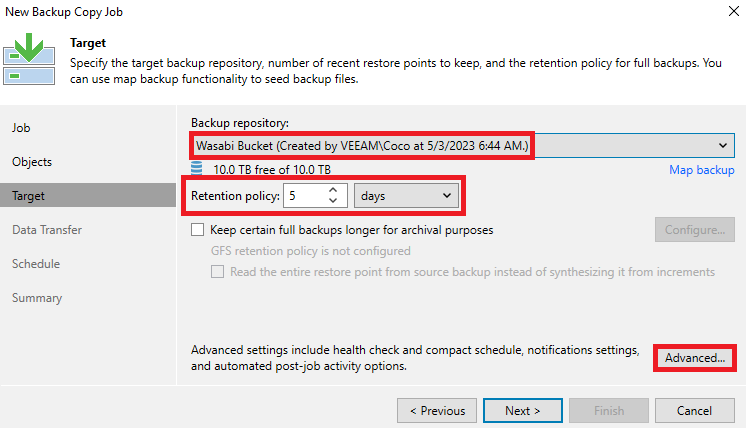
First, select the backup repository associated with the previously created Wasabi bucket, then specify a minimum retention period of 5 days for daily backups.
It is also possible to configure additional backups (weekly, monthly, yearly) for greater security by checking “Keep certain full backups longer for archival purposes” and clicking “Configure”.
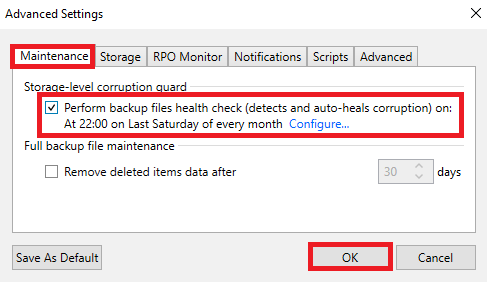
Finally, it is recommended to enable backup health checks at least monthly to prevent data corruption. To do so, click “Advanced”, then check the box “Perform backup files health check (detects and auto-heals corruption) on:” and modify the verification time and date via the “Configure…” button if necessary, under the “Maintenance” tab.
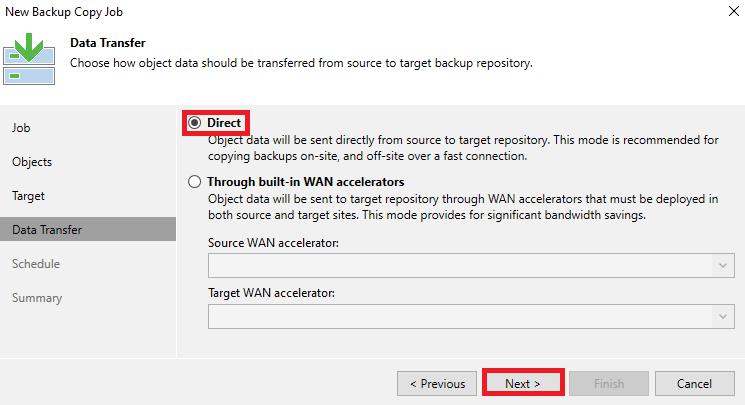
The next section is dedicated to data transfer.
It is recommended to choose the “Direct” data transfer mode if the Internet connection is adequate before proceeding to the next section.
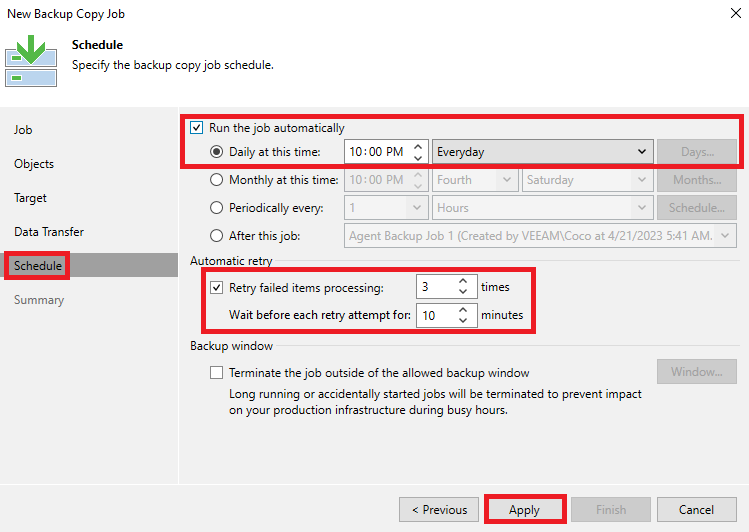
It is recommended to perform daily backups by checking “Run the job automatically” and selecting the most appropriate time.
It is also advisable to configure the job to retry failed backup attempts automatically by checking “Retry failed items processing”, retrying 3 times with a 10-minute interval between attempts.
Once configured, proceed to the next section.
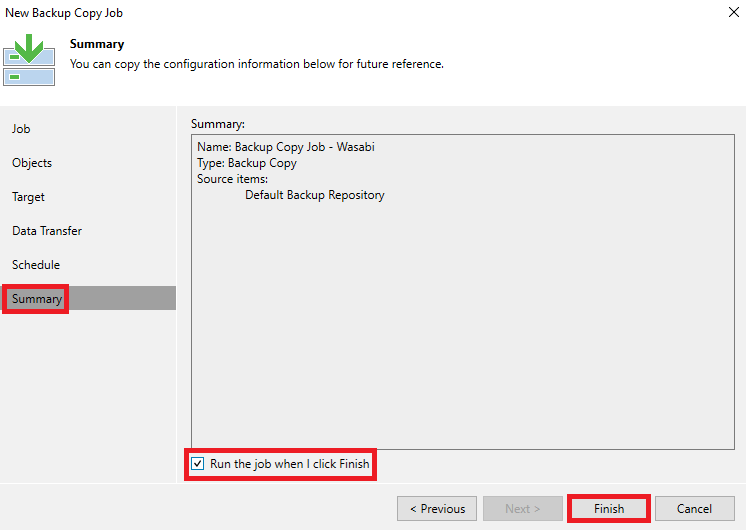
To complete the creation of the backup copy job, simply click “Finish” after checking “Enable the job when I click Finish” to immediately trigger a copy to the previously configured Wasabi backup repository.
---
# Agent Instructions
This documentation is published with GitBook. GitBook is the documentation platform designed so that both humans and AI agents can read, navigate, and reason over technical content effectively. Learn more at gitbook.com.
## Querying This Documentation
If you need additional information that is not directly available in this page, you can query the documentation by asking a question.
Perform an HTTP GET request on the following URL with the `ask` and `goal` query parameters:
```
GET https://docs.stoik.io/cyber-best-practices/harden-your-environment/readme/back-up-your-data-with-wasabi.md?ask=&goal=
```
`ask` is the immediate question: it should be specific, self-contained, and written in natural language.
`goal` is what the user is ultimately trying to achieve, the reason they need the answer. Sharing it helps GitBook give you a better, more relevant answer. A goal is most helpful when it describes the outcome the user wants rather than restating the question. For example, with `ask=how do I create an API token`, a goal like `automate deployments from our CI pipeline` lets GitBook tailor the answer to that use case.
The response will contain a direct answer to the question and relevant excerpts and sources from the documentation.
Use this mechanism when the answer is not explicitly present in the current page, you need clarification or additional context, or you want to retrieve related documentation sections.