> For the complete documentation index, see [llms.txt](https://docs.stoik.io/llms.txt). Markdown versions of documentation pages are available by appending `.md` to page URLs; this page is available as [Markdown](https://docs.stoik.io/cyber-best-practices/vulnerability-remediation-guides/how-to-resolve-rdp-service-exposure-from-the-internet.md).
# External Scan: resolve RDP service exposure
{% hint style="info" %}
This is a practical hardening guide. The goal is to remove direct Internet exposure of **TCP/3389**.
{% endhint %}
## Why RDP exposure is dangerous
RDP (Remote Desktop Protocol) is Microsoft's remote-access protocol. It usually listens on **TCP port 3389** and is a high-value entry point for attackers.
An exposed RDP service becomes exploitable when:
* it is affected by a public vulnerability (for example BlueKeep), or
* credentials are weak, reused, or leaked.
Either case is usually enough for initial access and lateral movement. Expose RDP on internal networks only, never directly on the Internet.
## Recommended solutions
Most exposed RDP services exist for one of two reasons:
* **Remote administration.** In descending order of preference: deploy a Remote Desktop Gateway (RDG), deploy a VPN, or harden the RDP service.
* **Access to documents.** Prefer Microsoft 365 and SharePoint storage instead of remote desktop access.
Minimum baseline in all cases:
* Block inbound **TCP/3389** on the perimeter firewall.
* Allow RDP only **from** your RD Gateway or VPN IP range.
## Option 1: Remote Desktop Gateway (preferred)
A Remote Desktop Gateway (RDG) is a safer way to reach internal RDP servers. It acts as an intermediary: only the gateway is exposed, over **HTTPS (TLS)** on **TCP/443**. Place it in an existing DMZ.
### Install the gateway role
Connect to the Windows server that will host the gateway and open **Server Manager**.
{% stepper %}
{% step %}
From the **Manage** menu, open **Add Roles and Features**.
{% endstep %}
{% step %}
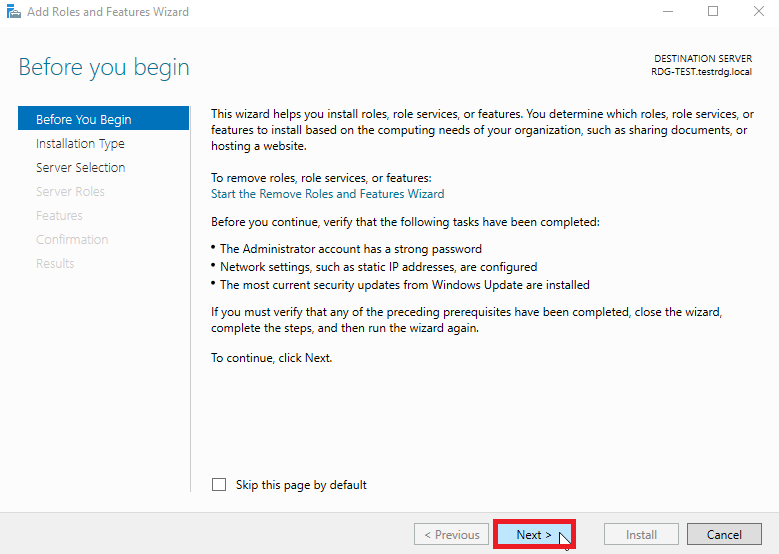
On the wizard's first screen, click **Next**.
{% endstep %}
{% step %}
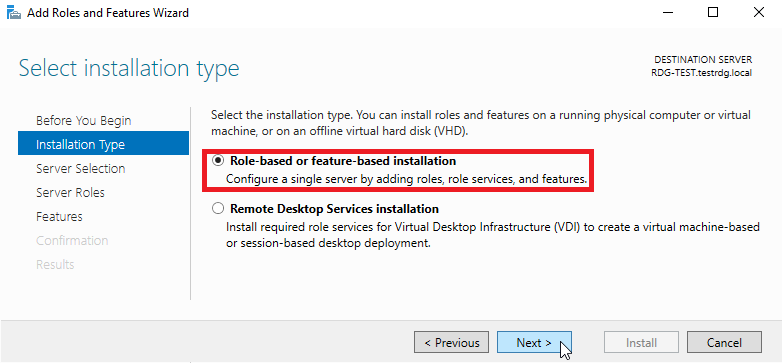
Select **Role-based or feature-based installation**, then **Next**.
{% endstep %}
{% step %}
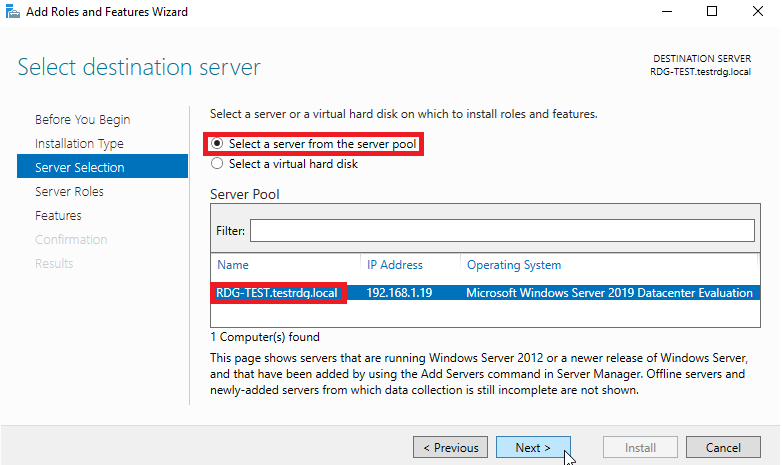
Select the destination server, then **Next**.
{% endstep %}
{% step %}
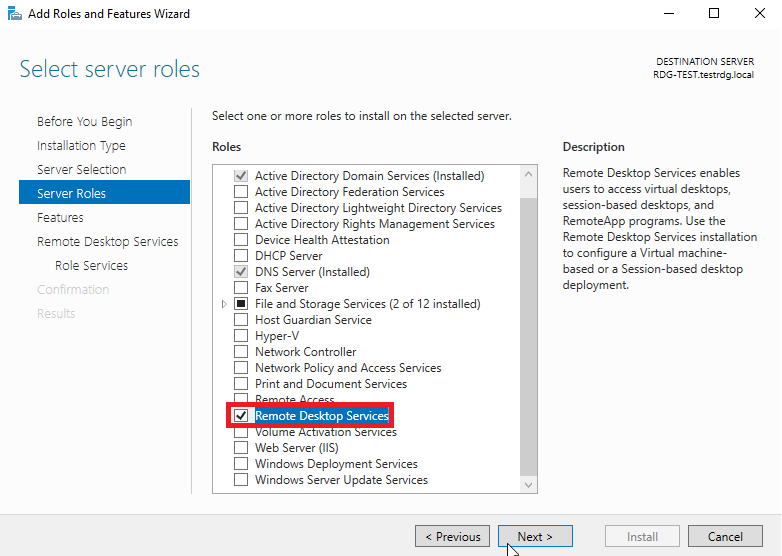
Select **Remote Desktop Services**, then **Next**.
{% endstep %}
{% step %}
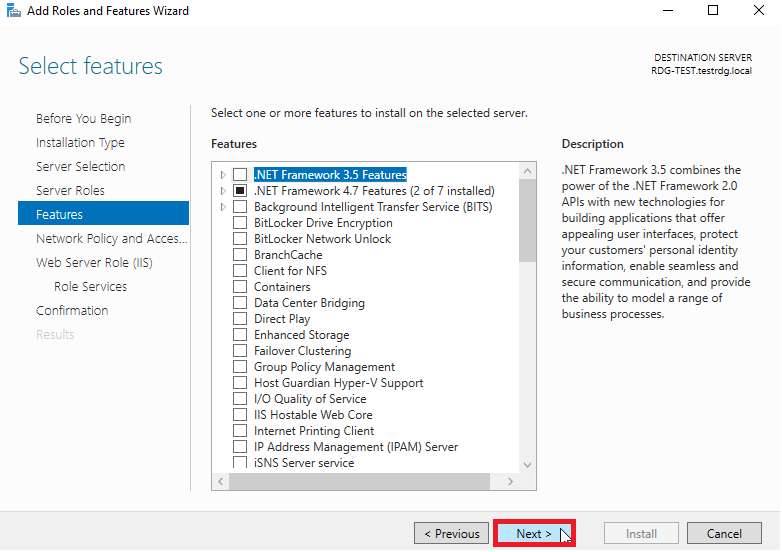
Leave the default features selected and continue.
{% endstep %}
{% step %}
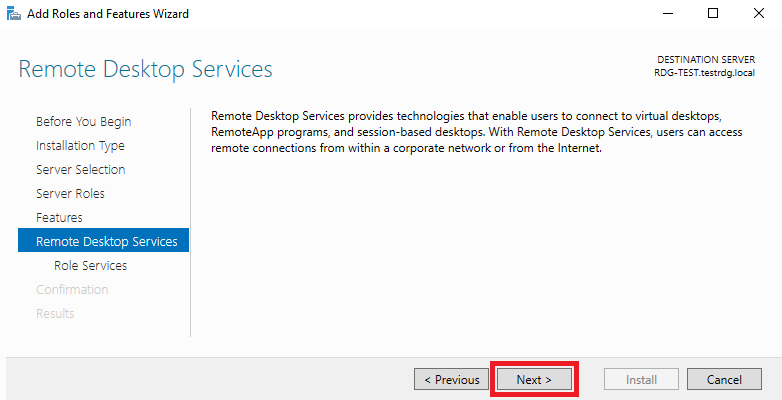
Skip the Remote Desktop Services information screen.
{% endstep %}
{% step %}
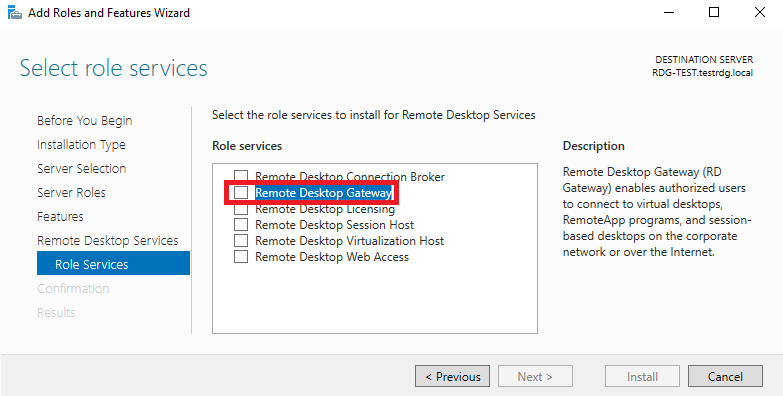
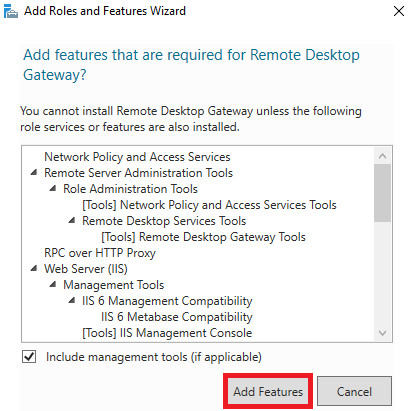
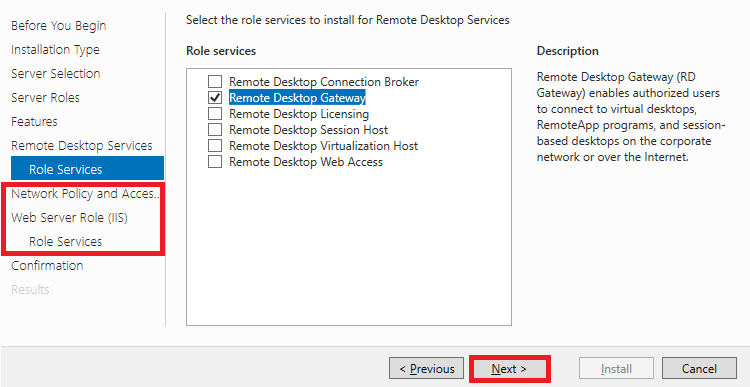
Select the **Remote Desktop Gateway** role service and accept the required features when prompted.
{% endstep %}
{% step %}
Confirm the selection and continue.
{% endstep %}
{% step %}
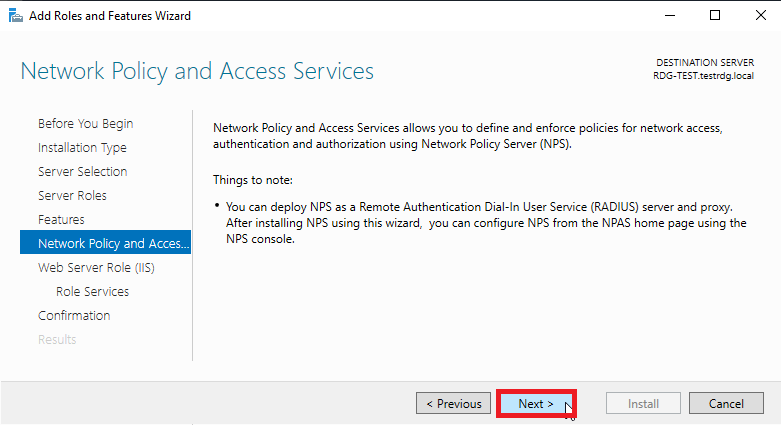
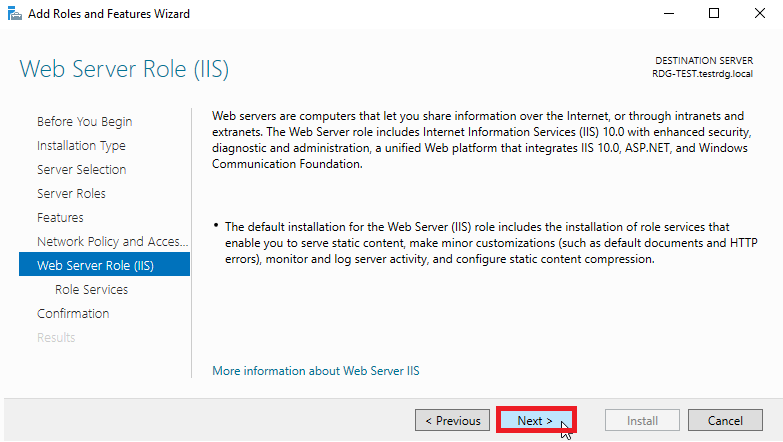
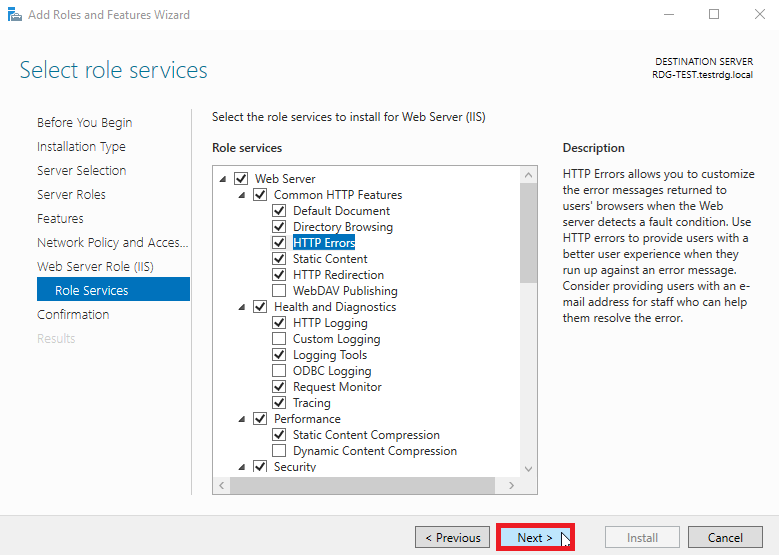
The wizard adds the related tabs automatically. Click **Next** through the Network Policy and Access Services and the Web Server (IIS) information screens, keeping the default IIS services.
{% endstep %}
{% step %}
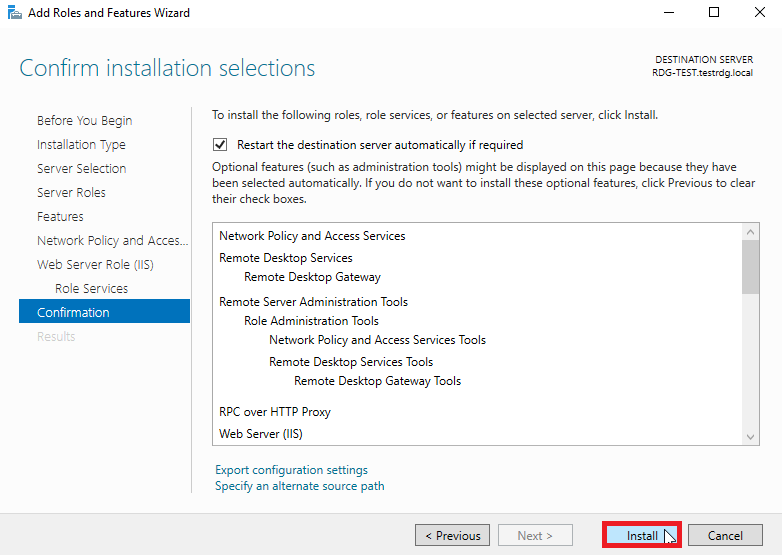
Review the summary and click **Install**. You can tick **Restart the destination server automatically** if needed.
{% endstep %}
{% step %}
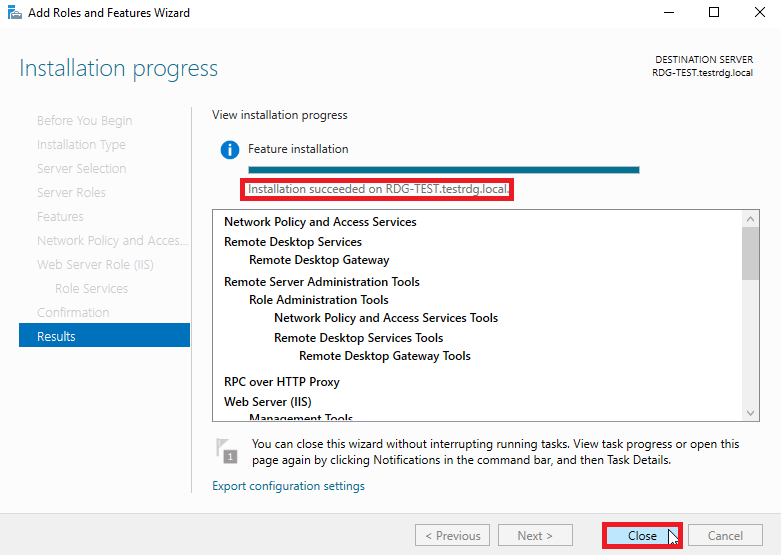
Wait for the installation to complete.
{% endstep %}
{% endstepper %}
### Configure the gateway
{% stepper %}
{% step %}
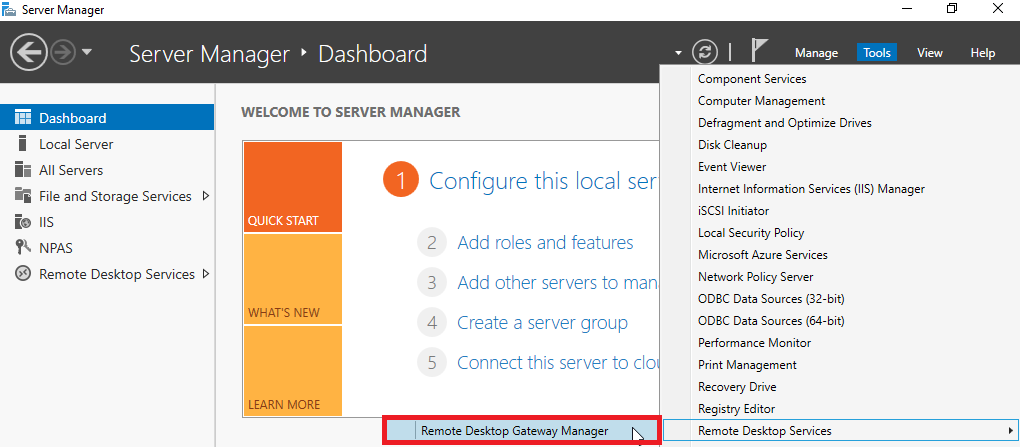
In **Server Manager** > **Tools**, open the Remote Desktop Gateway management tool.
{% endstep %}
{% step %}
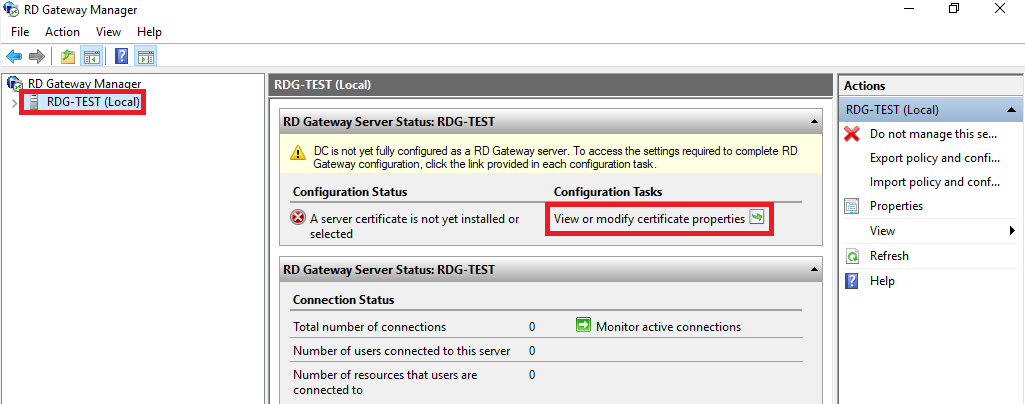
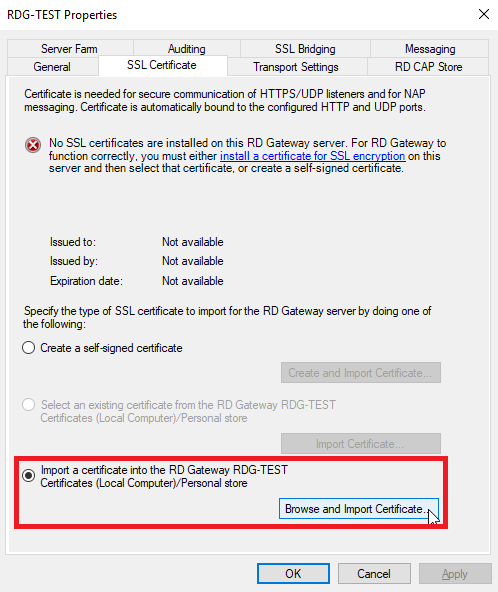
Select the server on the left, then open **View or modify certificate properties**.
{% endstep %}
{% step %}
Install a certificate. Prefer a certificate issued by a recognised certification authority: select **Import a certificate into the RD Gateway Certificates (Local Computer)/Personal store**, then **Browse and Import Certificate**.
{% endstep %}
{% step %}
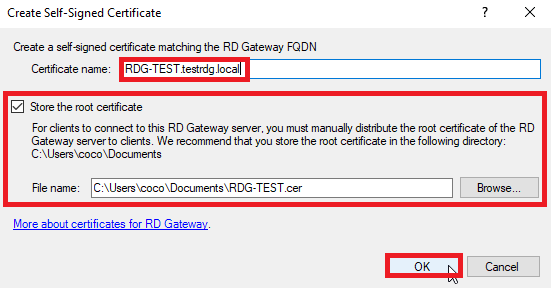
If you use a self-signed certificate instead, select **Create a self-signed certificate** and click **Create and Import Certificate**.
{% endstep %}
{% step %}
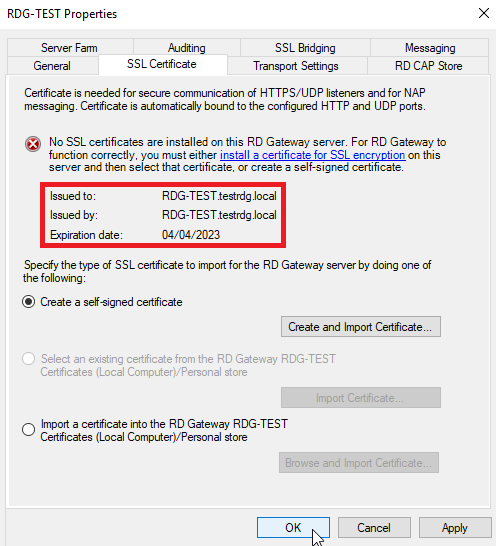
Enter the full server name as the **Certificate name**. A self-signed certificate must then be exported from the server and imported into every machine that will use the gateway. Click **OK** to finish.
{% endstep %}
{% step %}
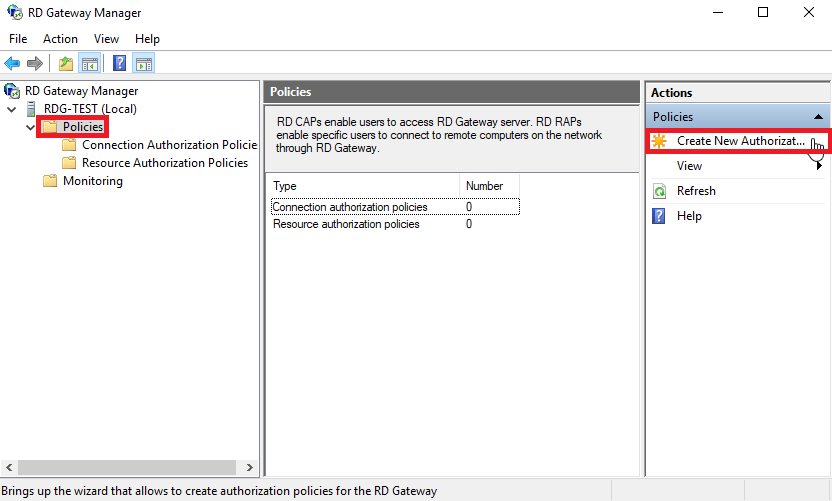
Add access rules. From the server drop-down, open **Policies**, then **Create New Authorization Policies**.
{% endstep %}
{% step %}
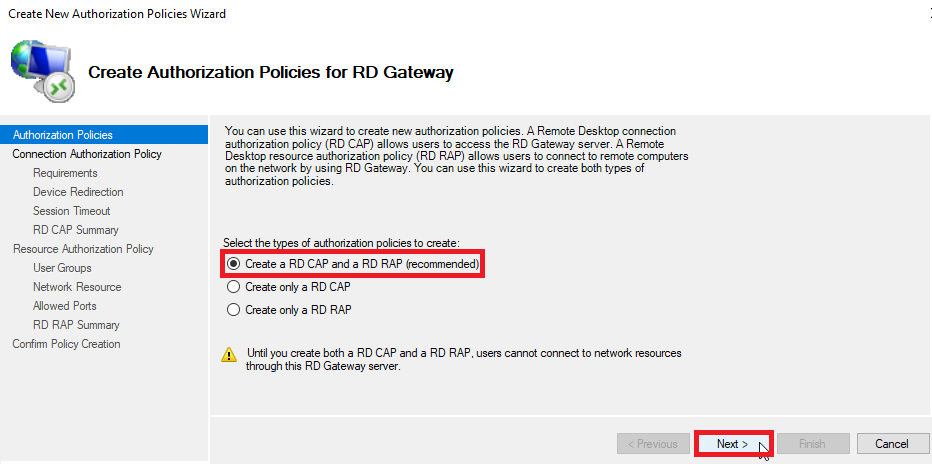
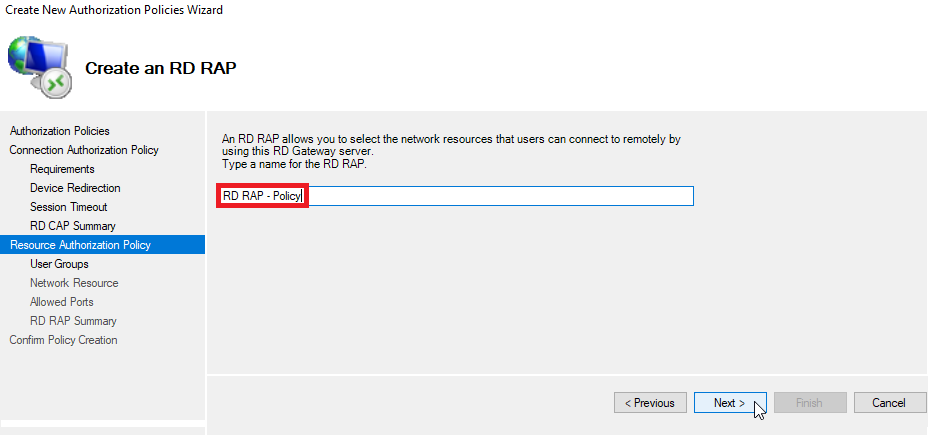
Two rules are needed: a connection rule (RD CAP) and a resource rule (RD RAP). Select **Create a RD CAP and a RD RAP (recommended)**, then **Next**.
{% endstep %}
{% step %}
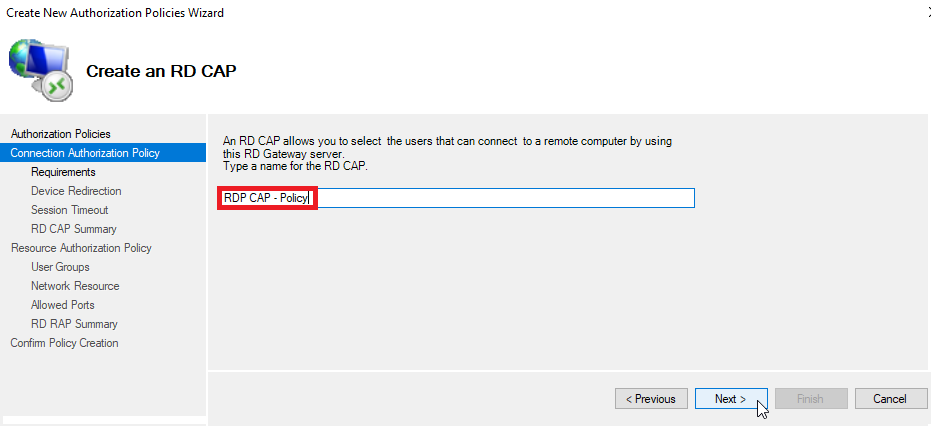
Name the CAP rule, then **Next**.
{% endstep %}
{% step %}
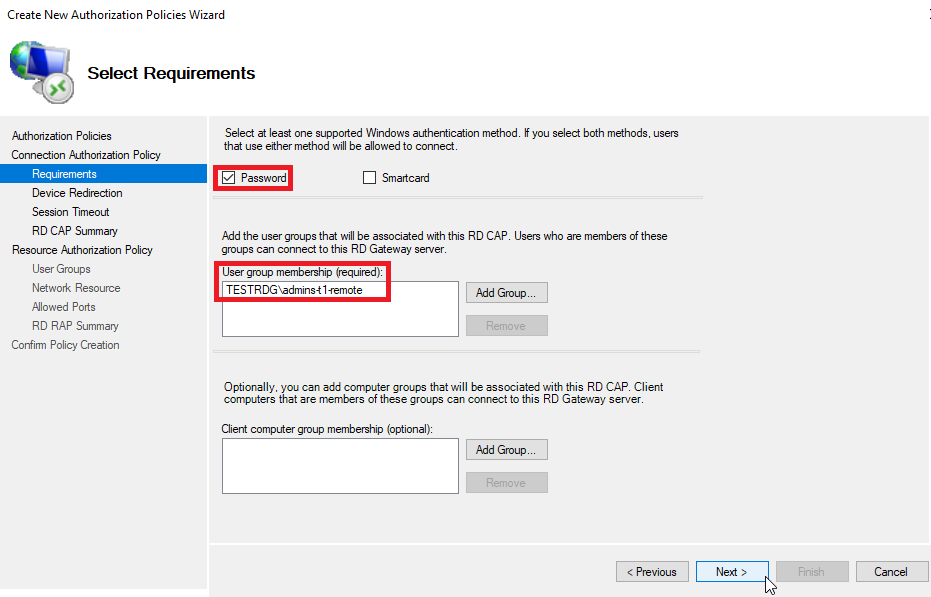
Select the user group(s) allowed to use the gateway, then **Next**.
{% endstep %}
{% step %}
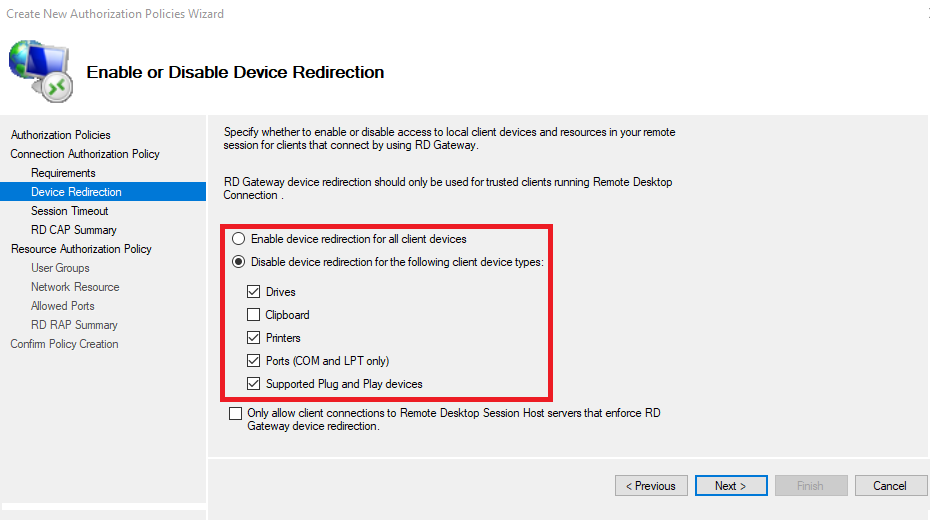
Set device redirection. To harden the gateway, select **Disable device redirection for the following client device types** and pick the ones you do not need. Otherwise select **Enable device redirection for all client devices**, then **Next**.
{% endstep %}
{% step %}
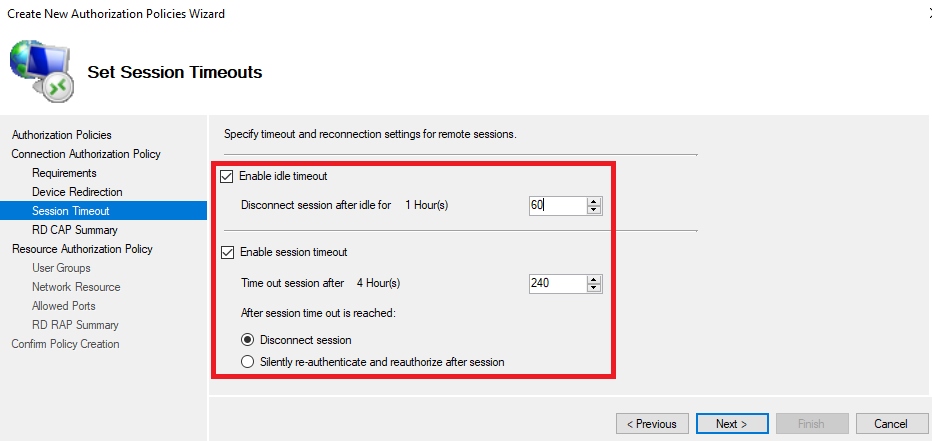
Enable session disconnection and expiry timeouts to harden the gateway, then **Next**.
{% endstep %}
{% step %}
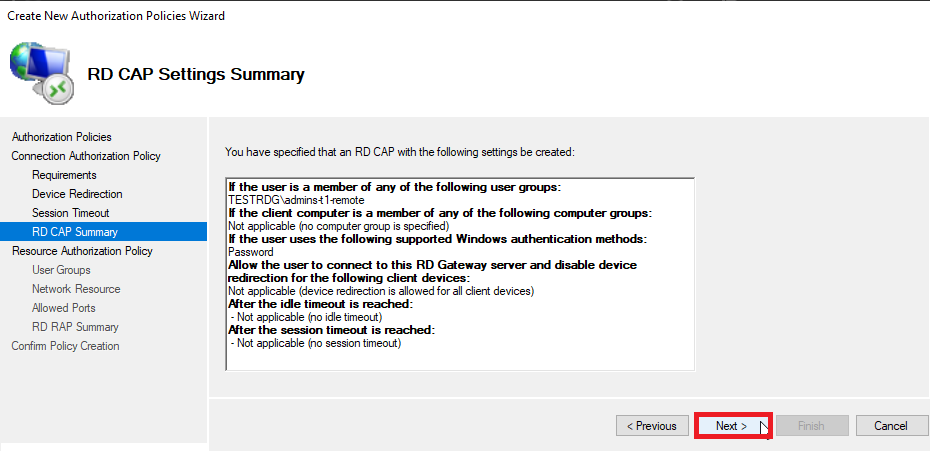
Review the CAP summary, then **Next** to configure the RAP rule.
{% endstep %}
{% step %}
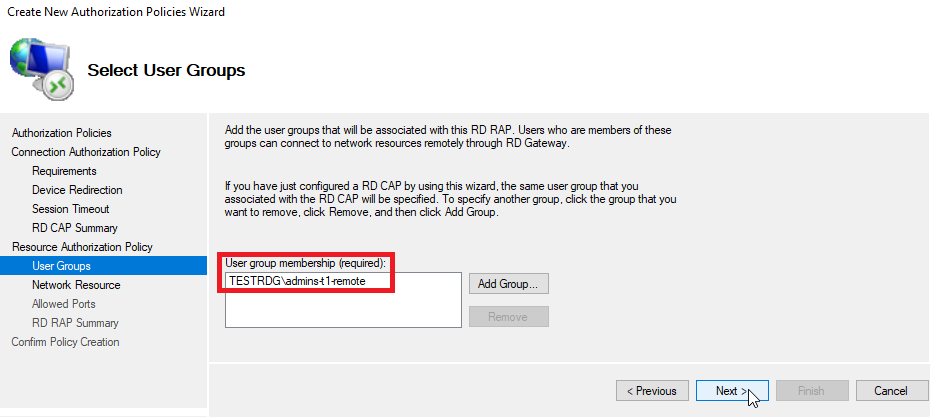
Select the user group membership for the RAP rule, then **Next**. Only groups of legitimate, authorised users should be added through **Add Group**.
{% hint style="info" %}
Ideally, create a dedicated Active Directory group for this access to guarantee its legitimacy.
{% endhint %}
{% endstep %}
{% step %}
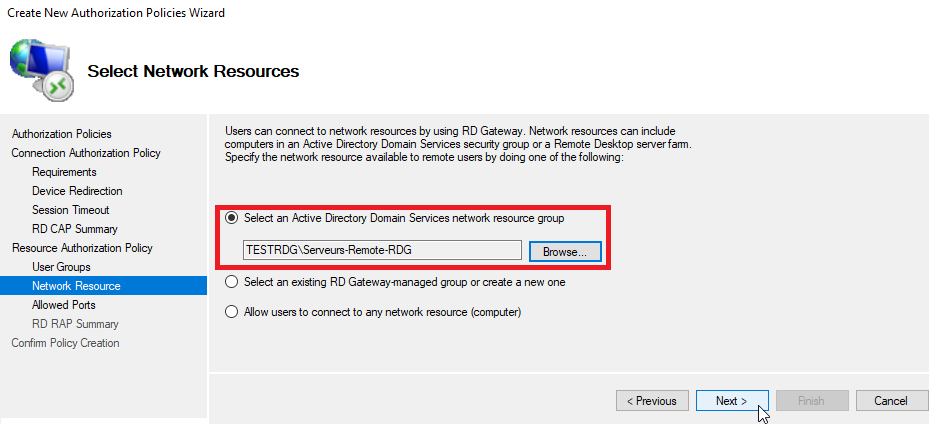
Specify the internal resources reachable through the gateway.
{% hint style="info" %}
Create a domain group containing all servers reachable from this gateway and select it with the **Select an Active Directory Domain Services network resource group** option.
{% endhint %}
{% endstep %}
{% step %}
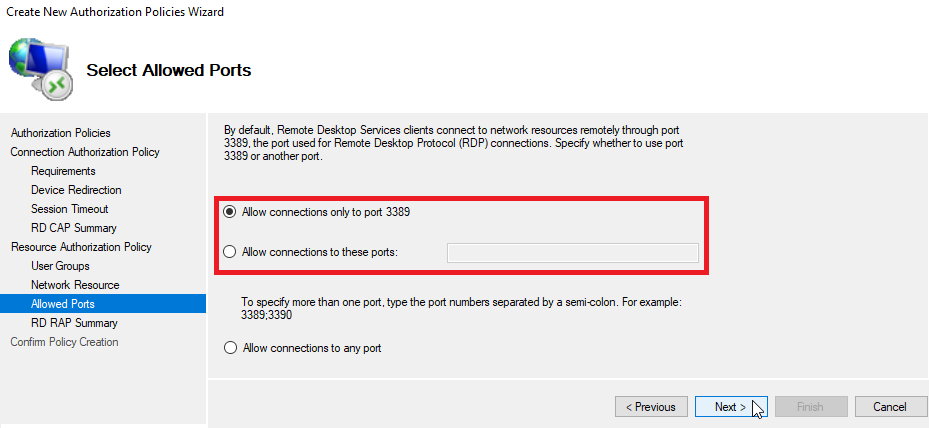
Specify the allowed ports: the default **3389**, or others if required. Then **Next**.
{% endstep %}
{% step %}
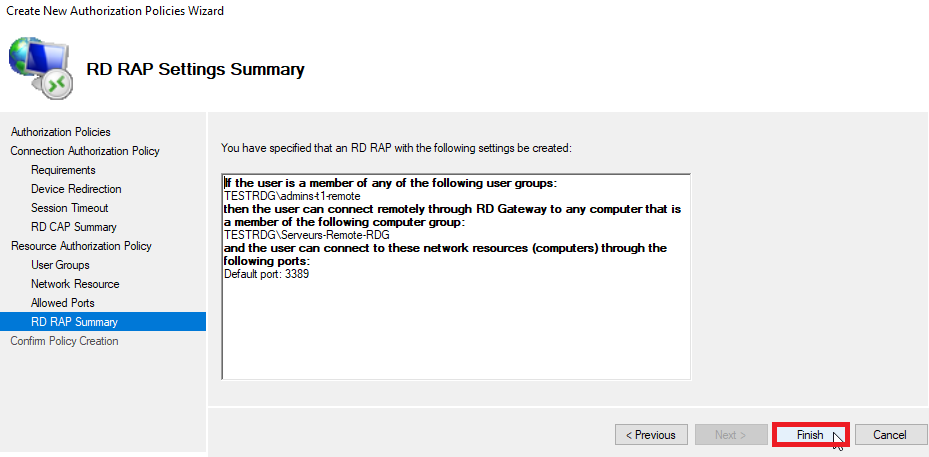
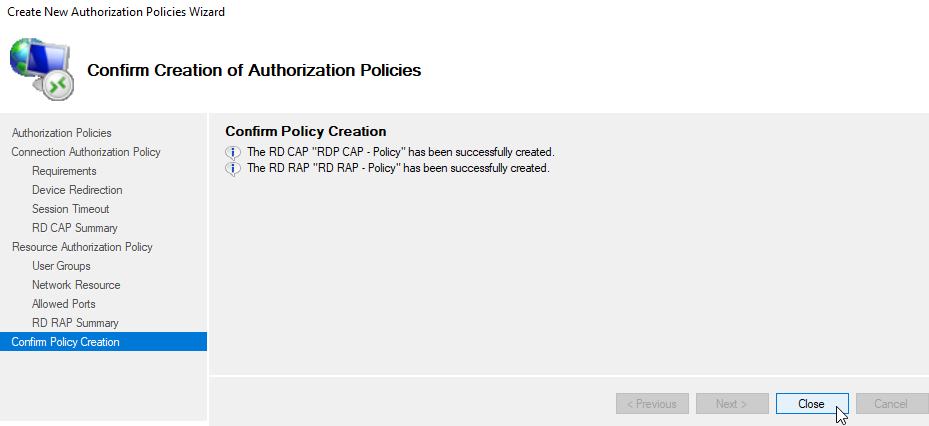
Review the RAP summary and confirm. A final window confirms both the CAP and RAP rules.
{% endstep %}
{% step %}
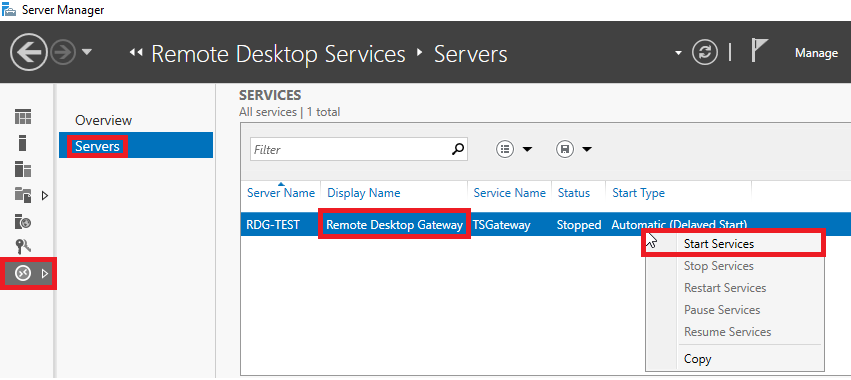
Make sure the gateway service is running. In **Server Manager** > **Remote Desktop Services** > **Servers** > **Services**, find **Remote Desktop Gateway**. If it is stopped, right-click it and choose **Start Services**.
{% endstep %}
{% endstepper %}
### Filter traffic to internal servers
Internal servers must only accept RDP from the gateway. Configure the Windows firewall on each server.
{% stepper %}
{% step %}
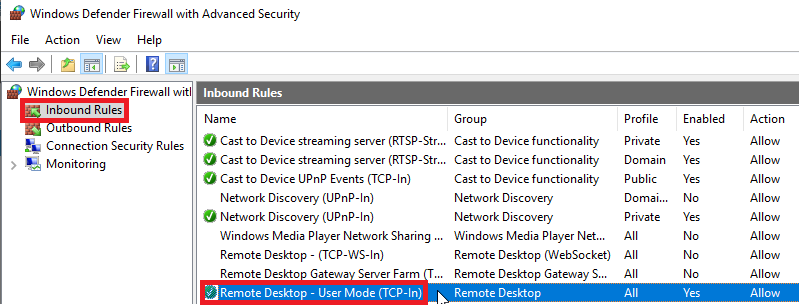
Open the Windows firewall, list **Inbound Rules**, and open the properties of **Remote Desktop - User Mode (TCP-In)**.
{% endstep %}
{% step %}
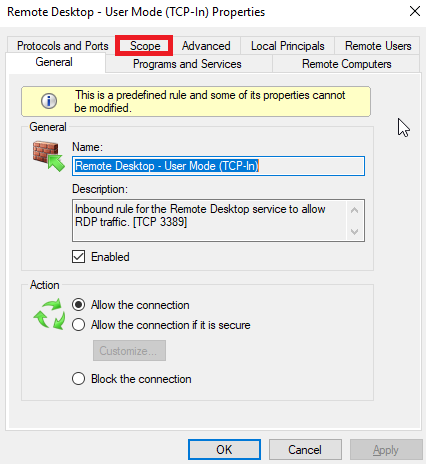
Go to the **Scope** tab.
{% endstep %}
{% step %}
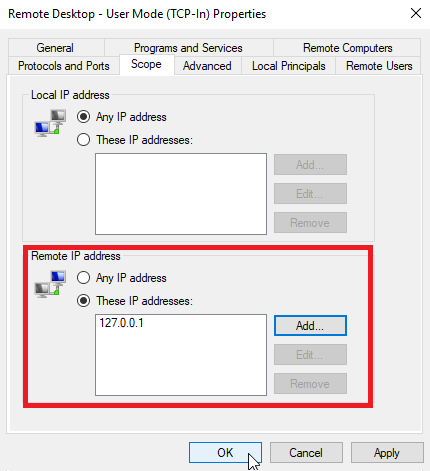
Under **Remote IP Address**, allow only the permitted sources: the gateway's IP address, or `127.0.0.1` if the gateway runs on the target server itself.
{% endstep %}
{% endstepper %}
### Connect through the gateway
{% stepper %}
{% step %}
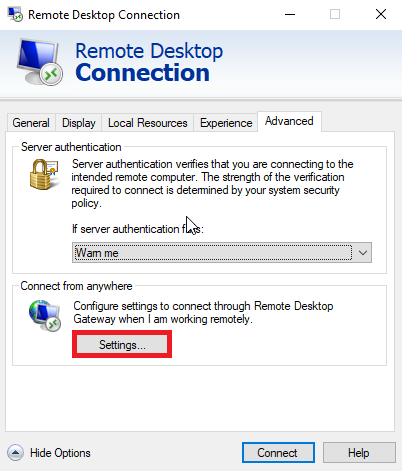
Open **Remote Desktop Connection**, go to the **Advanced** tab, then **Settings**.
{% endstep %}
{% step %}
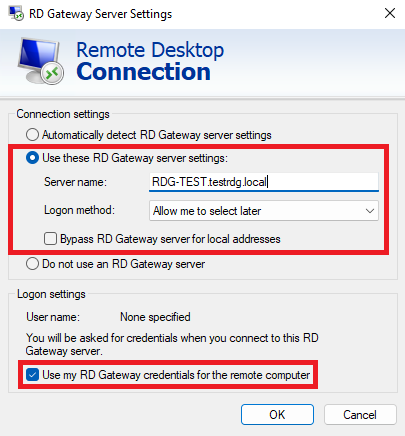
Select **Use these RD Gateway server settings**, enter the gateway **FQDN**, tick **Use my RD Gateway credentials for the remote computer**, and click **OK**.
{% endstep %}
{% step %}
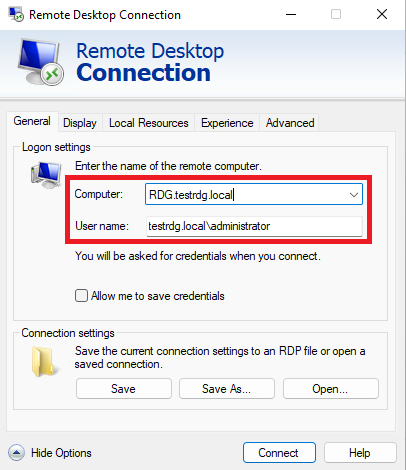
Back on the **General** tab, enter the internal server name or IP and your username, then **Connect**.
{% endstep %}
{% step %}
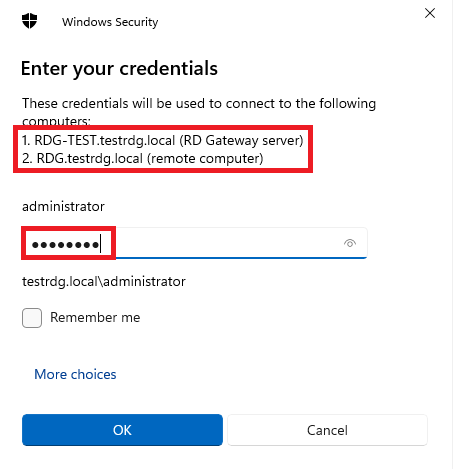
Confirm the gateway name and enter the account password.
{% endstep %}
{% endstepper %}
If the gateway certificate is not trusted by the client (common with self-signed or internal-CA certificates), this message appears:
## Option 2: Harden the RDP protocol (temporary only)
{% hint style="warning" %}
These measures are not sufficient on their own and should only be used temporarily, while you put a gateway or VPN in place.
{% endhint %}
Minimum temporary baseline:
* Enforce **MFA** for remote access (preferably through an RD Gateway or VPN).
* Enable **Network Level Authentication (NLA)** on target servers.
* Restrict inbound RDP to a strict **IP allowlist** (ideally only the gateway).
### Restrict user access
Create a dedicated Active Directory group for allowed RDP users and apply it with the Group Policy Management Console ([GPMC](https://www.it-connect.fr/chapitres/la-console-gpmc-group-policy-management-console/)).
Typical approach:
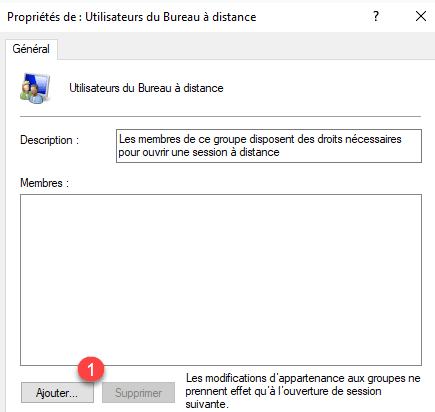
* Add your AD group to the local **Remote Desktop Users** group via GPO, or
* set the user right **Allow log on through Remote Desktop Services**.
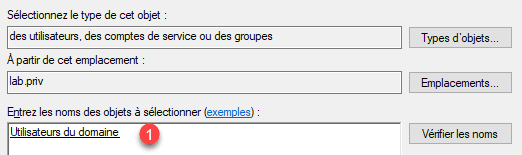
Example using Restricted Groups / local group membership:
Add the allowed users or groups, then click **OK**.
### Disable the guest account
Windows Server 2012 R2 ships with a guest account enabled by default. Disable it to prevent privilege escalation attempts. Run `compmgmt.msc` to open Computer Management and disable the account.
### Lock accounts after failed logins
Configure an account lockout policy (local or, preferably, domain via the Group Policy Management Console):
* `Computer Configuration` > `Windows Settings` > `Security Settings` > `Account Policies` > `Account Lockout Policy`
* Set **Account lockout threshold** to **5** invalid logons.
* Set the lockout duration and reset counter to **15 minutes** (typical baseline).
{% hint style="info" %}
We recommend locking the account after 5 failed login attempts.
{% endhint %}
### Enforce a strong password policy
Strong passwords reduce the risk of brute-force and dictionary attacks: use upper and lower case letters, numbers, and special characters. Run `gpedit.msc` to open the Local Group Policy Editor, then go to `Computer Configuration` > `Windows Settings` > `Security Settings` > `Account Policies` > `Password Policy`.
---
# Agent Instructions
This documentation is published with GitBook. GitBook is the documentation platform designed so that both humans and AI agents can read, navigate, and reason over technical content effectively. Learn more at gitbook.com.
## Querying This Documentation
If you need additional information that is not directly available in this page, you can query the documentation by asking a question.
Perform an HTTP GET request on the following URL with the `ask` and `goal` query parameters:
```
GET https://docs.stoik.io/cyber-best-practices/vulnerability-remediation-guides/how-to-resolve-rdp-service-exposure-from-the-internet.md?ask=&goal=
```
`ask` is the immediate question: it should be specific, self-contained, and written in natural language.
`goal` is what the user is ultimately trying to achieve, the reason they need the answer. Sharing it helps GitBook give you a better, more relevant answer. A goal is most helpful when it describes the outcome the user wants rather than restating the question. For example, with `ask=how do I create an API token`, a goal like `automate deployments from our CI pipeline` lets GitBook tailor the answer to that use case.
The response will contain a direct answer to the question and relevant excerpts and sources from the documentation.
Use this mechanism when the answer is not explicitly present in the current page, you need clarification or additional context, or you want to retrieve related documentation sections.
.webp)