> For the complete documentation index, see [llms.txt](https://docs.stoik.io/llms.txt). Markdown versions of documentation pages are available by appending `.md` to page URLs; this page is available as [Markdown](https://docs.stoik.io/email-security/microsoft-365/purview-errors.md).
# Purview activation errors
Fix the errors Microsoft Purview can show after you enable audit logging during the [setup](/email-security/microsoft-365.md).
## "Trouble figuring out if activity is being recorded"
After enabling audit logging, you may see:
> Sorry, we're having trouble figuring out if activity is being recorded. Try refreshing the page.
In most cases this does **not** mean the activation failed. It reflects a delay on Microsoft's side between the moment audit logging is enabled and the moment it is effectively recording activity. This delay can take from a few minutes up to several hours, and it cannot be sped up from our side.
{% hint style="info" %}
The error message in the Purview web portal is not a reliable indicator. It does not indicate whether Purview is actually active, only that the portal cannot confirm it at that moment.
{% endhint %}
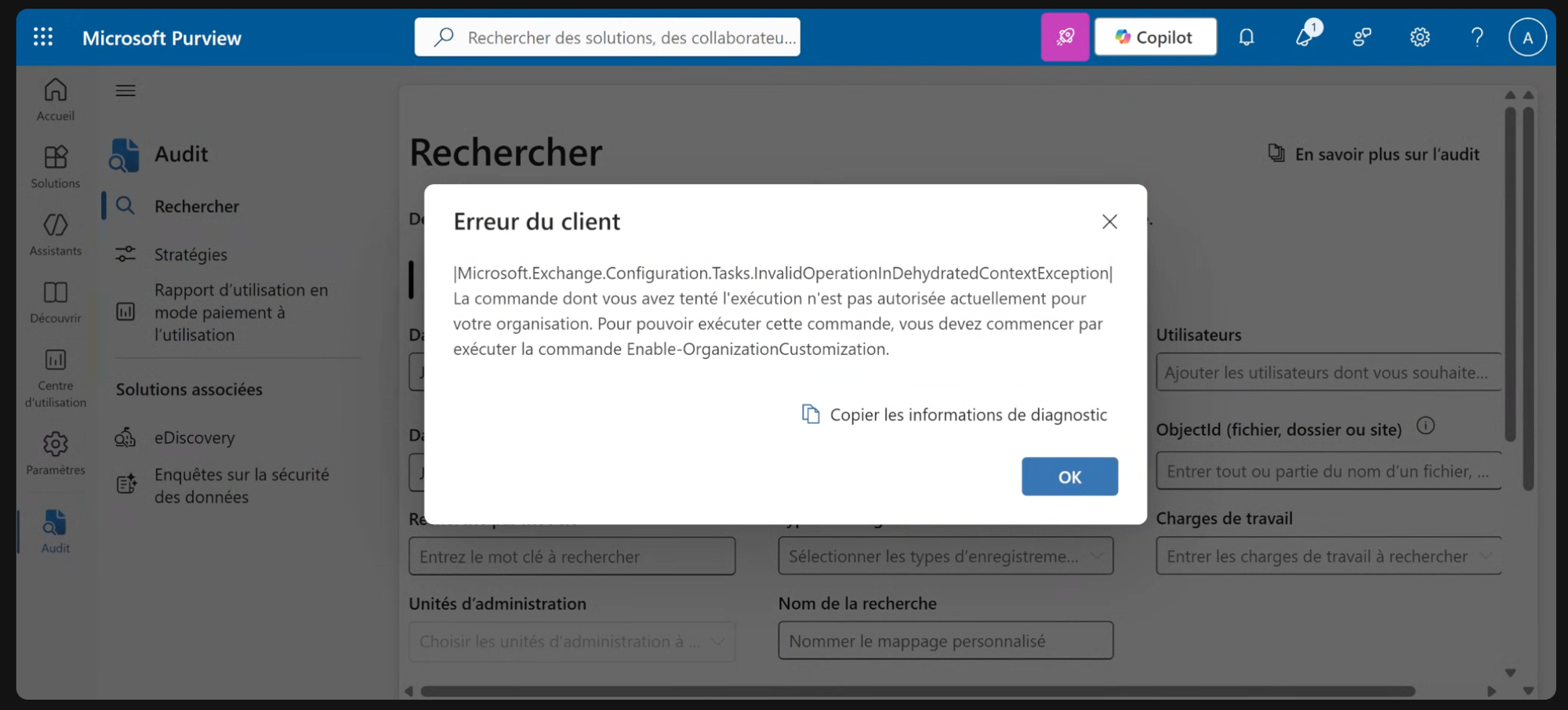
## "Enable-OrganizationCustomization" error
A different message means the tenant has never been customized (it is "dehydrated"). Audit logging cannot be turned on until that one-time setup has run:
> The command you tried to run isn't currently allowed in your organization. To run this command, you first need to run the command: Enable-OrganizationCustomization.
Unlike the delay above, this one requires an action. Two options:
* The portal shows a **Complete the organization configuration** prompt: clicking **Yes** runs the customization, but it does not always re-enable audit logging afterwards, so you often end up back on the error.
* The reliable fix is the PowerShell steps below, which run the customization and then re-enable audit logging in one go. The [Purview Script](/email-security/microsoft-365/purview-script.md) does this end to end: it runs the customization, waits for the tenant to finish hydrating, then enables audit logging automatically.
## Activate audit logging with PowerShell
The most reliable way to activate Purview audit logging is to force it directly through PowerShell, instead of relying on the web portal.
You can run these commands either from PowerShell installed on your machine, or from Azure Cloud Shell directly in the browser.
{% stepper %}
{% step %}
### Connect to Exchange Online
{% tabs %}
{% tab title="Local PowerShell" %}
Install the module, then connect. Replace `` with an account that has administrative permissions on the tenant.
```powershell
Install-Module -Name ExchangeOnlineManagement
Import-Module ExchangeOnlineManagement
Connect-ExchangeOnline -UserPrincipalName
```
{% endtab %}
{% tab title="Azure Cloud Shell" %}
Azure Cloud Shell requires an active Azure subscription on the tenant. If none is available, use local PowerShell instead.
Open [Azure Cloud Shell](https://shell.azure.com) in PowerShell mode. If the top of the terminal shows a `Switch to Bash` button, you are already in PowerShell mode.
Connect to Exchange Online:
```powershell
Connect-ExchangeOnline
```
{% endtab %}
{% endtabs %}
{% endstep %}
{% step %}
### Force the activation
Run the commands one by one, in order. Forcing a disable then a re-enable is what reliably unblocks tenants stuck on the error.
1. Disable audit logging:
```powershell
Set-AdminAuditLogConfig -UnifiedAuditLogIngestionEnabled $false
```
2. Re-enable it:
```powershell
Set-AdminAuditLogConfig -UnifiedAuditLogIngestionEnabled $true
```
3. Confirm the status:
```powershell
Get-AdminAuditLogConfig | Format-List UnifiedAuditLogIngestionEnabled
```
`UnifiedAuditLogIngestionEnabled` should now return `True`.
The re-enable command returns an error
On tenants that have never been customized, the re-enable command can fail with:
> The command you tried to run isn't currently allowed in your organization. To run this command, you first need to run the command: Enable-OrganizationCustomization.
Run the customization command, then check that the tenant is no longer dehydrated:
```powershell
Enable-OrganizationCustomization
Get-OrganizationConfig | Format-List IsDehydrated
```
`IsDehydrated` should return `False`. Once it does, run the re-enable command again.
{% endstep %}
{% endstepper %}
## After the command returns True
A `True` result means the command went through, but Purview is not active instantly: Microsoft takes time to actually start recording activity, sometimes several hours. Refresh the Purview portal after a while and the error message should be gone.
If the error is still there after several hours, run the force activation again (set `$false` then `$true`). If it still does not work after that, the issue is most likely tied to the tenant licensing or permissions. Contact our team at with the result of the command so we can help diagnose it.
---
# Agent Instructions
This documentation is published with GitBook. GitBook is the documentation platform designed so that both humans and AI agents can read, navigate, and reason over technical content effectively. Learn more at gitbook.com.
## Querying This Documentation
If you need additional information that is not directly available in this page, you can query the documentation by asking a question.
Perform an HTTP GET request on the following URL with the `ask` and `goal` query parameters:
```
GET https://docs.stoik.io/email-security/microsoft-365/purview-errors.md?ask=&goal=
```
`ask` is the immediate question: it should be specific, self-contained, and written in natural language.
`goal` is what the user is ultimately trying to achieve, the reason they need the answer. Sharing it helps GitBook give you a better, more relevant answer. A goal is most helpful when it describes the outcome the user wants rather than restating the question. For example, with `ask=how do I create an API token`, a goal like `automate deployments from our CI pipeline` lets GitBook tailor the answer to that use case.
The response will contain a direct answer to the question and relevant excerpts and sources from the documentation.
Use this mechanism when the answer is not explicitly present in the current page, you need clarification or additional context, or you want to retrieve related documentation sections.