> For the complete documentation index, see [llms.txt](https://docs.stoik.io/llms.txt). Markdown versions of documentation pages are available by appending `.md` to page URLs; this page is available as [Markdown](https://docs.stoik.io/help/help-center-en-es/herramientas-de-prevencion/cloud-scan/entra-id.md).
# Configuración: Entra ID
Otorgue al análisis en la nube acceso de lectura a su inquilino de Microsoft 365 asignando dos roles de lector a la aplicación Stoïk Cloud Scanner.
## Requisitos previos
* Una cuenta de Entra ID (Active Directory en la nube) con acceso de administrador.
* Se requiere un asesor técnico para la supervisión continua y la remediación de vulnerabilidades.
* Una sola persona realiza toda la configuración, de principio a fin: un usuario de Stoïk Protect autorizado para editar herramientas de prevención, que además es administrador del inquilino de Entra ID.
* Con una sesión iniciada en un único tenant de Microsoft: el que se va a analizar. Si la configuración se queda bloqueada, reiníciela en una ventana privada del navegador, iniciando sesión solo en ese tenant.
## Configuración
{% stepper %}
{% step %}
### Seleccionar Entra ID
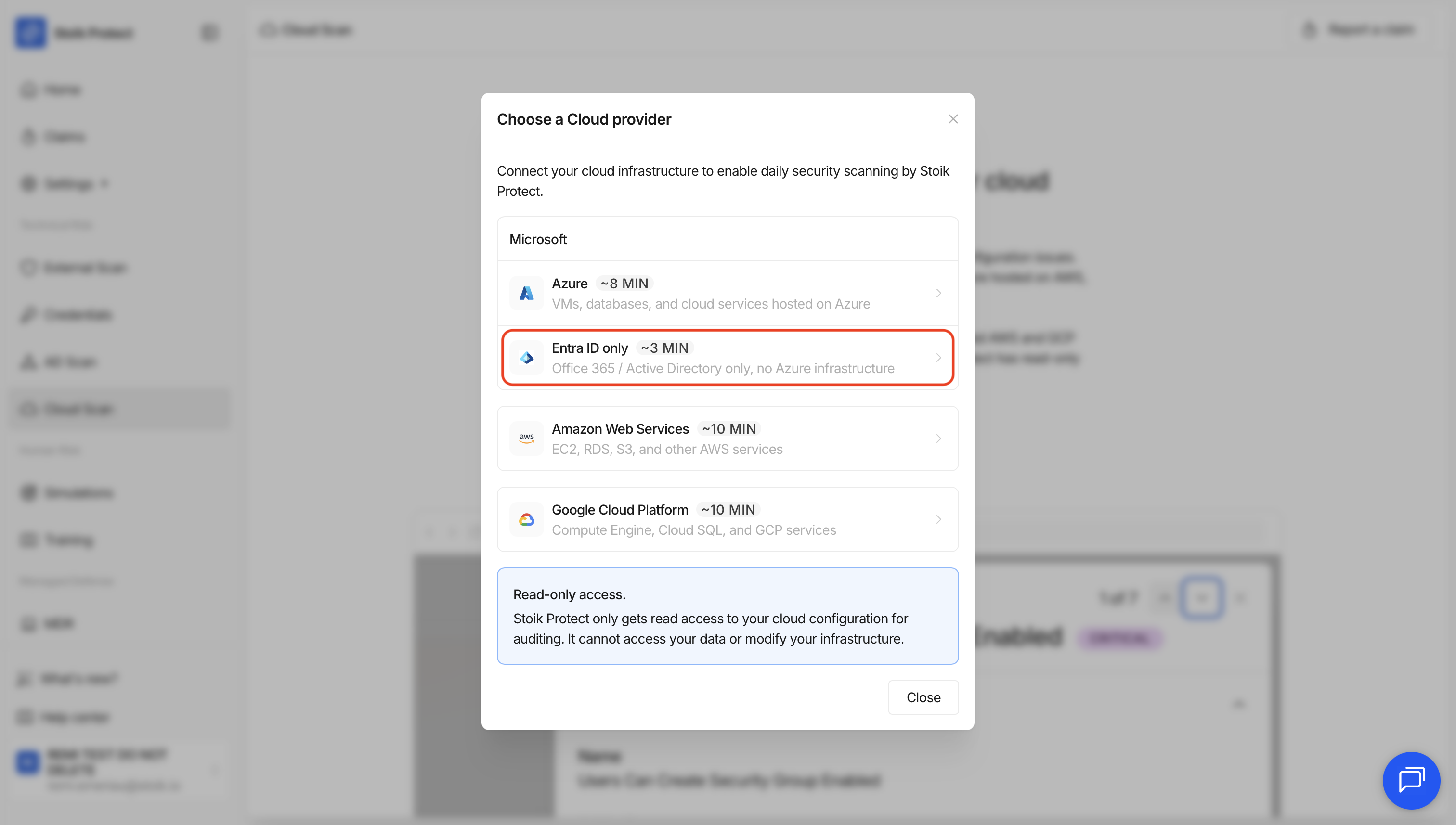
* Si aún no ha configurado un proveedor: vaya a `Cloud Scan` > `Iniciar el análisis en la nube` > `Solo Entra ID`.
* Si ya tiene un proveedor: vaya a `Cloud Scan` > `Configuración` > `Nuevo proveedor` > `Solo Entra ID`.
{% endstep %}
{% step %}
### Conceder permisos
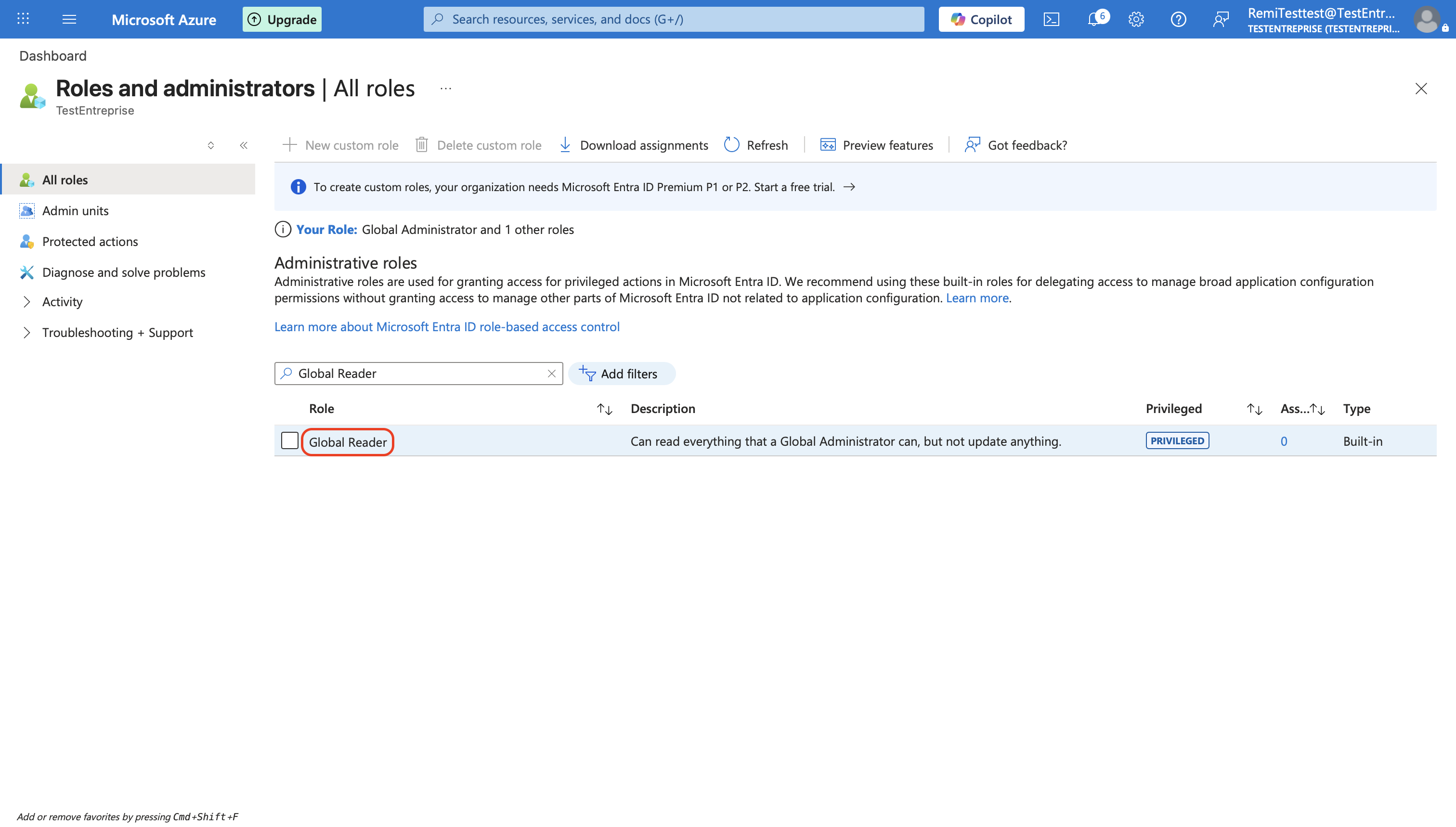
1. En el menú de la izquierda, vaya a `Microsoft Entra ID` > `Roles y administradores`.
2. Busque el rol `Lector global` y haga clic en él.
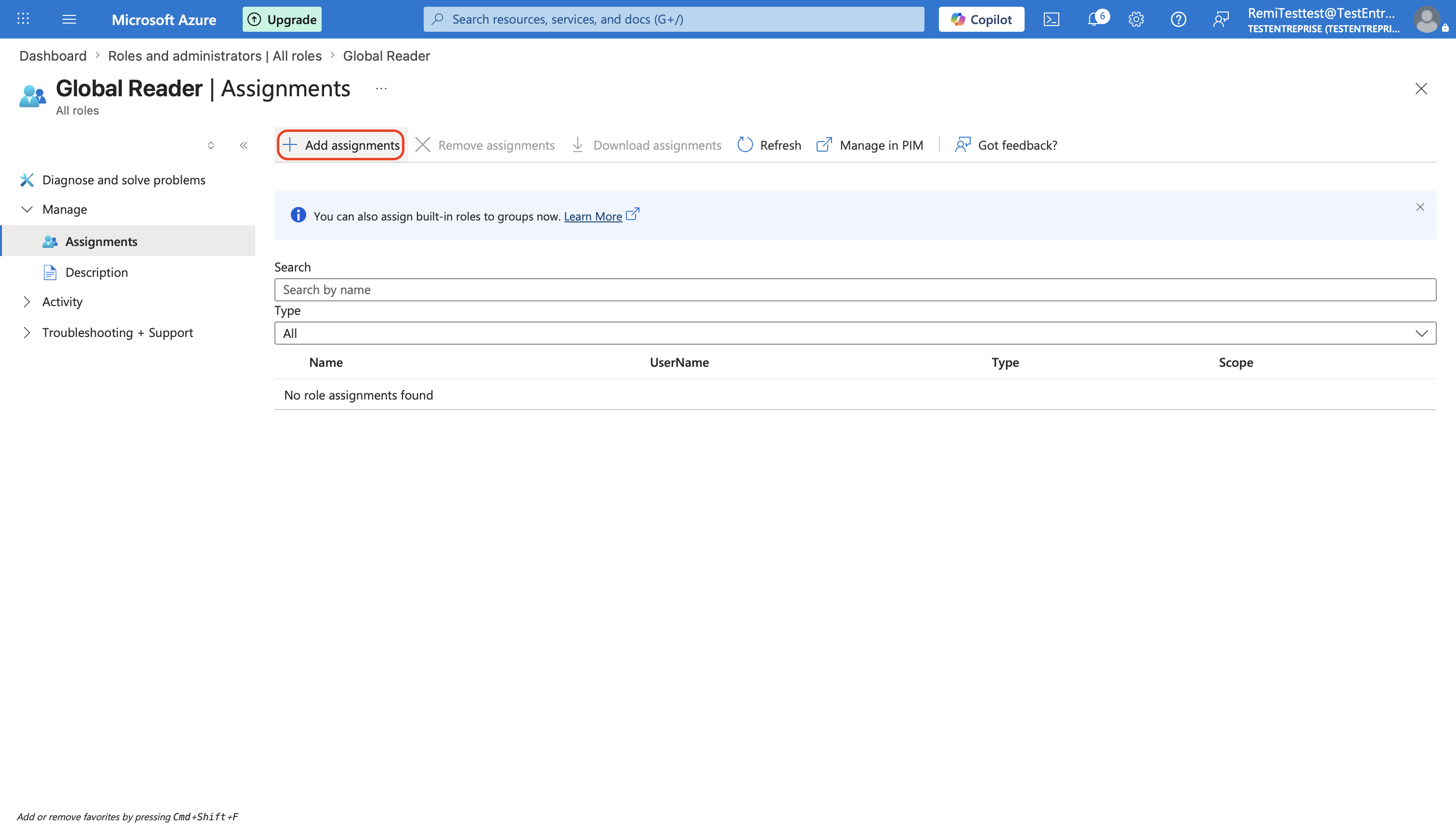
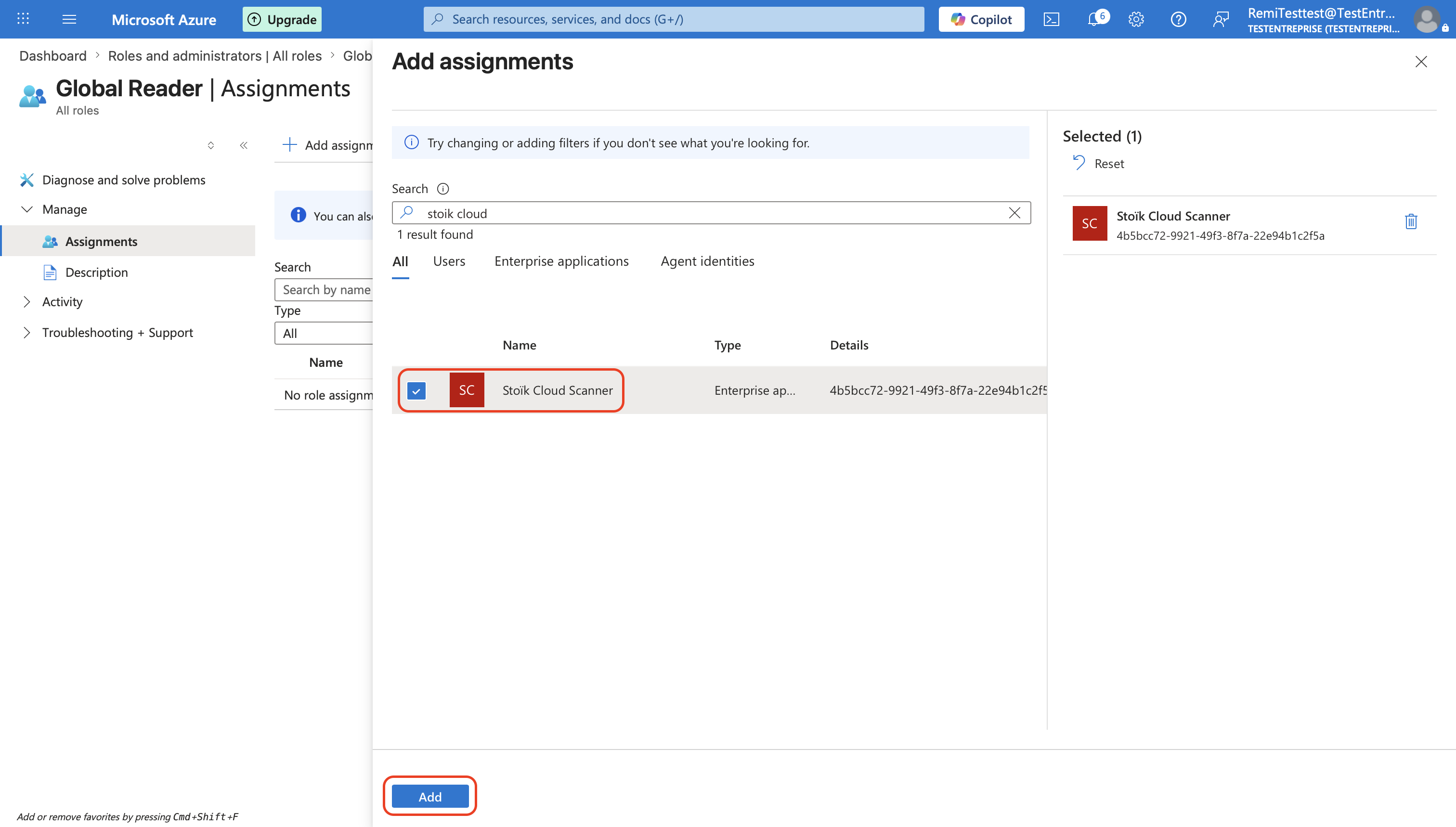
3. Haga clic en `Agregar asignaciones`, busque `Stoïk Cloud Scanner`, selecciónelo y luego haga clic en `Agregar`.
4. Repita los pasos 2 y 3 para el rol `Lector de seguridad` .
{% hint style="warning" %}
No conceda permisos adicionales como `Administrador de acceso seguro global`, de lo contrario no funcionará.
{% endhint %}
{% endstep %}
{% step %}
### Complete la configuración
Haga clic en `Finalizar` en la consola de Stoïk Protect.
{% hint style="info" %}
Actualice la página de Stoïk Protect si es necesario.
{% endhint %}
{% endstep %}
{% endstepper %}
## Solución de problemas
No se puede conceder Policy.Read.All o falta un permiso
Si recibe "Policy.Read.All cannot be granted", o si `Reports.Read.All` o `UserAuthenticationMethod.Read.All` falta, estos permisos no se pueden añadir manualmente. Conceda de nuevo el consentimiento de administrador a la aplicación de Stoïk:
1. En [portal.azure.com](https://portal.azure.com), busque **Stoïk Cloud Scanner** (`Aplicaciones empresariales`).
2. Abrir `Seguridad` > `Permisos`.
3. Haga clic en **Conceder consentimiento de administrador para \** y acepte la ventana emergente.
El consentimiento debe abarcar toda la organización, no solo la cuenta del propio administrador. Sin `Policy.Read.All`, Stoïk no puede leer sus directivas de Acceso Condicional, lo que afecta a los [hallazgos de MFA](/help/help-center-en-es/herramientas-de-prevencion/cloud-scan/results.md#mfa-findings-entra-id).
---
# Agent Instructions
This documentation is published with GitBook. GitBook is the documentation platform designed so that both humans and AI agents can read, navigate, and reason over technical content effectively. Learn more at gitbook.com.
## Querying This Documentation
If you need additional information that is not directly available in this page, you can query the documentation by asking a question.
Perform an HTTP GET request on the following URL with the `ask` and `goal` query parameters:
```
GET https://docs.stoik.io/help/help-center-en-es/herramientas-de-prevencion/cloud-scan/entra-id.md?ask=&goal=
```
`ask` is the immediate question: it should be specific, self-contained, and written in natural language.
`goal` is what the user is ultimately trying to achieve, the reason they need the answer. Sharing it helps GitBook give you a better, more relevant answer. A goal is most helpful when it describes the outcome the user wants rather than restating the question. For example, with `ask=how do I create an API token`, a goal like `automate deployments from our CI pipeline` lets GitBook tailor the answer to that use case.
The response will contain a direct answer to the question and relevant excerpts and sources from the documentation.
Use this mechanism when the answer is not explicitly present in the current page, you need clarification or additional context, or you want to retrieve related documentation sections.