> For the complete documentation index, see [llms.txt](https://docs.stoik.io/llms.txt). Markdown versions of documentation pages are available by appending `.md` to page URLs; this page is available as [Markdown](https://docs.stoik.io/help/help-center-fr/outils-de-prevention/cloud-scan/entra-id.md).
# Configuration : Entra ID
Accordez l’accès en lecture de scan cloud à votre tenant Microsoft 365 en attribuant deux rôles de lecteur à l’application Stoïk Cloud Scanner.
## Prérequis
* Un compte Entra ID (Active Directory dans le cloud) avec un accès administrateur.
* Un conseiller technique est requis pour la supervision continue et la remédiation des vulnérabilités.
* Une seule personne effectue toute la configuration, du début à la fin : un utilisateur Stoïk Protect autorisé à modifier les outils de prévention, qui est également administrateur du tenant Entra ID.
* Connecté à un seul tenant Microsoft : celui à scanner. Si la configuration est bloquée, relancez-la dans une fenêtre de navigation privée, connecté à ce tenant uniquement.
## Configuration
{% stepper %}
{% step %}
### Sélectionnez Entra ID
* Si vous n’avez pas encore défini de fournisseur : allez dans `Scan Cloud` > `Lancez Scan Cloud` > `Entra ID uniquement`.
* Si vous avez déjà un fournisseur : allez dans `Scan Cloud` > `Paramètres` > `Nouveau fournisseur` > `Entra ID uniquement`.
{% endstep %}
{% step %}
### Accorder les autorisations
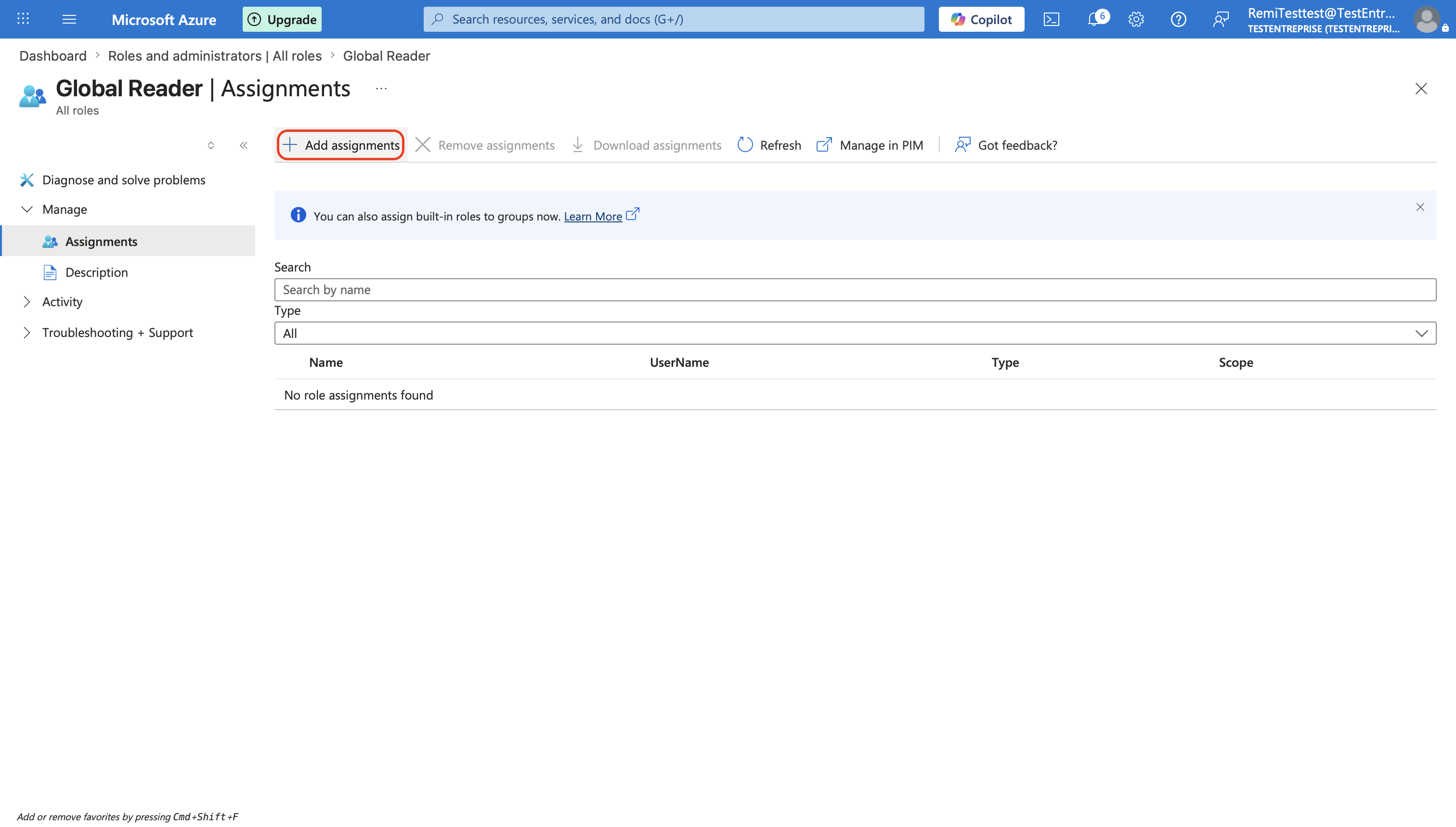
1. Dans le menu de gauche, allez dans `Microsoft Entra ID` > `Rôles et administrateurs`.
2. Recherchez le rôle `Global Reader` et cliquez dessus.
3. Cliquez sur `Ajouter des attributions`, recherchez `Stoïk Cloud Scanner`, sélectionnez-le, puis cliquez sur `Ajouter`.
4. Répétez les étapes 2 et 3 pour le `Security Reader` rôle.
{% hint style="warning" %}
N’accordez pas de droits supplémentaires tels que `Global Secure Access Administrator`, sinon cela ne fonctionnera pas.
{% endhint %}
{% endstep %}
{% step %}
### Terminer la configuration
Cliquez sur `Terminer` dans la console Stoïk Protect.
{% hint style="info" %}
Actualisez la page Stoïk Protect si nécessaire.
{% endhint %}
{% endstep %}
{% endstepper %}
## Dépannage
Policy.Read.All ne peut pas être accordé, ou une autorisation est manquante
Si vous obtenez « Policy.Read.All cannot be granted », ou si `Reports.Read.All` ou `UserAuthenticationMethod.Read.All` manque, ces autorisations ne peuvent pas être ajoutées manuellement. Accordez à nouveau le consentement administrateur à l’application Stoïk :
1. Dans [portal.azure.com](https://portal.azure.com), recherchez **Stoïk Cloud Scanner** (`Applications d'entreprise`).
2. Ouvrir `Sécurité` > `Autorisations`.
3. Cliquez sur **Accorder le consentement administrateur pour \** et acceptez la fenêtre contextuelle.
Le consentement doit couvrir toute l’organisation, pas seulement le compte de l’administrateur. Sans `Policy.Read.All`, Stoïk ne peut pas lire vos stratégies d’accès conditionnel, ce qui affecte les [résultats MFA](/help/help-center-fr/outils-de-prevention/cloud-scan/results.md#mfa-findings-entra-id).
---
# Agent Instructions
This documentation is published with GitBook. GitBook is the documentation platform designed so that both humans and AI agents can read, navigate, and reason over technical content effectively. Learn more at gitbook.com.
## Querying This Documentation
If you need additional information that is not directly available in this page, you can query the documentation by asking a question.
Perform an HTTP GET request on the following URL with the `ask` and `goal` query parameters:
```
GET https://docs.stoik.io/help/help-center-fr/outils-de-prevention/cloud-scan/entra-id.md?ask=&goal=
```
`ask` is the immediate question: it should be specific, self-contained, and written in natural language.
`goal` is what the user is ultimately trying to achieve, the reason they need the answer. Sharing it helps GitBook give you a better, more relevant answer. A goal is most helpful when it describes the outcome the user wants rather than restating the question. For example, with `ask=how do I create an API token`, a goal like `automate deployments from our CI pipeline` lets GitBook tailor the answer to that use case.
The response will contain a direct answer to the question and relevant excerpts and sources from the documentation.
Use this mechanism when the answer is not explicitly present in the current page, you need clarification or additional context, or you want to retrieve related documentation sections.