> For the complete documentation index, see [llms.txt](https://docs.stoik.io/llms.txt). Markdown versions of documentation pages are available by appending `.md` to page URLs; this page is available as [Markdown](https://docs.stoik.io/help/help-de/praventionstools/cloud-scan/entra-id.md).
# Einrichtung: Entra ID
Erteilen Sie dem Cloud-Scan Leserechte für Ihren Microsoft 365-Mandanten, indem Sie der Anwendung Stoïk Cloud Scanner zwei Leserollen zuweisen.
## Voraussetzungen
* Ein Entra-ID-Konto (Active Directory in der Cloud) mit Administratorzugriff.
* Für die laufende Überwachung und Behebung von Schwachstellen ist ein technischer Berater erforderlich.
* Eine Person erledigt die gesamte Einrichtung von Anfang bis Ende: ein Stoïk-Protect-Benutzer, der berechtigt ist, Präventionstools zu bearbeiten, und der außerdem Administrator des Entra-ID-Mandanten ist.
* Bei einem einzigen Microsoft-Tenant angemeldet: dem zu scannenden. Wenn die Einrichtung hängen bleibt, starten Sie sie in einem privaten Browserfenster neu und melden Sie sich nur bei diesem Tenant an.
## Einrichtung
{% stepper %}
{% step %}
### Entra ID auswählen
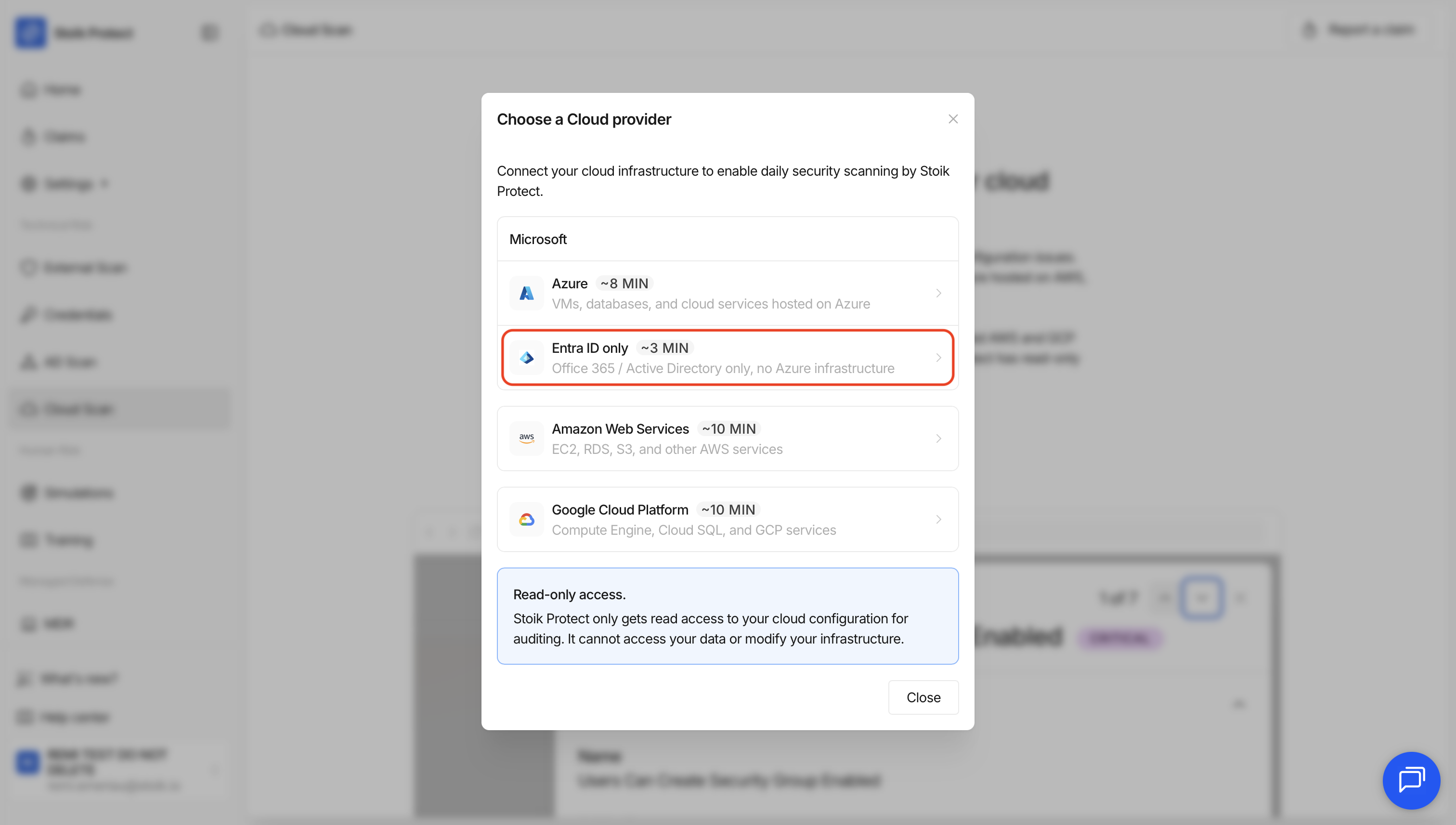
* Wenn Sie noch keinen Anbieter eingerichtet haben: Gehen Sie zu `Cloud Scan` > `Cloud-Scan starten` > `Nur Entra ID`.
* Wenn Sie bereits einen Anbieter haben: Gehen Sie zu `Cloud Scan` > `Einstellungen` > `Neuer Anbieter` > `Nur Entra ID`.
{% endstep %}
{% step %}
### Berechtigungen erteilen
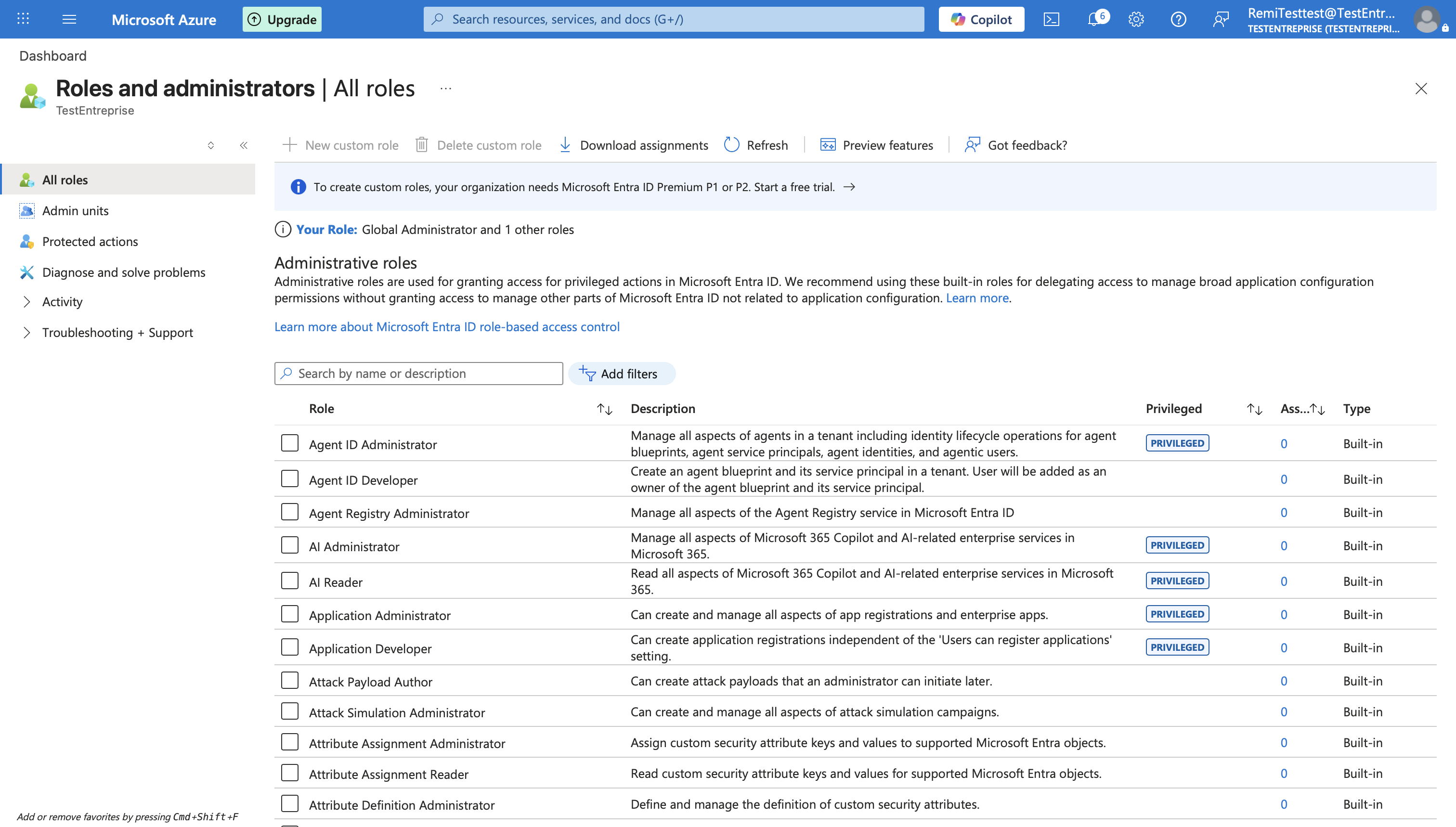
1. Gehen Sie im linken Menü zu `Microsoft Entra ID` > `Rollen und Administratoren`.
2. Suchen Sie nach der `Global Reader` Rolle und klicken Sie darauf.
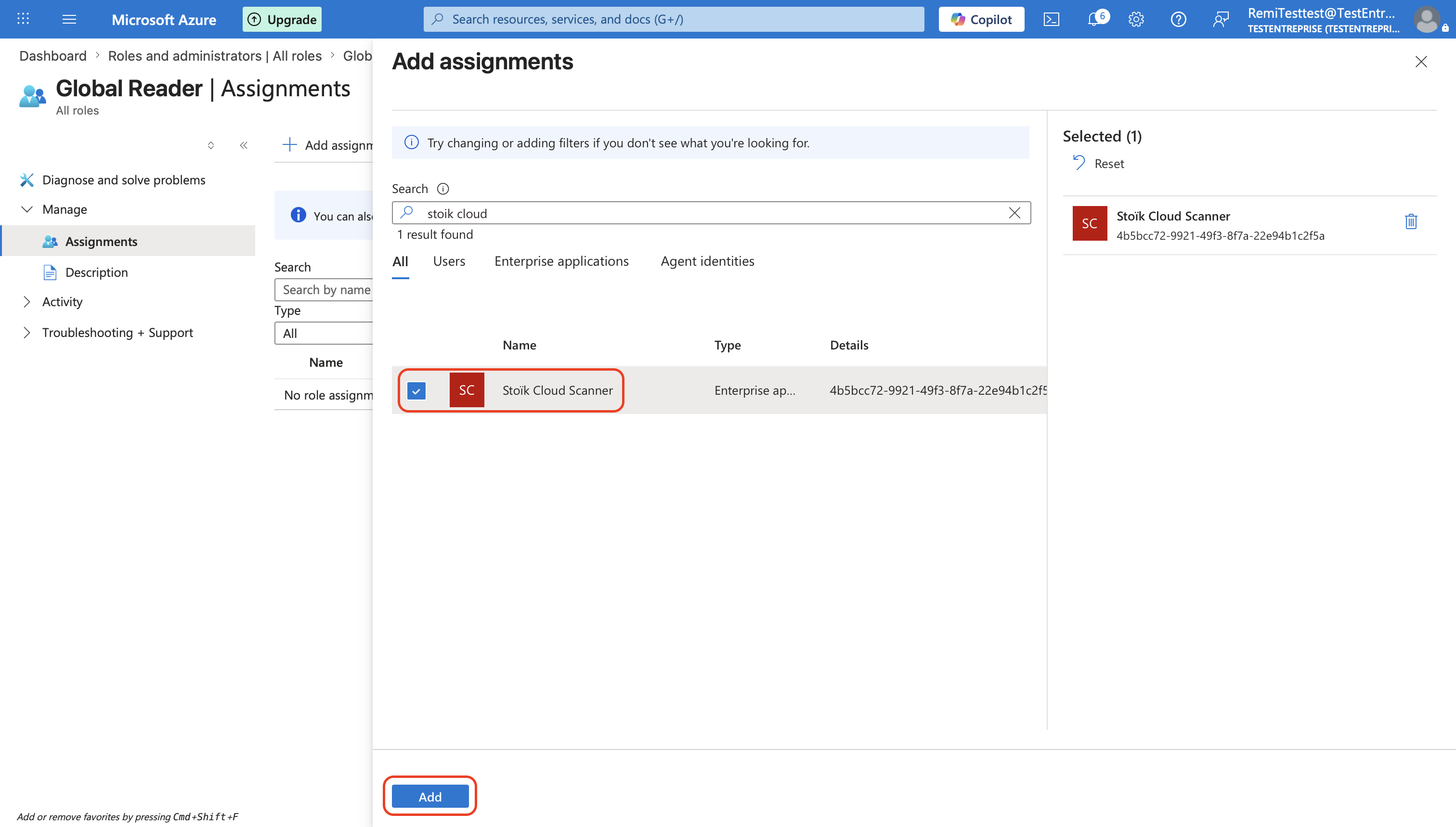
3. Klicken Sie auf `Zuweisungen hinzufügen`, suchen Sie nach `Stoïk Cloud Scanner`, wählen Sie sie aus und klicken Sie dann auf `Hinzufügen`.
4. Wiederholen Sie die Schritte 2 und 3 für die `Security Reader` Rolle.
{% hint style="warning" %}
Gewähren Sie keine zusätzlichen Rechte wie `Global Secure Access Administrator`, sonst funktioniert es nicht.
{% endhint %}
{% endstep %}
{% step %}
### Einrichtung abschließen
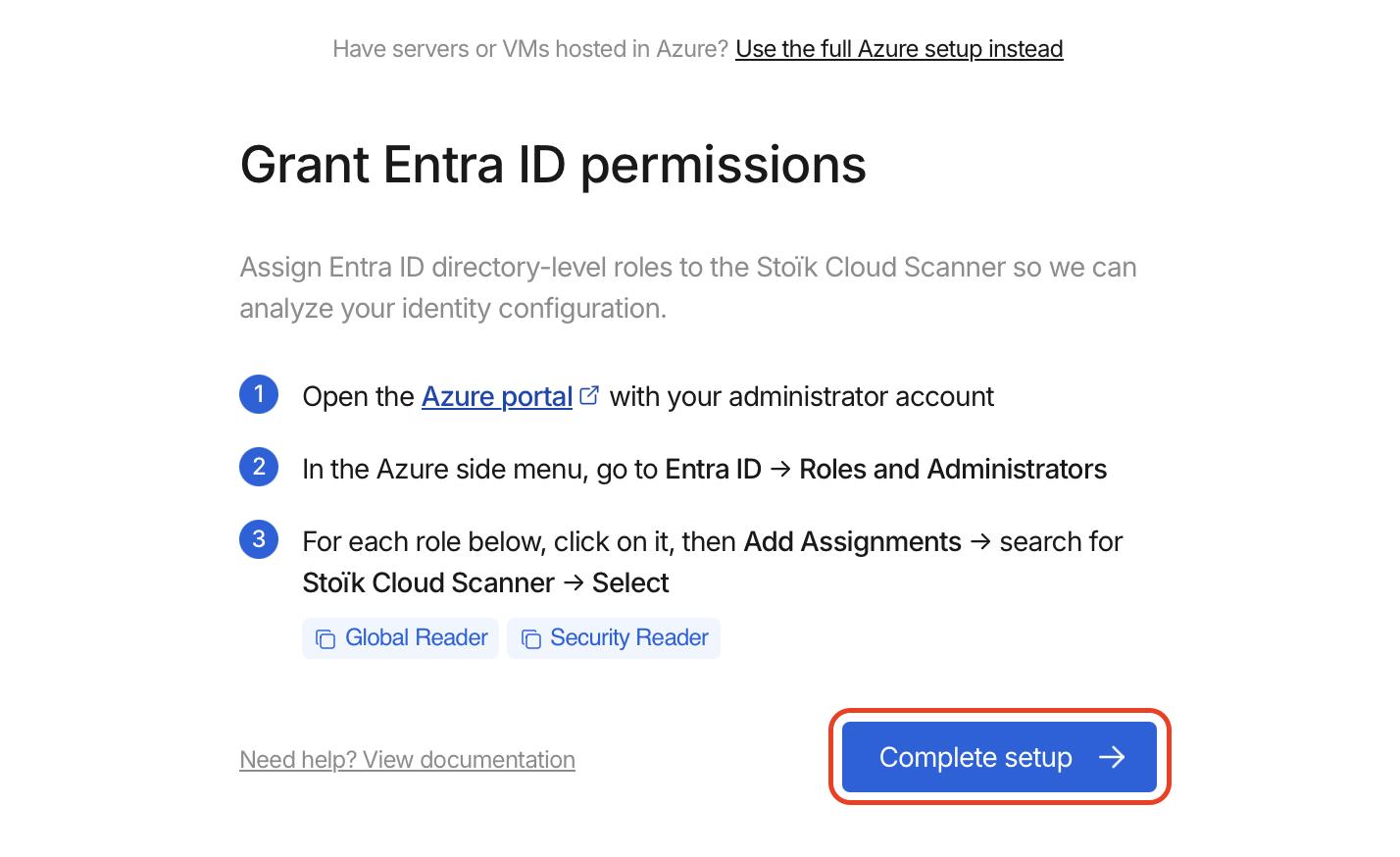
Klicken Sie auf `Fertigstellen` in der Stoïk Protect-Konsole.
{% hint style="info" %}
Aktualisieren Sie bei Bedarf die Stoïk Protect-Seite.
{% endhint %}
{% endstep %}
{% endstepper %}
## Fehlerbehebung
Policy.Read.All kann nicht gewährt werden, oder eine Berechtigung fehlt
Wenn Sie die Meldung „Policy.Read.All cannot be granted“ erhalten oder wenn `Reports.Read.All` oder `UserAuthenticationMethod.Read.All` fehlt, können diese Berechtigungen nicht manuell hinzugefügt werden. Erteilen Sie der Stoïk-Anwendung die Administratoreinwilligung erneut:
1. In [portal.azure.com](https://portal.azure.com), suchen Sie nach **Stoïk Cloud Scanner** (`Unternehmensanwendungen`).
2. Öffnen `Sicherheit` > `Berechtigungen`.
3. Klicken Sie auf **Administratoreinwilligung für \ erteilen** und das Popup akzeptieren.
Die Einwilligung muss die gesamte Organisation abdecken, nicht nur das eigene Konto des Administrators. Ohne `Policy.Read.All`, kann Stoïk Ihre Conditional-Access-Richtlinien nicht lesen, was sich auf die [MFA-Erkenntnisse](/help/help-de/praventionstools/cloud-scan/results.md#mfa-findings-entra-id).
---
# Agent Instructions
This documentation is published with GitBook. GitBook is the documentation platform designed so that both humans and AI agents can read, navigate, and reason over technical content effectively. Learn more at gitbook.com.
## Querying This Documentation
If you need additional information that is not directly available in this page, you can query the documentation by asking a question.
Perform an HTTP GET request on the following URL with the `ask` and `goal` query parameters:
```
GET https://docs.stoik.io/help/help-de/praventionstools/cloud-scan/entra-id.md?ask=&goal=
```
`ask` is the immediate question: it should be specific, self-contained, and written in natural language.
`goal` is what the user is ultimately trying to achieve, the reason they need the answer. Sharing it helps GitBook give you a better, more relevant answer. A goal is most helpful when it describes the outcome the user wants rather than restating the question. For example, with `ask=how do I create an API token`, a goal like `automate deployments from our CI pipeline` lets GitBook tailor the answer to that use case.
The response will contain a direct answer to the question and relevant excerpts and sources from the documentation.
Use this mechanism when the answer is not explicitly present in the current page, you need clarification or additional context, or you want to retrieve related documentation sections.