> For the complete documentation index, see [llms.txt](https://docs.stoik.io/llms.txt). Markdown versions of documentation pages are available by appending `.md` to page URLs; this page is available as [Markdown](https://docs.stoik.io/help/help-nl/preventietools/cloud-scan/aws.md).
# Installatie: AWS
Geef de Cloud-scan alleen-lezen toegang tot een AWS-account door een beleid en een rol aan te maken en vervolgens de ARN van de rol in Stoïk Protect te plakken.
## Vereisten
* Een beheerdersaccount op het AWS-account dat gescand moet worden.
* Als je AWS Organizations gebruikt, mogen je Service Control Policies (SCP's) de onderstaande alleen-lezenmachtigingen niet blokkeren. SCP's zijn de meest voorkomende oorzaak van configuratiefouten, zie [Probleemoplossing](#troubleshooting).
* Voor doorlopende supervisie en het verhelpen van kwetsbaarheden is een technisch adviseur vereist.
* Eén persoon voert de volledige configuratie uit, van begin tot eind: een Stoïk Protect-gebruiker die bevoegd is om preventietools te bewerken en die ook beheerder is van het AWS-account.
## Installatie
{% stepper %}
{% step %}
### Selecteer Amazon Web Services
Ga naar `Cloud Scan` > `Instellingen`, klik `Nieuwe provider`, en selecteer `AWS`.
{% endstep %}
{% step %}
### Maak een nieuw beleid
#### Configureer het beleid
1. Ga naar de [AWS-beleidsmaker](https://console.aws.amazon.com/iam/home?#/policies$new?step=edit) en meld je aan met je beheerdersaccount.
2. Klik op de `JSON` tab en plak het volgende beleid in de editor:
```json
{
"Version": "2012-10-17",
"Statement": [
{
"Effect": "Allow",
"Action": [
"ecr:BatchGetRepositoryScanningConfiguration",
"ecr:DescribeImageScanFindings",
"ecr:DescribeImages",
"dynamodb:ListTagsOfResource",
"ecr:ListTagsForResource",
"inspector2:BatchGet*",
"inspector2:Get*",
"inspector2:Describe*",
"inspector2:List*",
"sqs:ListQueueTags",
"sso:Describe*",
"sso:List*"
],
"Resource": "*"
},
{
"Effect": "Deny",
"Action": [
"datapipeline:EvaluateExpression",
"datapipeline:QueryObjects",
"rds:DownloadDBLogFilePortion"
],
"Resource": "*"
}
]
}
```
3. Klik op `Volgende`.
#### Sla het beleid op
1. Geef het beleid een naam `StoikAdditionalPermissions`.
2. Klik op `Beleid maken`.
{% endstep %}
{% step %}
### Maak een nieuwe rol
#### Configureer het vertrouwen van de rol
1. Ga naar de [AWS-rolmaker](https://us-east-1.console.aws.amazon.com/iamv2/home#/roles/create?step=selectEntities).
2. Klik op `AWS-account`, daarna `Een ander AWS-account`, en voer het volgende account-ID in:
```
436578779424
```
3. Selecteren `Externe ID vereisen` en kopieer de waarde die in de Stoïk Protect-console wordt weergegeven.
4. Klik op `Volgende`.
#### Wijs machtigingen toe en rond af
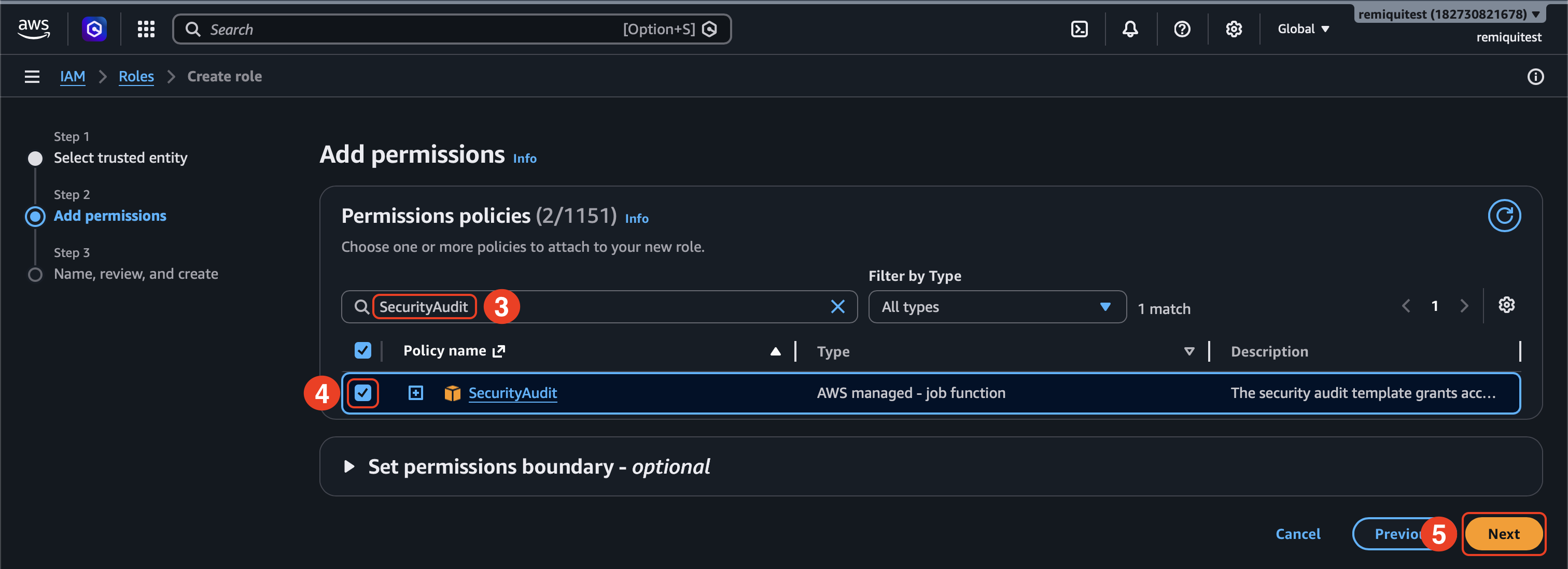
1. Selecteren `StoikAdditionalPermissions` en `SecurityAudit` als machtigingen.
2. Klik op `Volgende`.
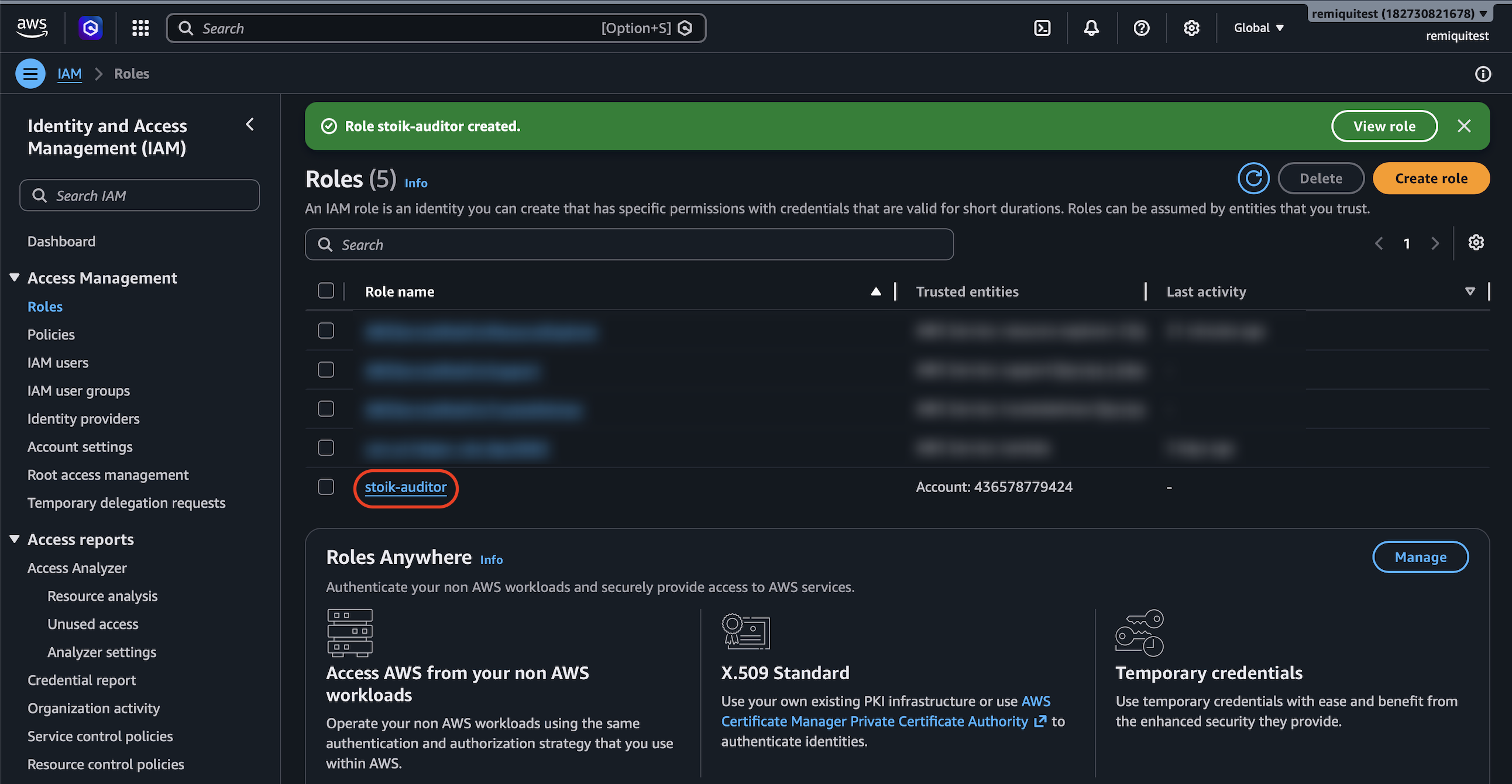
3. Voer `stoik-auditor` in als rolnaam.
4. Klik op `Rol maken`.
{% endstep %}
{% step %}
### Voeg een ARN-identificatie toe
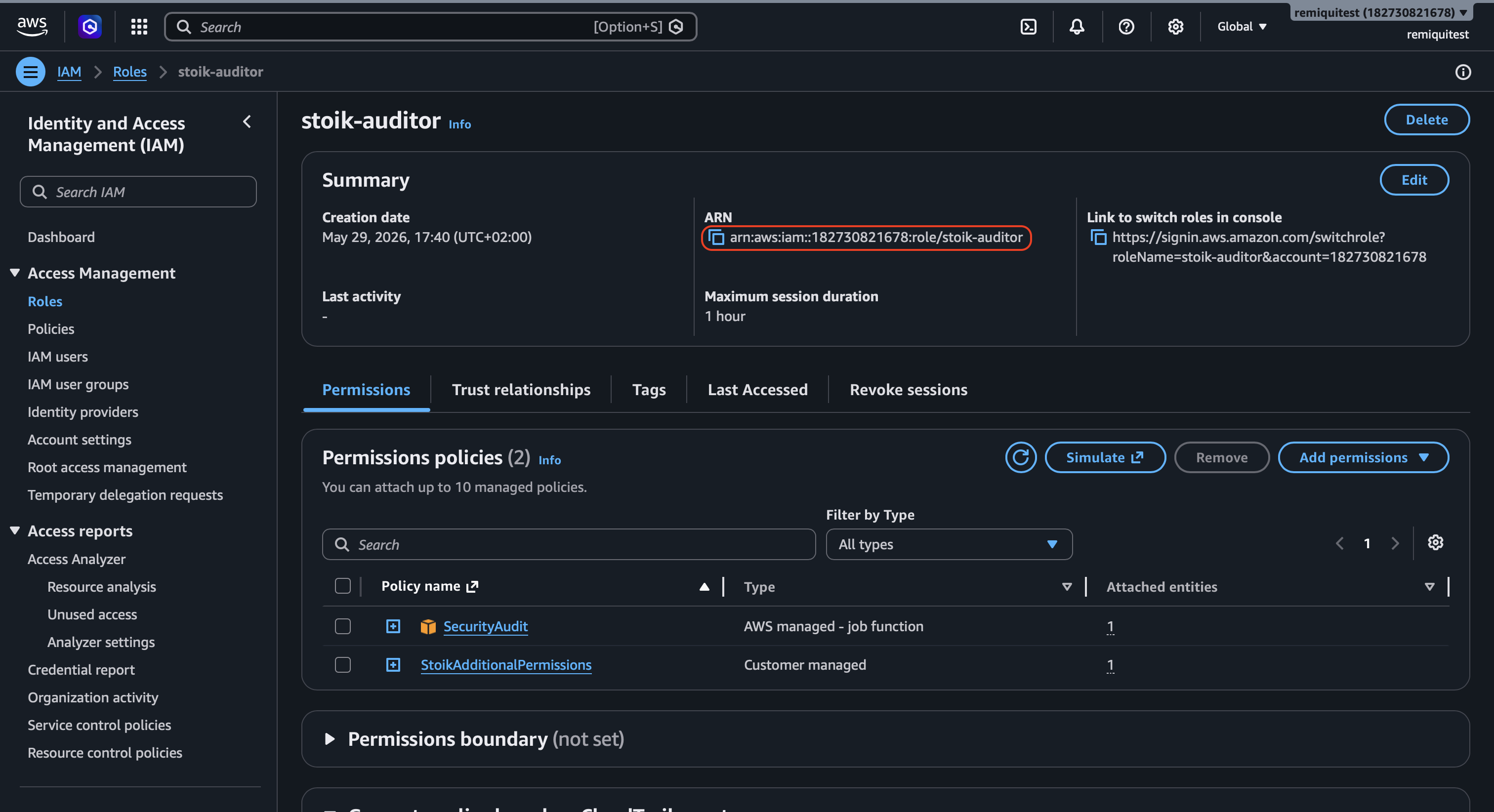
1. Ga naar de `stoik-auditor` van de rol die je zojuist hebt gemaakt.
2. Kopieer de `ARN` verwijzing.
{% endstep %}
{% step %}
### Voltooi de installatie
1. Plak de `ARN` verwijzing in het daarvoor bestemde veld in de Stoïk Protect-console.
2. Klik op `Configuratie voltooien`.
{% hint style="info" %}
Vernieuw de Stoïk Protect-pagina indien nodig.
{% endhint %}
{% endstep %}
{% endstepper %}
## AWS Organizations
Met AWS Organizations maak je de `stoik-auditor` rol aan in elk lidaccount dat je wilt laten scannen, niet alleen in het beheerdersaccount. Alle gevraagde machtigingen zijn alleen-lezen: het door AWS beheerde `SecurityAudit` beleid plus `StoikAdditionalPermissions`. Er is geen kleinere set.
## Probleemoplossing
"Integratie met AWS mislukt" / "Kan rol niet aannemen"
Controleer deze in volgorde, met de meest voorkomende eerst:
1. **Externe ID:** de waarde in Stoïk Protect moet exact overeenkomen met de `sts:ExternalId` in het vertrouwensbeleid van de rol. Hoofdletters en spaties tellen mee. Een externe ID van een eerdere poging werkt ook niet.
2. **Vertrouwd account:** het vertrouwensbeleid vertrouwt account `436578779424`.
3. **Rol:** `stoik-auditor` bestaat in dat account, en de ARN die in Stoïk Protect is geplakt, is de ARN ervan. Voor een rol die niet bestaat, antwoordt AWS met "toegang geweigerd" en niet met "niet gevonden".
4. **Beleidsregels:** beide `SecurityAudit` en `StoikAdditionalPermissions` zijn gekoppeld, en de laatste komt overeen met de bovenstaande JSON. Oudere configuraties missen vaak `sso:Describe*` en `sso:List*`.
Alles is correct, maar de configuratie zegt nog steeds "rollen niet correct geconfigureerd"
Dit is meestal een Service Control Policy (SCP). Voordat Stoïk een account accepteert, controleert het diens rol met de machtigingssimulator van AWS, en sommige SCP's zorgen ervoor dat die simulator elke machtiging weigert, ook al werkt de echte scan wel. Neem contact op met je AWS-account-ID.
De scan werkte en is toen gestopt
Er is iets aan jouw kant veranderd: de rol is verwijderd of hernoemd, een beleid is losgekoppeld, de externe ID is gewijzigd of er is een nieuwe SCP toegevoegd. Doorloop de vier controles in ["Integratie met AWS mislukt" / "Kan rol niet aannemen"](#integration-with-aws-failed--unable-to-assume-role).
---
# Agent Instructions
This documentation is published with GitBook. GitBook is the documentation platform designed so that both humans and AI agents can read, navigate, and reason over technical content effectively. Learn more at gitbook.com.
## Querying This Documentation
If you need additional information that is not directly available in this page, you can query the documentation by asking a question.
Perform an HTTP GET request on the following URL with the `ask` and `goal` query parameters:
```
GET https://docs.stoik.io/help/help-nl/preventietools/cloud-scan/aws.md?ask=&goal=
```
`ask` is the immediate question: it should be specific, self-contained, and written in natural language.
`goal` is what the user is ultimately trying to achieve, the reason they need the answer. Sharing it helps GitBook give you a better, more relevant answer. A goal is most helpful when it describes the outcome the user wants rather than restating the question. For example, with `ask=how do I create an API token`, a goal like `automate deployments from our CI pipeline` lets GitBook tailor the answer to that use case.
The response will contain a direct answer to the question and relevant excerpts and sources from the documentation.
Use this mechanism when the answer is not explicitly present in the current page, you need clarification or additional context, or you want to retrieve related documentation sections.