

Device Control
Control the use of USB devices (USB keys, hard drives, etc.) with a USB device Policy: general rules that allow or block USB devices based on their class. The Stoïk team can set it up for you, or you can configure it yourself in the CrowdStrike console.
Prerequisites
For self-service setup: Device Control Manager access to your CrowdStrike console. Request it by emailing protect@stoik.io.
Scope
You can:
Configure rules by device type.
Implement them using CrowdStrike Policies, either yourself or through the Stoïk SOC.
Configure exclusions (workstation, device).
Manage them with the
Device Control Manageruser right.
Configuration by endpoint is not possible: it would require assigning each endpoint to specific groups.
For example, you can create a policy to block USB storage devices while allowing access to other USB device classes.
Deployment
Define your control objectives
Determine what you want to enforce:
Block all USB devices
Set devices to read-only
Allow only specific models
Monitor / audit usage without blocking (observation mode)
Inventory of authorized or blocked devices
For each USB device you want to allow or block:
Plug it into a workstation.
Retrieve its hardware identifiers, either:
Via the graphical interface:
Device Manager> USB device > right-click >Properties>Details>Hardware IDs.Via PowerShell:
Get-PnpDevice -PresentOnly | Where-Object { $_.Class -eq "USB" }
Send the following information to protect@stoik.io:
Vendor ID (VID)
Product ID (PID)
Serial number (if applicable)
Stoïk team configuration
A Stoïk cybersecurity engineer configures the rules and informs you once the setup is complete.
This option requires Device Control Manager access, see Prerequisites.
Create and configure the policy
Go to
Endpoint Security>USB Device Control>Policies.Click
Create policy, enter a name and optional description, then clickCreate policyto confirm.In the
Settingstab:Select the mode (
Monitor,Monitor and enforce, orOfffor macOS only).Enable the desired USB settings.
Select the notification to inform end users when a USB device is fully blocked.
Select the notification to inform end users when a USB device is restricted.
In the
USB Devicetab, expand each device class to include, choose the authorization level, and add exceptions per class if needed by clickingAdd exception.
The three modes work as follows:
Monitor and enforce: actively applies defined rules, blocks or allows USB connections and logs activity.
Monitor only: logs connections without enforcing restrictions. Ideal for testing policies without disrupting users.
Off (macOS only): completely disables Device Control. No activity is logged or blocked.
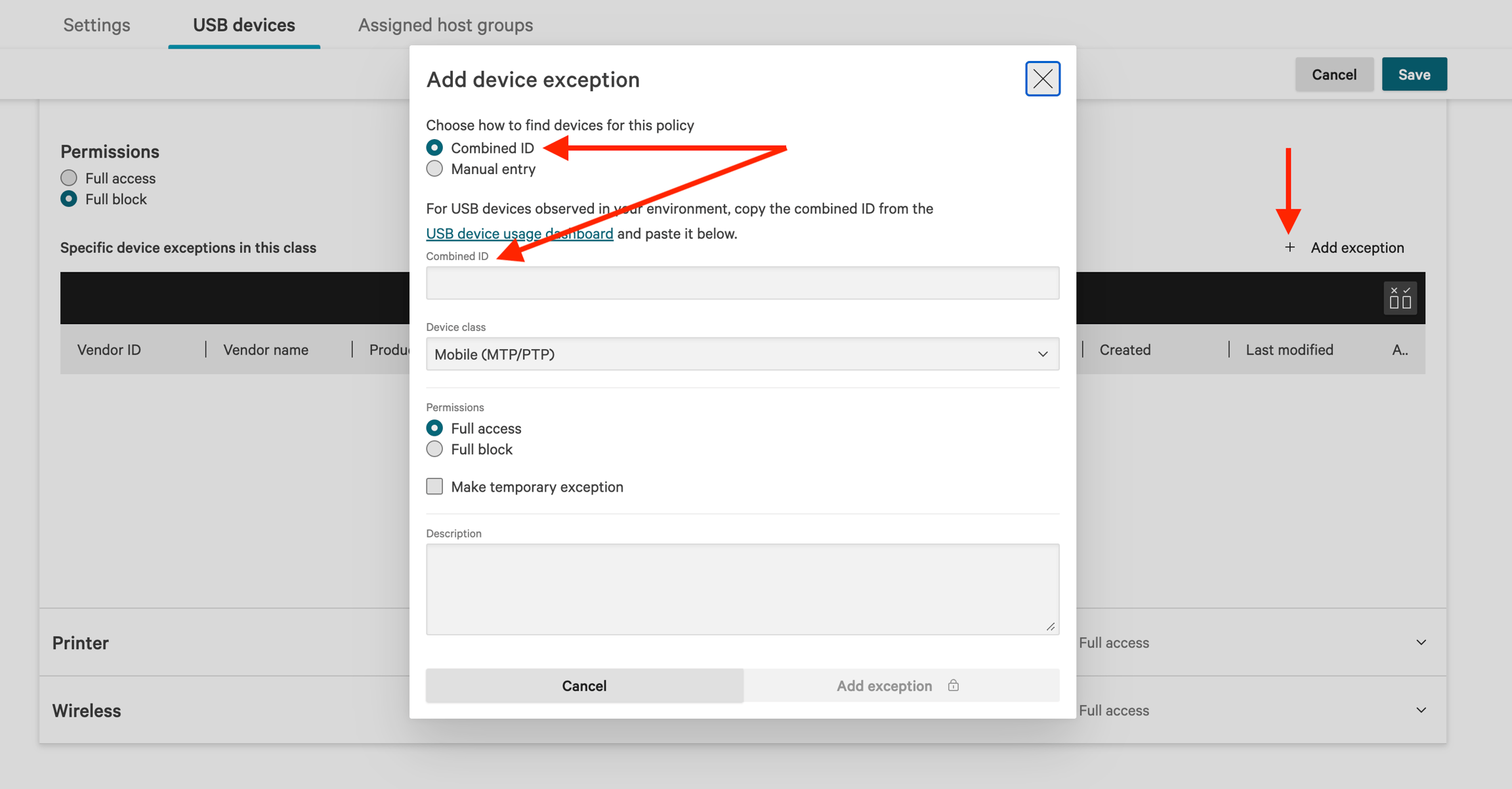
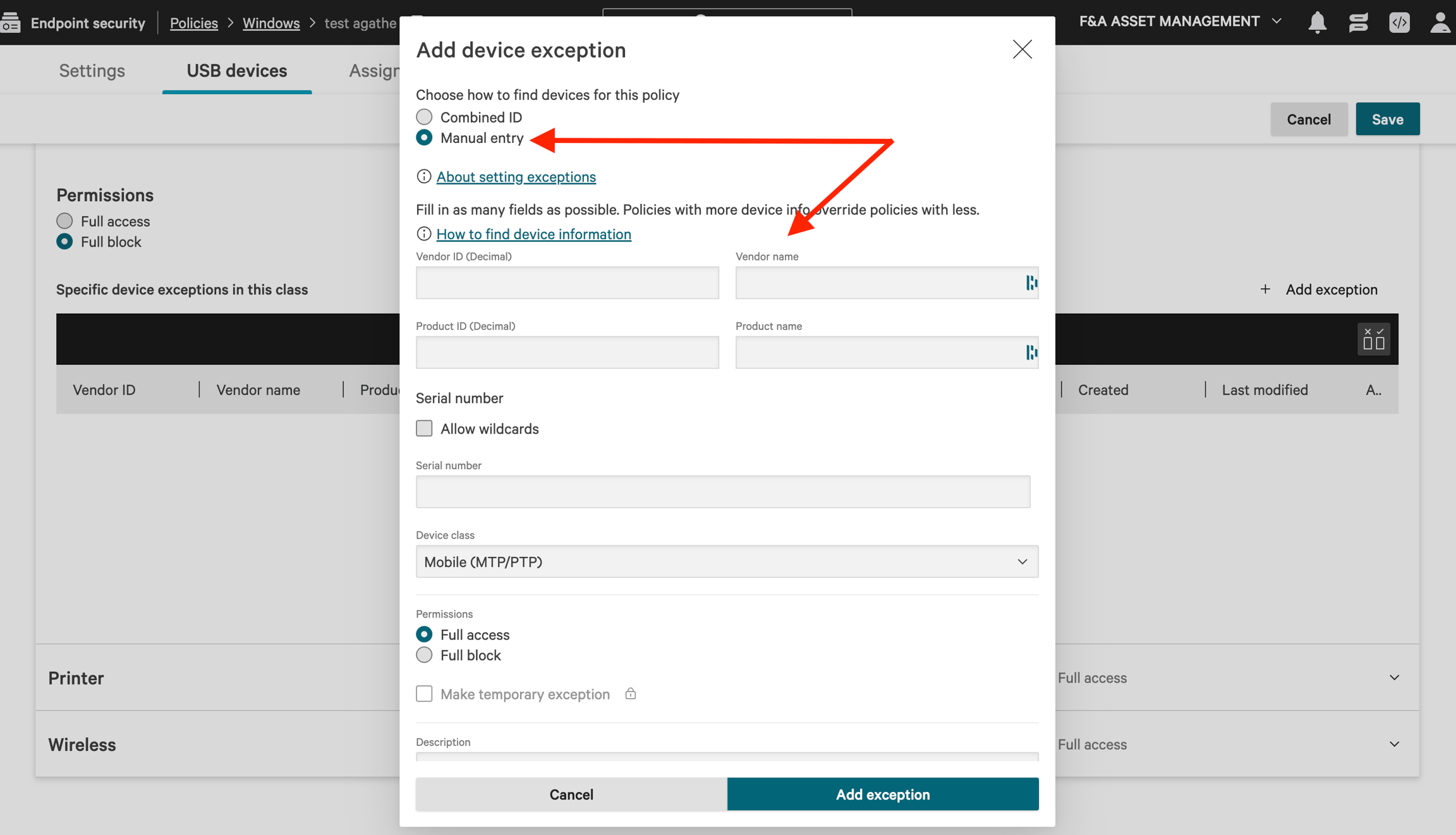
Activate the policy
Click
Savein the top-right corner, thenSaveagain to confirm.In the
Assigned host groupstab, clickAssign host groups to policy.Click
Enable policy.
To speed up configuration of similar policies, click Duplicate policy to create an exact copy.
Policy deployment
Device policies are applied as soon as a USB device is connected to a host. If USB devices are already connected at the time the policy is assigned, they will only be affected upon their next reconnection or the next host reboot.
Device policies are applied as soon as a USB or Bluetooth device is connected to a host. If devices are already connected at the time the policy is assigned, the policy takes effect immediately. If the policy blocks the device, it will be disconnected.
Last updated