> For the complete documentation index, see [llms.txt](https://docs.stoik.io/llms.txt). Markdown versions of documentation pages are available by appending `.md` to page URLs; this page is available as [Markdown](https://docs.stoik.io/mdr/deploy/crowdstrike/os/windows.md).
# Windows
Install the CrowdStrike EDR on Windows endpoints manually, from the console, by GPO or through an MDM. For a large-scale deployment, we recommend starting with a manual test installation on a few endpoints.
## Prerequisites
* Your current antivirus is completely uninstalled: CrowdStrike replaces it. If the firewall is managed separately, keep it running. If it is part of the same solution, copy any custom rules to Windows Firewall first. See [Antivirus and exclusions](/mdr/deploy/antivirus.md).
* Windows 7 or above. For older systems, see [Legacy systems](#legacy-systems).
## Install the EDR
{% stepper %}
{% step %}
### Download the installer
The executable is only available from Stoïk Protect: go to `MDR` > `Settings`, click `Windows`, then click `Download the executable`.
{% endstep %}
{% step %}
### Find your customer ID
Go to `MDR` > `Settings` and copy your customer ID.
{% endstep %}
{% step %}
### Install CrowdStrike
{% tabs %}
{% tab title="Manual" %}
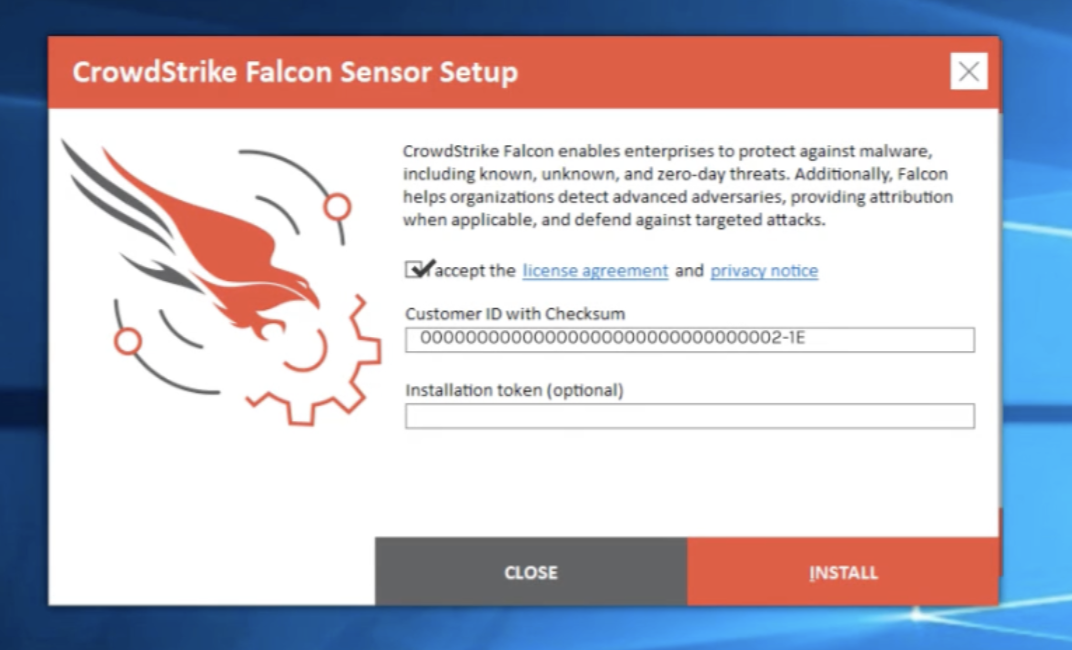
1. Run the executable on the endpoint.
2. Enter your customer ID in the `Customer ID with Checksum` field.
3. Click `Install`.
{% endtab %}
{% tab title="Console" %}
Run the following command, replacing `` with your customer ID:
```
.exe /install /quiet /norestart CID=
```
Special cases
**Adding tags**
To organize installations by site, country, or entity, add the `GROUPING_TAGS` option. Separate multiple tags with commas:
```
.exe /install /quiet /norestart CID= GROUPING_TAGS="tag1,tag2"
```
**Temporarily offline machine**
Add `ProvNoWait=1` to install without waiting for cloud connectivity. CrowdStrike still requires an internet connection to function and send alerts.
```
.exe /install /quiet /norestart CID= ProvNoWait=1
```
{% endtab %}
{% tab title="GPO" %}
1. Place the executable in a network share accessible to all workstations. Note the path, e.g. `\\ServerName\SharedFolder\CrowdStrike.exe`.
2. Create an installation script named `InstallCrowdStrike.bat` with the following command, replacing `` with your customer ID:
```
\\ServerName\SharedFolder\CrowdStrike.exe /install /quiet /norestart CID=
```
3. Create a GPO:
1. Open the Group Policy Management Console: `Windows + R` > `gpmc.msc` > `Enter`.
2. Right-click the target container and click `Create a Group Policy Object in this domain and link it here`. Name it (e.g. `CrowdStrike Deployment`).
3. Copy the script to `\\\SysVol\\Policies\\Machine\Scripts\Startup`.
4. Right-click the new GPO and select `Edit`.
5. Go to `Computer Configuration` > `Policies` > `Windows Settings` > `Scripts (Startup/Shutdown)`.
6. Double-click `Startup`, click `Add`, then `Browse` and select `InstallCrowdStrike.bat`.
4. Apply the GPO:
1. Run `gpupdate /force` on a domain controller.
2. Restart a target machine to trigger the script.
3. Run `gpresult /h gpresults.html` and verify the GPO is present on the machine.
4. Verify that CrowdStrike is installed and operational.
5. If you encounter any issues, check `C:\Windows\Debug\StartupLog.txt`.
{% endtab %}
{% tab title="MDM" %}
**Intune**
1. Download the required components:
* [Win32 Content Prep Tool](https://github.com/microsoft/Microsoft-Win32-Content-Prep-Tool)
* CrowdStrike executable from Stoïk Protect: `MDR` > `Settings` > `Windows` > `Download the executable`
2. Open the Win32 Content Prep Tool, add the `.exe` file and enter the install command:
```
.exe /install /quiet /norestart CID=
```
3. Download the generated `.intunewin` file.
4. Log in to [Intune Admin Center](https://intune.microsoft.com/), import the `.intunewin` file and assign it to your computer groups.
**NinjaOne**
Follow the [CrowdStrike with NinjaOne integration guide](https://www.ninjaone.com/docs/integrations/how-to-connect-crowdstrike/).
{% endtab %}
{% endtabs %}
{% endstep %}
{% endstepper %}
## Verify the installation
To verify the EDR installation on a machine, run:
```
sc query csagent
sc query csfalconservice
```
## Network traffic
If outbound traffic is blocked, see [Network requirements](/mdr/deploy/crowdstrike/network.md) for the addresses to allow.
## Legacy systems
The standard installer requires Windows 7 or above. For older systems, request the installer at :
* Windows XP 32-bit SP3 / 64-bit SP2
* Windows Server 2003 32/64-bit SP2
* Windows Server 2003 R2 32/64-bit SP2
* Windows Vista 32/64-bit SP2
* Windows Server 2008 32/64-bit SP2
* Windows Embedded POSReady 2009
* Windows 8 / 8.1 32/64-bit
---
# Agent Instructions
This documentation is published with GitBook. GitBook is the documentation platform designed so that both humans and AI agents can read, navigate, and reason over technical content effectively. Learn more at gitbook.com.
## Querying This Documentation
If you need additional information that is not directly available in this page, you can query the documentation by asking a question.
Perform an HTTP GET request on the following URL with the `ask` and `goal` query parameters:
```
GET https://docs.stoik.io/mdr/deploy/crowdstrike/os/windows.md?ask=&goal=
```
`ask` is the immediate question: it should be specific, self-contained, and written in natural language.
`goal` is what the user is ultimately trying to achieve, the reason they need the answer. Sharing it helps GitBook give you a better, more relevant answer. A goal is most helpful when it describes the outcome the user wants rather than restating the question. For example, with `ask=how do I create an API token`, a goal like `automate deployments from our CI pipeline` lets GitBook tailor the answer to that use case.
The response will contain a direct answer to the question and relevant excerpts and sources from the documentation.
Use this mechanism when the answer is not explicitly present in the current page, you need clarification or additional context, or you want to retrieve related documentation sections.