> For the complete documentation index, see [llms.txt](https://docs.stoik.io/llms.txt). Markdown versions of documentation pages are available by appending `.md` to page URLs; this page is available as [Markdown](https://docs.stoik.io/prevention-tools/cloud-scan/azure.md).
# Setup: Azure Cloud
Give the Cloud scan read access to an Azure subscription by assigning reader roles to the Stoïk Cloud Scanner application.
## Prerequisites
* Servers and/or virtual machines hosted in Azure, and an administrator account.
* A technical advisor is required for initial configuration and ongoing supervision.
* One person does the whole setup, from start to finish: a Stoïk Protect user allowed to edit prevention tools, who is also an administrator of the Azure account. Most Azure failures come from two people splitting the flow.
* Signed in to a single Microsoft tenant: the one to scan. If the setup is stuck, restart it in a private browser window, signed in to that tenant only.
If you only have Office 365 or Entra ID licenses, see [Setup: Entra ID](/prevention-tools/cloud-scan/entra-id.md) instead.
## Setup
{% stepper %}
{% step %}
### Select Microsoft Azure
* If you haven't set a provider yet: go to `Cloud Scan` > `Launch Cloud Scan` > `Azure`.
* If you already have a provider: go to `Cloud Scan` > `Settings` > `New Provider` > `Azure`.
{% endstep %}
{% step %}
### Create new roles
1. Go to the [Microsoft Azure portal](https://portal.azure.com/auth/login/) and log in with your administrator account.
2. Search for `Subscriptions` in the search bar, then click on the subscription to scan.
3. Click `Access control (IAM)` in the left menu, then click `Add`, then `Add role assignment`.
4. Search for the `Reader` role, select it, then go to the `Members` tab.
5. Click `Select members`, search for `Stoïk Cloud Scanner`, select it, then click `Select`.
6. Click `Review + assign` twice to confirm.
7. Repeat steps 4 to 6 for the `Security Reader` and `Log Analytics Reader` roles.
{% endstep %}
{% step %}
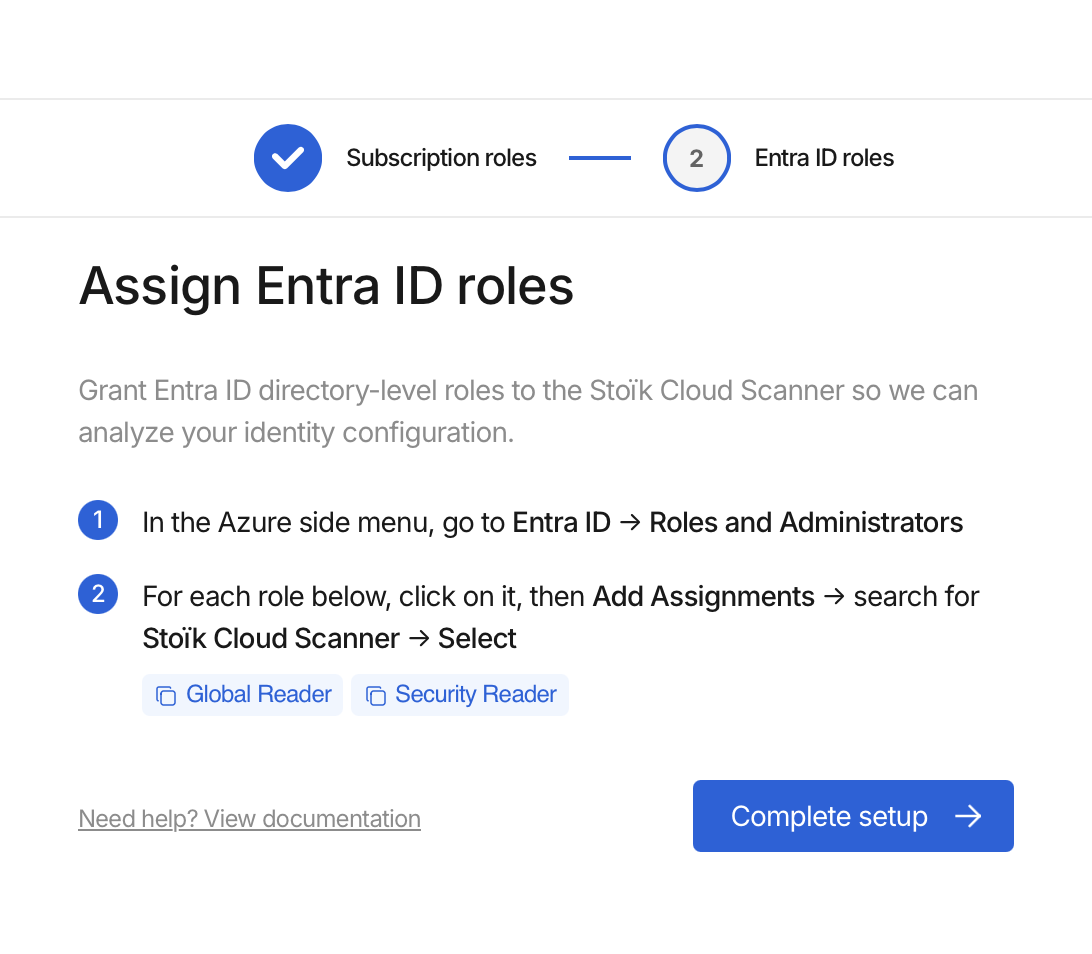
### Grant permissions
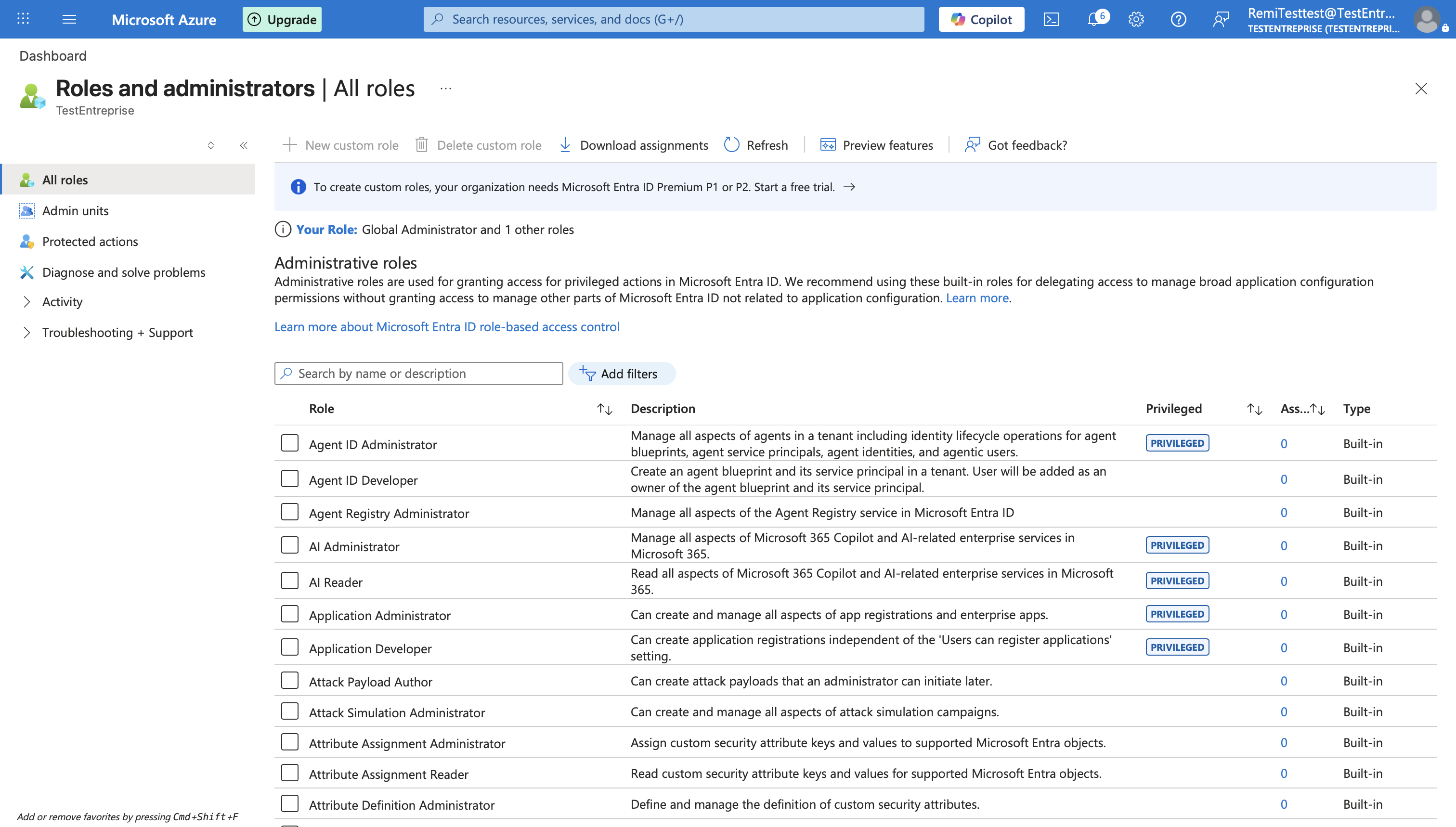
1. In the left-hand menu, go to `Microsoft Entra ID` > `Roles and administrators`.
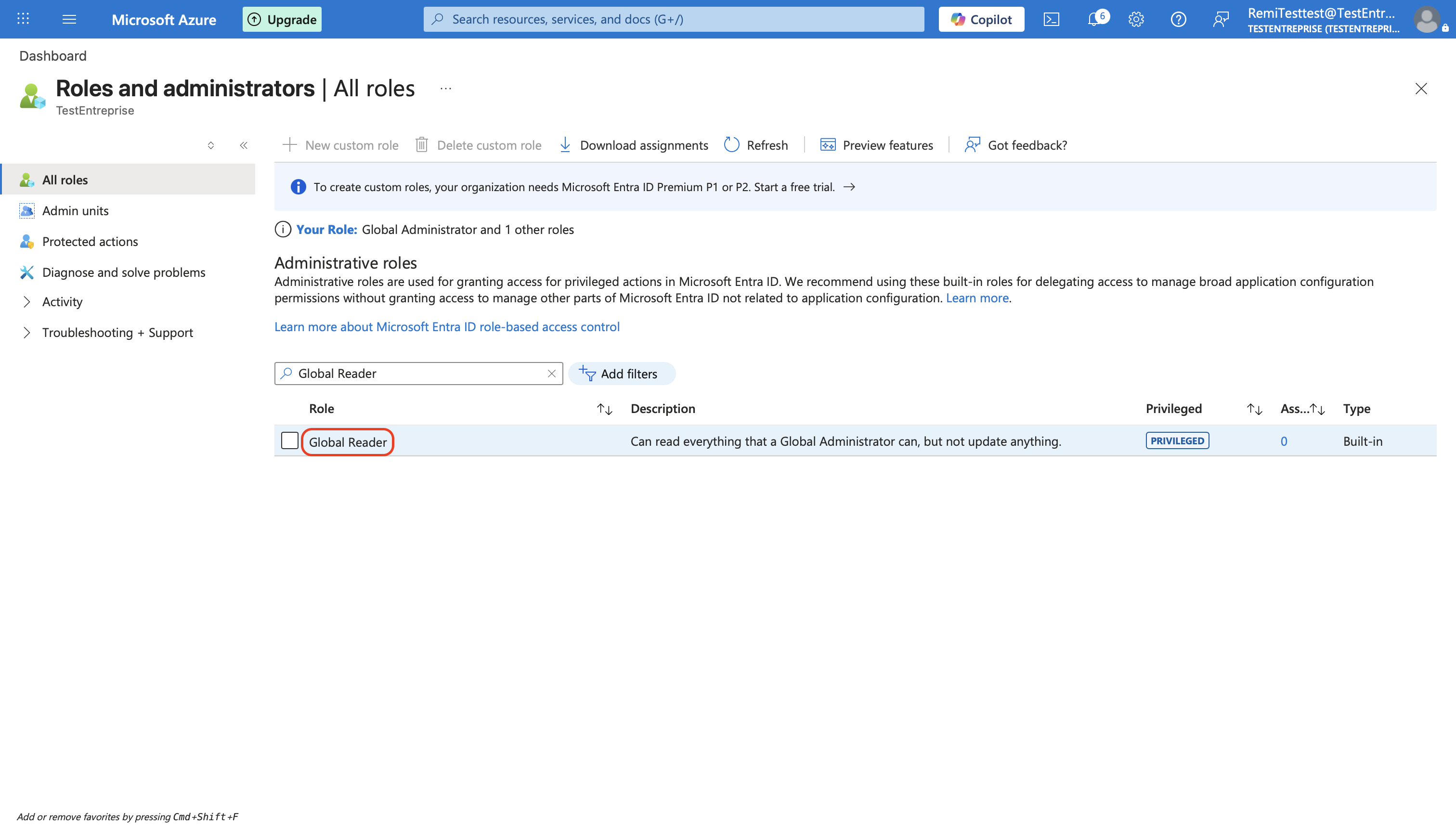
2. Search for the `Global Reader` role and click on it.
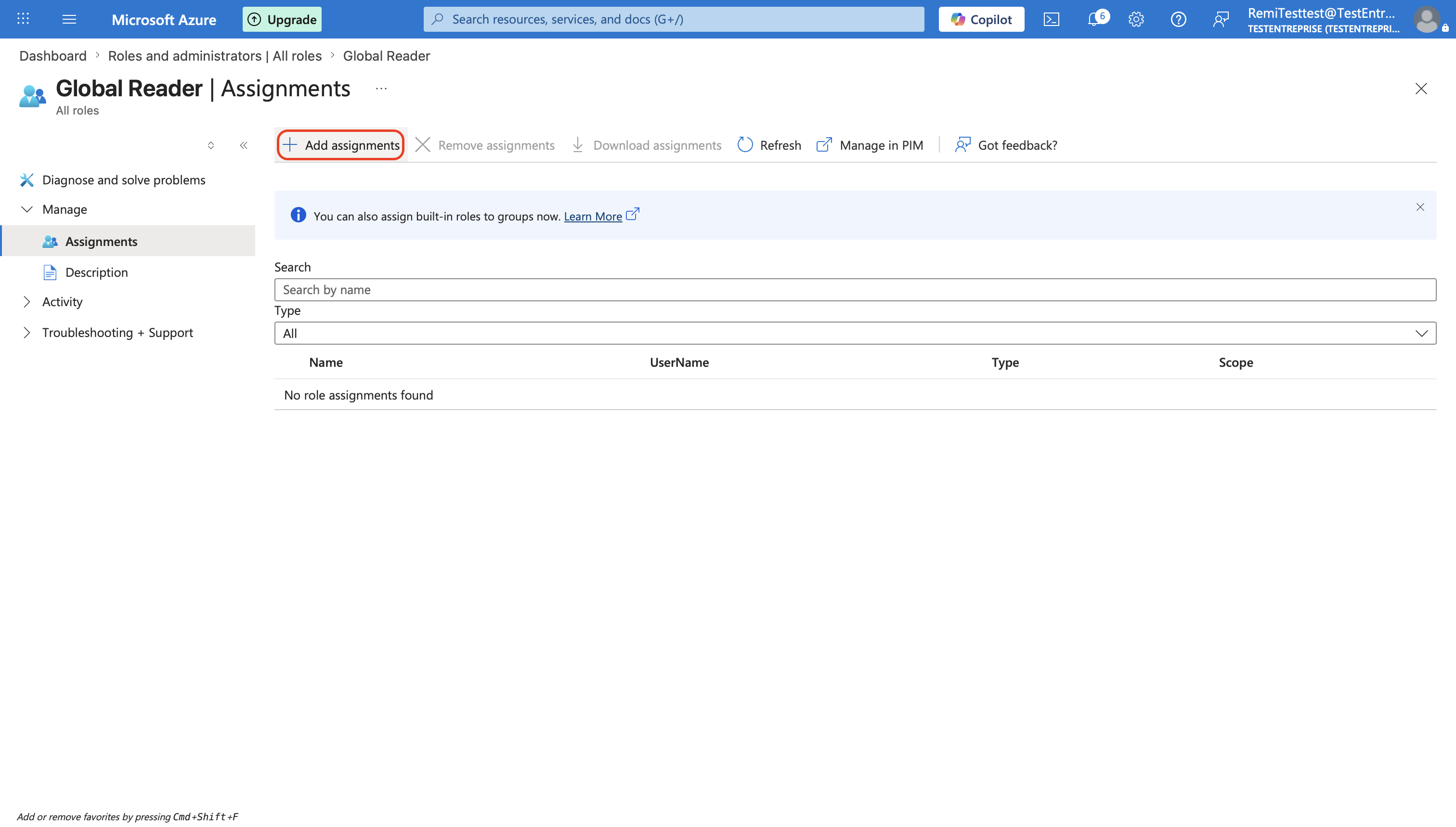
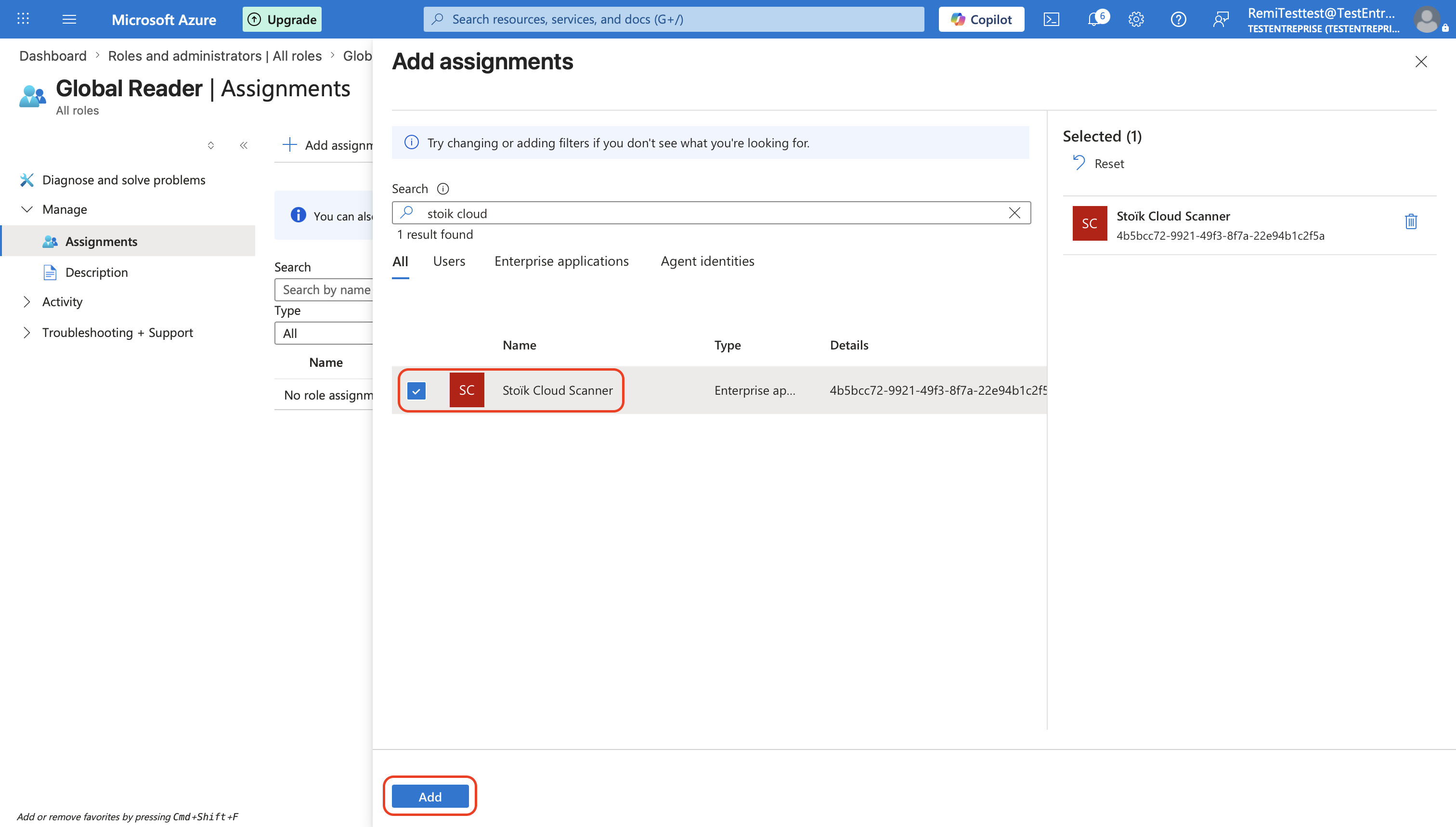
3. Click `Add assignments`, search for `Stoïk Cloud Scanner`, select it, then click `Add`.
4. Repeat steps 2 and 3 for the `Security Reader` role.
{% hint style="warning" %}
Do not grant additional rights such as `Global Secure Access Administrator`, otherwise it will not work.
{% endhint %}
{% endstep %}
{% step %}
### Complete setup
Click `Complete setup` in the Stoïk Protect console.
{% hint style="info" %}
Refresh the Stoïk Protect page if necessary.
{% endhint %}
{% endstep %}
{% endstepper %}
## Several subscriptions
To scan several subscriptions, assign the three subscription roles (`Reader`, `Security Reader`, `Log Analytics Reader`) on each of them.
## Troubleshooting
The setup failed, then worked when I retried
New roles and permissions take a few minutes to apply on Azure. Wait 5 minutes and click again.
"Some roles are not configured correctly", or the setup goes back to the start
The check expects exactly the roles above: a missing role fails, and so does an extra one. Common mistakes:
* Permissions granted in Entra ID but roles never assigned.
* `Reports Reader` added as a role: remove it.
* `Entra Backup Reader` or a Global Secure Access role instead of `Security Reader`.
* `Monitoring Reader` instead of `Log Analytics Reader`.
* Roles on one subscription but not on the others.
Error messages use the English role names, even when your portal is in another language.
"Stoïk Cloud Scanner" can't be found
See ["Bad Tenant" error](/prevention-tools/cloud-scan/azure/bad-tenant.md).
Policy.Read.All cannot be granted, or a permission is missing
See [Policy.Read.All cannot be granted](https://docs.stoik.io/prevention-tools/cloud-scan/pages/o078MxFZGrJa3CHRphbh#policy.read.all-cannot-be-granted-or-a-permission-is-missing).
---
# Agent Instructions
This documentation is published with GitBook. GitBook is the documentation platform designed so that both humans and AI agents can read, navigate, and reason over technical content effectively. Learn more at gitbook.com.
## Querying This Documentation
If you need additional information that is not directly available in this page, you can query the documentation by asking a question.
Perform an HTTP GET request on the following URL with the `ask` and `goal` query parameters:
```
GET https://docs.stoik.io/prevention-tools/cloud-scan/azure.md?ask=&goal=
```
`ask` is the immediate question: it should be specific, self-contained, and written in natural language.
`goal` is what the user is ultimately trying to achieve, the reason they need the answer. Sharing it helps GitBook give you a better, more relevant answer. A goal is most helpful when it describes the outcome the user wants rather than restating the question. For example, with `ask=how do I create an API token`, a goal like `automate deployments from our CI pipeline` lets GitBook tailor the answer to that use case.
The response will contain a direct answer to the question and relevant excerpts and sources from the documentation.
Use this mechanism when the answer is not explicitly present in the current page, you need clarification or additional context, or you want to retrieve related documentation sections.