> For the complete documentation index, see [llms.txt](https://docs.stoik.io/llms.txt). Markdown versions of documentation pages are available by appending `.md` to page URLs; this page is available as [Markdown](https://docs.stoik.io/mdr/deploy/microsoft-defender.md).
# Microsoft Defender
Connect your Microsoft Defender XDR / Defender for Endpoint tenant to Stoïk so the Stoïk CERT team can monitor and respond on it, as part of the MDR (Managed Detection and Response) offering. Unlike CrowdStrike or SentinelOne, Stoïk does not sell Microsoft Defender licences: the licences remain yours, and you stay in control of your Microsoft tenant.
{% hint style="warning" %}
The management of MS Defender EDR is currently in Beta. Let us know if you have any feedback or encounter any issues.
{% endhint %}
Your tenant is connected to Stoïk in two ways, and both are required:
* **The Stoïk application** ([Part A](#part-a-authorise-the-stoik-application)): sends your alerts and the list of protected devices to Stoïk Protect.
* **The Stoïk MDR guest account** ([Part B](#part-b-give-the-stoik-cert-team-access-to-your-defender-portal)): lets the Stoïk CERT team investigate and respond in your Defender portal (device timeline, isolation, live response).
The setup is complete only when Stoïk can see all your protected devices in the Defender portal: see [Check the setup and notify Stoïk](#check-the-setup-and-notify-stoik).
## Prerequisites
* The licence scope is agreed with your Stoïk sales representative, as part of the Stoïk MDR purchase. Stoïk does not purchase Microsoft licences on your behalf.
* Workstations have Defender for Endpoint Plan 2 (included in Microsoft 365 E5 / A5, and in Defender for Business for SMBs).
* A **Global Administrator** account of the tenant that holds your Defender devices. For [B.3](#b.3-create-the-stoik-role-in-defender), a **Security Administrator** account also works.
## Deploy Defender on your devices
Assigning a licence is not the same as deploying the Defender for Endpoint agent. Every device must be onboarded.
* **Workstations:** onboard them through Intune, Group Policy, or the local script. See Microsoft's [Onboarding devices](https://learn.microsoft.com/en-us/defender-endpoint/onboarding) documentation for the available methods.
* **Servers**, one of two options:
* A Defender for Endpoint server licence: subscribe it first as part of your licence scope, see [Prerequisites](#prerequisites), then onboard the servers with Microsoft's onboarding package.
* **Microsoft Defender for Servers** (Defender for Cloud): in `Defender for Cloud` > `Environment settings` > your subscription > `Defender plans` > `Servers` > `Settings`, set **Endpoint protection** to **On**. Connect on-premises servers through **Azure Arc** first. The Azure subscription must belong to the **same Microsoft tenant** that you connect to Stoïk, otherwise the servers appear in another tenant's console.
* **Windows Server 2012 R2 / 2016:** use the modern unified agent. Devices still onboarded through the Microsoft Monitoring Agent (MMA) must be migrated: MMA stops working on 26 February 2027. See Microsoft's [migration guide](https://learn.microsoft.com/en-us/defender-endpoint/update-agent-mma-windows).
{% hint style="warning" %}
A device appearing under `MDR` > `Monitored Assets` in Stoïk Protect does not mean Defender for Endpoint is installed and active on it. Assets shown there come from Entra ID, not from Defender itself, so a device can appear before the agent is actually deployed, and servers that are not Entra-joined may be missing. The reference list is `Assets` > `Devices` in the Defender portal.
{% endhint %}
## Part A: Authorise the Stoïk application
Authorise the Stoïk application in a single click from Stoïk Protect.
{% hint style="warning" %}
Do Part A and Part B in the **same Microsoft tenant**: the one where your devices appear under `Assets` > `Devices` in the Defender portal.
{% endhint %}
1. Log in to [Stoïk Protect](https://app.stoik.io) with your Stoïk account.
2. Go to `MDR` > `Settings`.
3. Click **Connect your Microsoft account**.
4. You are redirected to Microsoft. Review the permissions requested by the Stoïk MDR application and click **Accept**.
5. You are sent back to Stoïk Protect. The **Settings** page shows the connection as **Connected**, along with the detected **Microsoft Tenant ID**. Write it down: it must be the same tenant ID as the one you copy in step [B.1](#b.1-invite-the-stoik-mdr-user). If it differs, you connected another tenant: contact before going further.
## Part B: Give the Stoïk CERT team access to your Defender portal
Do all four steps, B.1 to B.4, whatever your Defender configuration. Microsoft tenants use different permission models: default, legacy Defender for Endpoint roles, or Defender XDR Unified RBAC (the default for tenants new to Defender for Endpoint since 2025). These steps work in all of them, and a step that is not needed in your tenant does no harm.
### B.1: Invite the Stoïk MDR user
{% stepper %}
{% step %}
Go to [portal.azure.com](https://portal.azure.com) (or [entra.microsoft.com](https://entra.microsoft.com)) with a **Global Administrator** account.
{% endstep %}
{% step %}
Go to `Users` > `All users`, then click **Invite external user**.
{% endstep %}
{% step %}
Fill in:
* **Email address:** `mdr_api@stoikcert.onmicrosoft.com`
* **Display name:** `Stoik_Mdr_Api`
Copy your **tenant ID** (displayed at step 3 of the invite form). It must match the tenant ID shown in Stoïk Protect in Part A.
{% endstep %}
{% step %}
Go to the **Assignments** tab, click **Add role**, search for and select **Security Operator**, then click **Select**.
{% hint style="info" %}
If the role does not appear in the assignments list afterward, this is a known Microsoft display bug. Refresh the page, the role is usually applied correctly.
{% endhint %}
{% endstep %}
{% step %}
Click **Review + invite**, then **Invite** to finalize.
{% endstep %}
{% endstepper %}
{% hint style="info" %}
In your tenant, the guest's user name becomes `mdr_api_stoikcert.onmicrosoft.com#EXT#@.onmicrosoft.com`. In the next steps, search for it by its display name **Stoik\_Mdr\_Api**, not by its email address.
{% endhint %}
A Conditional Access policy blocks the invited user
If your tenant has Conditional Access policies in place, they may block the Stoïk MDR guest account. Exclude the `Stoik-MDR` group, created in [B.2](#b.2-create-the-stoik-mdr-group), from the blocking policy:
1. Go to `Protection` > `Conditional Access` > `Policies`.
2. Click the policy that is blocking access.
3. Under the `Users` section, click the `Exclude` tab, tick `Users and groups`, then search for and select the `Stoik-MDR` group.
4. Click **Save**.
Your tenant enforces MFA
If your tenant enforces MFA, the Stoïk MDR user will be prompted for it, which the Stoïk CERT team cannot complete. Instead of exempting the account from MFA, set up a cross-tenant trust so the MFA already performed on Stoïk's tenant is accepted by yours:
1. Sign in to the [Microsoft Entra admin center](https://entra.microsoft.com).
2. Go to `Identity` > `External Identities` > `Cross-tenant access settings`.
3. Under the `Organizational settings` tab, click **Add organization**.
4. Type Stoïk's tenant ID `8100d7bd-172a-492e-bb96-e3f923731bd9` (or `stoikcert.onmicrosoft.com`), select it, then click **Add**.
5. Once the organization appears in the list, click the link under the `Inbound access` column (typically `Inherited from default`).
6. Go to the `Trust settings` tab.
7. Select **Customize settings**.
8. Tick `Trust multi-factor authentication from Microsoft Entra tenants`.
9. Click **Save**.
### B.2: Create the Stoik-MDR group
Defender device groups and legacy Defender roles only accept groups, never individual users. Use this group, not the user, in all the following steps.
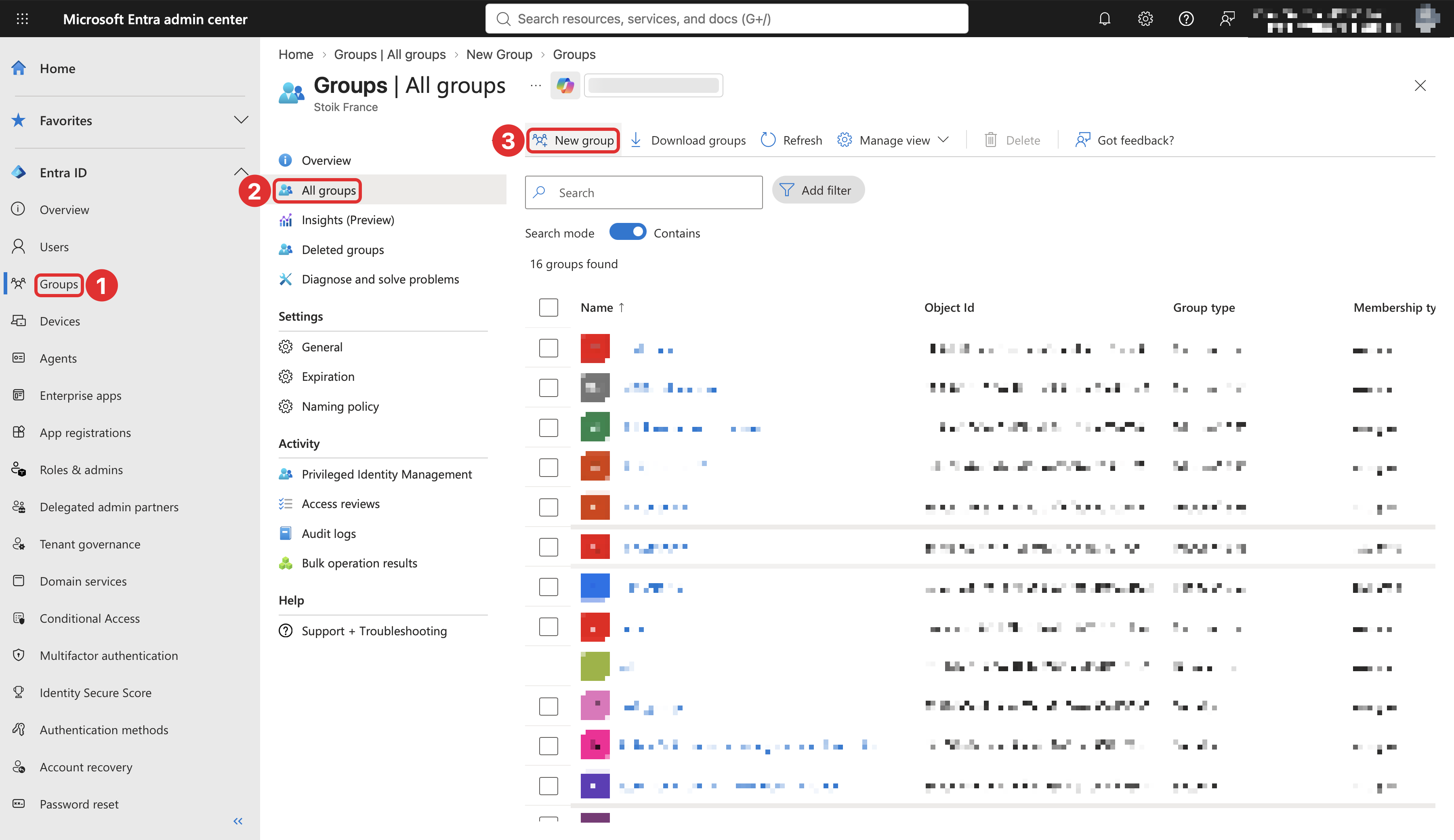
1. In [entra.microsoft.com](https://entra.microsoft.com), go to `Groups` > `All groups` > **New group**.
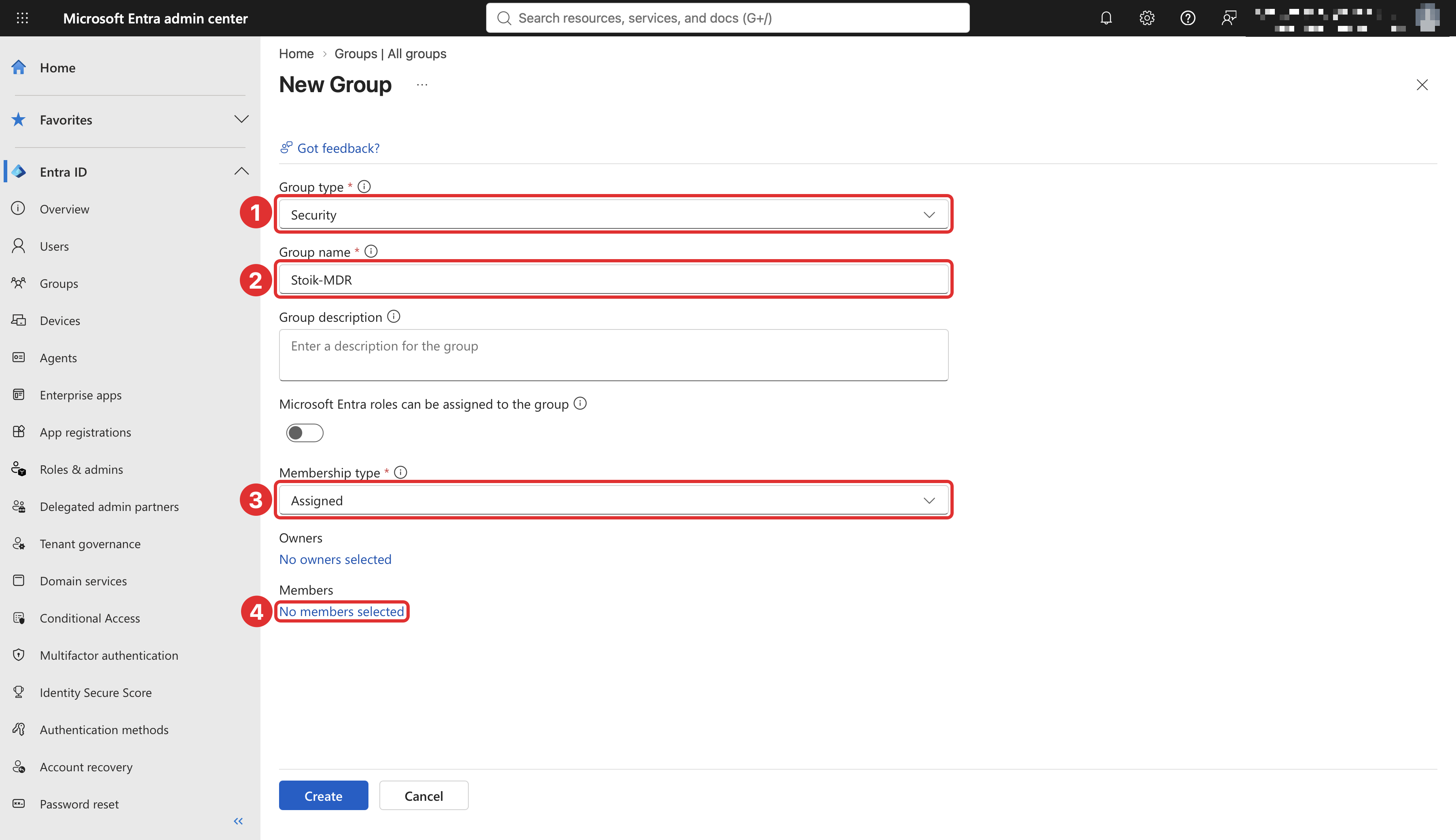
2. Fill in:
* **Group type:** `Security`
* **Group name:** `Stoik-MDR`
* **Membership type:** `Assigned`
3. Under **Members**, click **No members selected**, add **Stoik\_Mdr\_Api**, then click **Create**.
### B.3: Create the Stoïk role in Defender
This step is mandatory, even if you do not know which Defender permission model your tenant uses.
{% stepper %}
{% step %}
Go to [security.microsoft.com](https://security.microsoft.com) with a **Global Administrator** or **Security Administrator** account.
{% endstep %}
{% step %}
Expand `System`, click `Permissions`, then under `Microsoft Defender XDR (Unified RBAC)`, select `Roles`.
{% endstep %}
{% step %}
Click **Create custom role** and fill **Role Name** with `stoik_mdr_role`.

{% endstep %}
{% step %}
Grant permissions: for each of the three permission groups (**Security operations**, **Security posture**, **Authorization and settings**), select **All read and manage permissions**, click **Apply**, then **Next**.
{% endstep %}
{% step %}
Add the assignment:
* Click **Add assignment**.
* Name: `stoik_mdr_assignment`.
* Assign to: the **`Stoik-MDR`** group.
* Select **All data sources**.
* Tick **Include future data sources automatically**.
* Click **Add**, then **Next**.

{% endstep %}
{% step %}
Click **Submit** to finalize.
{% endstep %}
{% step %}
Still in `System` > `Permissions` > `Microsoft Defender XDR (Unified RBAC)`, open **Workload settings** (or **Activate workloads**) and check that **Microsoft Defender for Endpoint** is **activated**. If it is not, the role above is ignored for devices.
{% endstep %}
{% endstepper %}
You prefer to keep the legacy Defender for Endpoint roles
Instead of activating the Defender for Endpoint workload in Unified RBAC:
1. Go to `Settings` > `Endpoints` > `Permissions` > `Roles`.
2. Click **Add item** and name it `stoik_mdr_role`.
3. Tick **all permissions**, including **Live response advanced**.
4. In **Assigned user groups**, add `Stoik-MDR`.
5. Click **Save**.
### B.4: Give access to all your device groups
Skip this step only if you have never created a device group. A device group with access restricted to other groups hides all of its devices from Stoïk, including servers.
1. Go to `Settings` > `Endpoints` > `Permissions` > `Device groups`.
2. For **each** device group, **including `Ungrouped devices (default)`**: open it, go to the **User access** tab, add `Stoik-MDR`, then click **Save**.
Changes can take a few hours to apply.
## Check the setup and notify Stoïk
1. In [security.microsoft.com](https://security.microsoft.com), go to `Assets` > `Devices` and note your number of devices, and of servers (filter `OS platform` on Windows Server and Linux).
2. In Entra, go to `Enterprise applications` > the Stoïk application > `Permissions`, and check that all permissions show **Granted for \**.
3. Send an email to with your **Microsoft Tenant ID** and the device and server counts from point 1.
The Stoïk CERT team then logs in with the guest account and validates the onboarding only when it sees `Assets` > `Devices` with the same counts. If the menu is missing or the list is empty, see [Troubleshooting](#troubleshooting).
Re-approving the Stoïk application (existing clients)
When Stoïk adds a permission to its application (for example to show your real Defender device list in Stoïk Protect, or to isolate a device), a Global Administrator of your tenant must approve it again: open the link sent by your Stoïk CSM and click **Accept**.
This only affects the Stoïk application (Part A). It does not change the guest account's access to your Defender portal (Part B).
## Troubleshooting
Stoïk sees alerts but no Assets > Devices menu, or an empty device list
Unified RBAC or legacy roles are active and the guest has no Defender role, or a device group restricts access. Complete steps [B.2](#b.2-create-the-stoik-mdr-group) to [B.4](#b.4-give-access-to-all-your-device-groups): role assigned to `Stoik-MDR`, Defender for Endpoint workload activated, group added to every device group.
Workstations are visible, servers are missing
The servers are in a restricted device group, the Defender for Servers integration is off, or the Azure subscription is in another tenant. See [B.4](#b.4-give-access-to-all-your-device-groups) for their device group, and the servers section of [Deploy Defender on your devices](#deploy-defender-on-your-devices).
The guest account cannot sign in
A Conditional Access policy or an MFA requirement blocks it. See the two dropdowns under [B.1](#b.1-invite-the-stoik-mdr-user).
The guest is not found when assigning the role
A guest's user name contains `#EXT#`, so searching by email fails. Search for **Stoik\_Mdr\_Api**, or assign the `Stoik-MDR` group.
The tenant ID in Stoïk Protect differs from the Defender console
Part A was approved in another tenant. Contact , then redo [Part A](#part-a-authorise-the-stoik-application) in the tenant that holds your devices.
The devices in Stoïk Protect differ from Defender
The list in Stoïk Protect still comes from Entra ID, or the application permissions were not re-approved. See `Re-approving the Stoïk application` in [Check the setup and notify Stoïk](#check-the-setup-and-notify-stoik).
The "Connect your Microsoft account" button in Stoïk Protect returns an error
Make sure you are signed into Microsoft with a **Global Administrator** account.
The connection shows as "Connected" in Stoïk Protect but no host or alert appears
It can take up to a few hours for the first data sync.
A banner mentions devices running through MMA
Older servers still use the legacy agent, which stops working on 26 February 2027. Migrate them to the unified agent: see [Deploy Defender on your devices](#deploy-defender-on-your-devices).
For any unresolved issue or to revoke Stoïk's access to your Microsoft Defender tenant, contact .
---
# Agent Instructions
This documentation is published with GitBook. GitBook is the documentation platform designed so that both humans and AI agents can read, navigate, and reason over technical content effectively. Learn more at gitbook.com.
## Querying This Documentation
If you need additional information that is not directly available in this page, you can query the documentation by asking a question.
Perform an HTTP GET request on the following URL with the `ask` and `goal` query parameters:
```
GET https://docs.stoik.io/mdr/deploy/microsoft-defender.md?ask=&goal=
```
`ask` is the immediate question: it should be specific, self-contained, and written in natural language.
`goal` is what the user is ultimately trying to achieve, the reason they need the answer. Sharing it helps GitBook give you a better, more relevant answer. A goal is most helpful when it describes the outcome the user wants rather than restating the question. For example, with `ask=how do I create an API token`, a goal like `automate deployments from our CI pipeline` lets GitBook tailor the answer to that use case.
The response will contain a direct answer to the question and relevant excerpts and sources from the documentation.
Use this mechanism when the answer is not explicitly present in the current page, you need clarification or additional context, or you want to retrieve related documentation sections.