# Setup CrowdStrike on Windows
There are two ways to install the CrowdStrike EDR on Windows: manually via a graphical interface or automatically via the command line. If you want to deploy the EDR on a large scale using the automatic method, we recommend starting with a manual test installation on a few endpoints.
### Executable and customer ID
* Download the executable from [this link](https://drive.google.com/drive/folders/12nLA1_ixUPzfMA9P8TwahXdrsXDf_EKM).
* Find your customer ID on the `Endpoint` page > `Settings`.
{% hint style="warning" %}
The executable is no longer valid for workstations with a Windows version prior to Windows 7.
[This executable](https://drive.google.com/file/d/1fi7dFi_mv8EhKyvl9h9D7SqDS_iVqemR/view) (Falcon Legacy) is for use with the following legacy systems: Windows XP 32-bit - Service Pack 3; Windows XP 64-bit - Service Pack 2 ; Windows Server 2003 32-bit and 64-bit - Service Pack 2 ; Windows Server 2003 R2 32-bit and 64-bit - Service Pack 2 ; Windows Vista 32-bit and 64-bit - Service Pack 2 ; Windows Server 2008 32-bit and 64-bit - Service Pack 2 ; Windows Embedded POSReady 2009 ; Windows 8 32-bit and 64-bit ; Windows 8.1 32-bit and 64-bit.
{% endhint %}
### Manual method
#### Graphical method
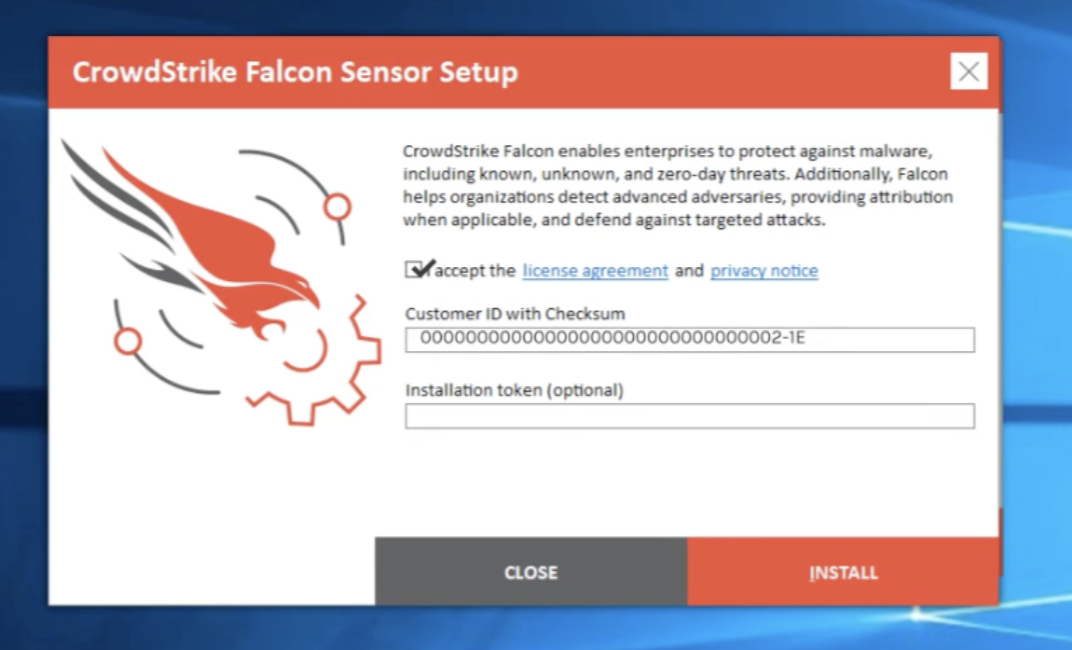
* Run the executable on the endpoint
* Enter the customer ID in the Customer ID with Checksum field
* Click Install
{% hint style="warning" %}
CrowdStrike replaces your current antivirus software. Therefore, you must completely uninstall it before installing CrowdStrike.
If your firewall is managed by the same solution as your antivirus software and you wish to keep it, do not completely disable this solution and leave the firewall as is. Conversely, if you wish to switch from this solution, remember to recreate the custom rules in your local Windows firewall.
{% endhint %}
#### Console
* Open a console on your endpoint
* Enter the following command: `.exe /install /quiet /norestart CID=customer_ID`, replacing `customer_ID` with your customer ID
#### Special cases
* Adding tags: you can choose to add one or more tags to organize your installations (by site, country, entity, etc.). In this case, use the following command: `.exe /install /quiet /norestart CID=customer_ID GROUPING_TAGS="INSERT_TAGS_HERE"`. You can specify multiple tags by separating them with commas.
* Deploying the EDR on a temporarily offline machine. You must add the `ProvNoWait=1` option. Note that the Crowdstrike EDR still requires an internet connection to function correctly, particularly to send detected alerts.
### Automatic method
#### Via GPO
1. Place the executable in a directory accessible from all workstations
1. Retrieve the Crowdstrike executable
2. Place the file on a server accessible from all workstations, for example, the file server. Note the path, for example, `\ServerName\SharedFolder\Crowdstrike.exe`
2. Create the installation script
1. Create a new text file, for example with Notepad++, and save it as `InstallCrowdStrike.bat`
2. Enter the commands to execute, as indicated in the Console section. Note: You must specify the entire path to the executable. For example, the command could be: `\ServerName\SharedFolder\Crowdstrike.exe /install /quiet /norestart CID=customer_ID`, replacing `customer_ID` with your customer ID
3. Create a GPO to run the script
1. Open the Group Policy Management Console (GPMC): `Windows + R` > `gpmc.msc` and press `Enter`
2. Right-click the container where you want to apply the GPO
3. Click `Create a new group policy Objeco in this domain and link it here`, and give it a name (for example, `CrowdStrike Deployment`)
4. Add the script:
1. Copy the script to the folder `\\\SysVol\Policies\Machine\Scripts\Startup` so that it is accessible to everyone
2. Return to the Group Policy Management Console (GPMC), right-click the new GPO, and select `Edit`
3. Go to `Computer configuration` > `Policies` > `Windows settings` > `Scripts (Startup/Shutdown)`
4. Double-click `Startup`, and then click `Add`
5. In the window that opens, click `Browse`, and then select the previously written `InstallCrowdStrike.bat` script.
4. Apply the GPO
1. Ensure that the GPO is correctly linked to the appropriate container
2. Use `gpupdate /force` on a domain controller to force the policy update
3. Verify the application:
1. Restart a target machine to trigger the script
2. Run the command `gpresult /h gpresults.html` and verify that your new GPO is present on the machine
3. Verify that CrowdStrike is installed and operational on this machine
In case of problems: consult the startup script log file on the client machines: `C:\Windows\Debug\StartupLog.txt`
#### Via MDM (Intune or NinjaOne)
For **Intune**:
1. Download the necessary components
1. Download [Win32 Content Prep Tool](https://github.com/microsoft/Microsoft-Win32-Content-Prep-Tool)
2. Download the CrowdStrike executable [from this link](https://drive.google.com/drive/folders/1uArKoJPk_AEFxijbyv6rW_udiq3joywW)
2. Open the Win32 Content Prep Tool
1. Add the .exe file
2. Enter the following command: `file_name.exe /install /quiet /norestart CID=customer_ID`. (This is the startup script previously written.) Replace `file_name.exe` with the actual filename and `customer_ID` with your CrowdStrike CID.
3. Download the generated file named `.intunewin`
4. Deploy
1. Log in to Intune Admin Center ([intune.microsoft.com](https://intune.microsoft.com/))
2. Import the `.intunewin` file
3. Assign it to your computer groups
4. The installation will be performed automatically on the target machines.
For **NinjaOne**:
* Here is the link to a procedure for integrating CrowdStrike with NinjaOne: [CrowdStrike with NinjaOne Procedure](https://www.ninjaone.com/docs/integrations/how-to-connect-crowdstrike/)
### Opening network traffic
If network traffic is blocked (for example, on an isolated local network), the following IP addresses and domain names must be allowed for outbound traffic:
* 3.121.6.180
* 3.121.187.176
* 3.121.238.86
* 3.125.15.130
* 18.158.187.80
* 18.198.53.88
* 3.78.32.129
* 3.121.13.180
* 3.123.240.202
* 18.184.114.155
* 18.194.8.224
* 35.156.219.65
* 3.69.184.79
* 3.76.143.53
* 3.77.82.22
* 18.197.35.253
* 3.122.135.178
* 18.194.222.197
IPv6 addresses to allow:
* 2a05:d014:45e:4e00::/56 (allow all addresses between 2a05:d014:45e:4e00:0000:0000:0000:0000 and 2a05:d014:45e:4eff:ffff:ffff:ffff:ffff)
Domains to allow:
* ts01-lanner-lion.cloudsink.net
* lfoup01-lanner-lion.cloudsink.net
* lfodown01-lanner-lion.cloudsink.net
Public DNS Names:
*
*
*
{% hint style="info" %}
The agent does not require open inbound ports: everything is done via secure outbound traffic to CrowdStrike.
{% endhint %}
### Debugging
If you want to verify the EDR installation on a machine, you can run the following commands: `sc query csagent` and `sc query csfalconservice.`
---
# Agent Instructions: Querying This Documentation
If you need additional information that is not directly available in this page, you can query the documentation dynamically by asking a question.
Perform an HTTP GET request on the current page URL with the `ask` query parameter:
```
GET https://docs.stoik.io/stoik-mdr/edr-setup-crowdstrike/edr-main-module/setup-crowdstrike-on-windows.md?ask=
```
The question should be specific, self-contained, and written in natural language.
The response will contain a direct answer to the question and relevant excerpts and sources from the documentation.
Use this mechanism when the answer is not explicitly present in the current page, you need clarification or additional context, or you want to retrieve related documentation sections.