

Deploying user certificates within Active Directory
Installing the AD Certificate Services Role
Install the "Active Directory Certificate Services" role on one of your servers. It is important to note that a server hosting this role should be considered highly sensitive and must have a level of protection and monitoring similar to that of a domain controller.
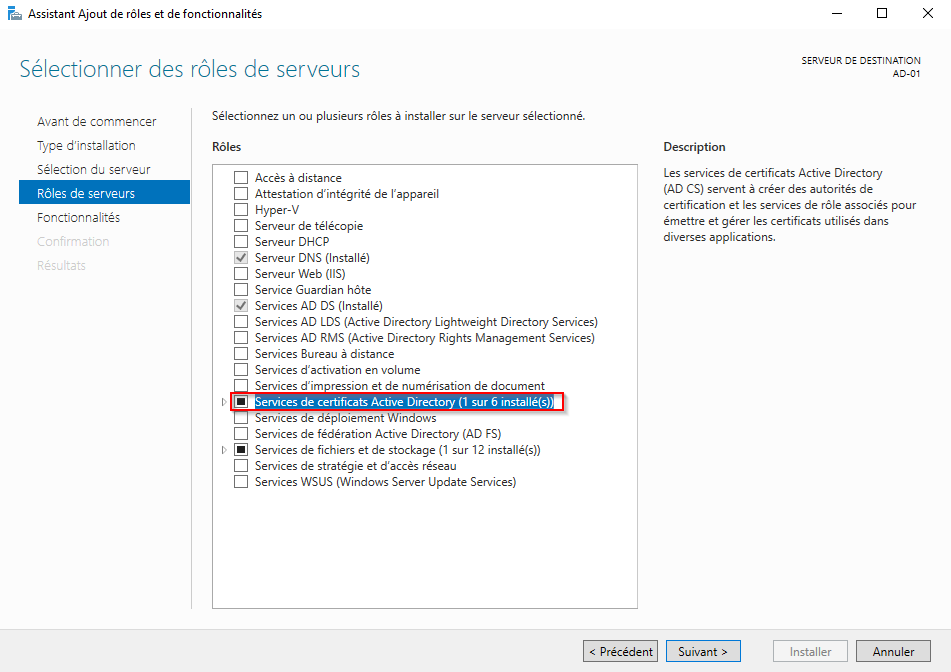
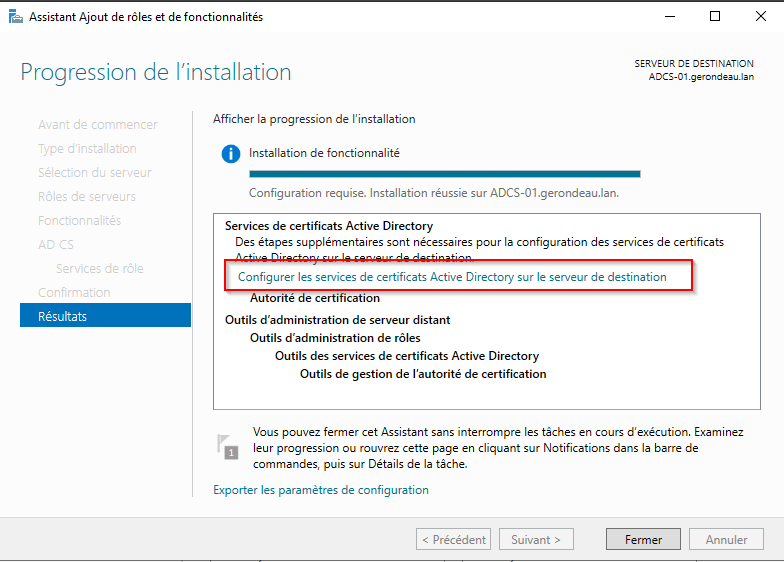
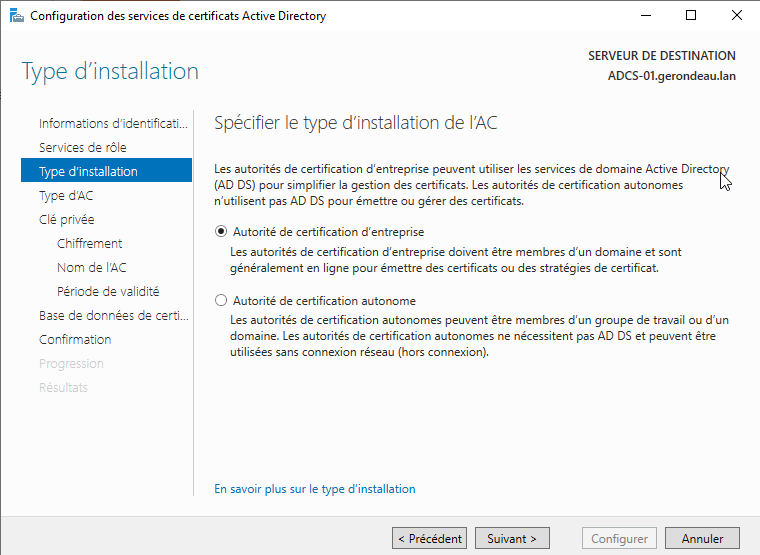
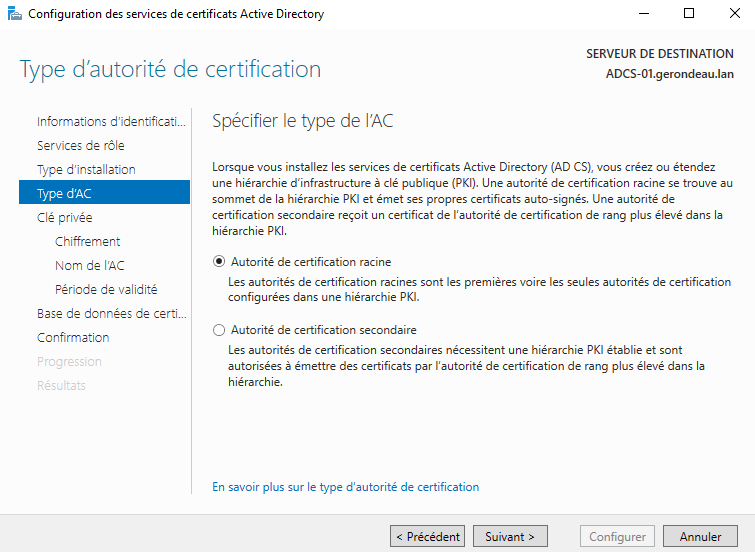
Follow the certification authority configuration instructions according to your company’s needs.
Creating a New Certificate Template
Open the Certificate Manager (certsrv) and the "Certificate Templates" folder.
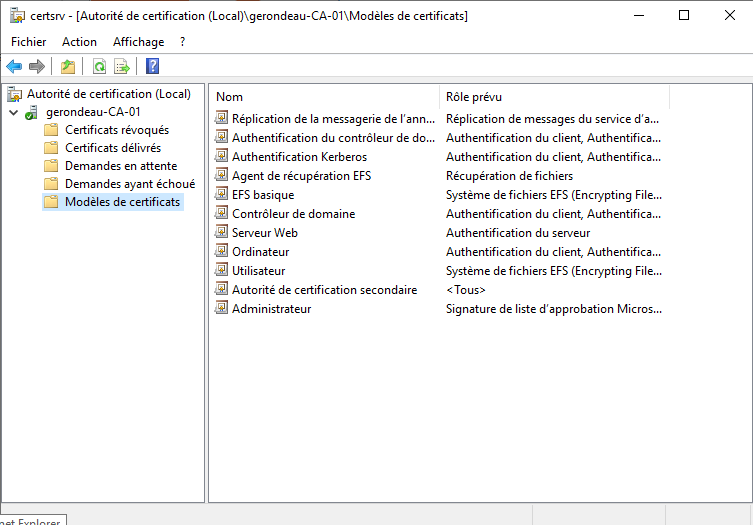
Right-click on the "Certificate Templates" folder, select "Manage", then right-click on "User" and finally select "Duplicate Template".
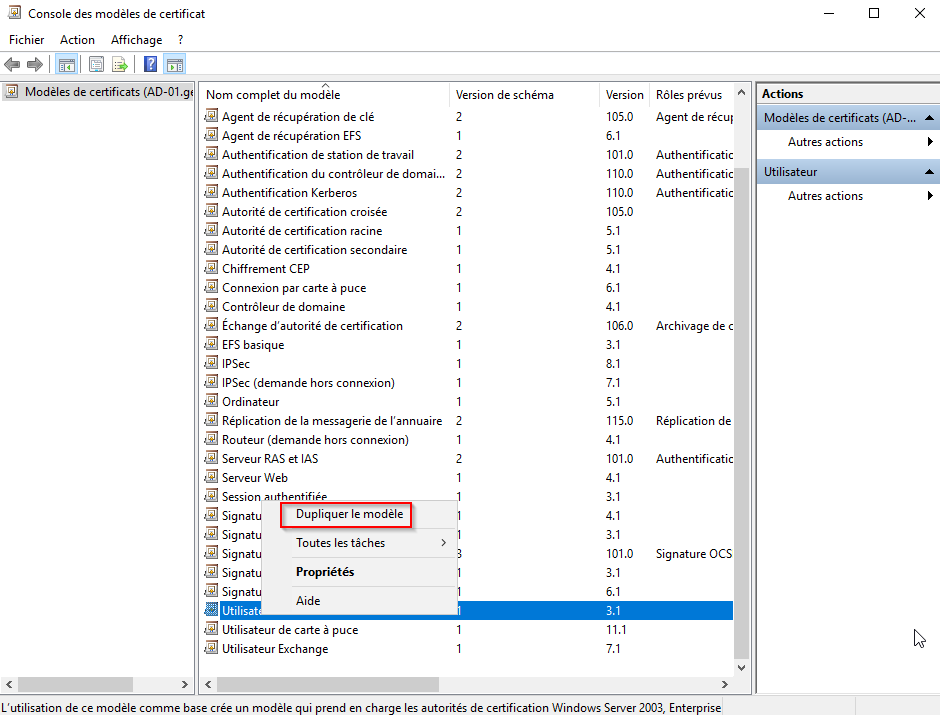
Rename the newly created template to "User v2".
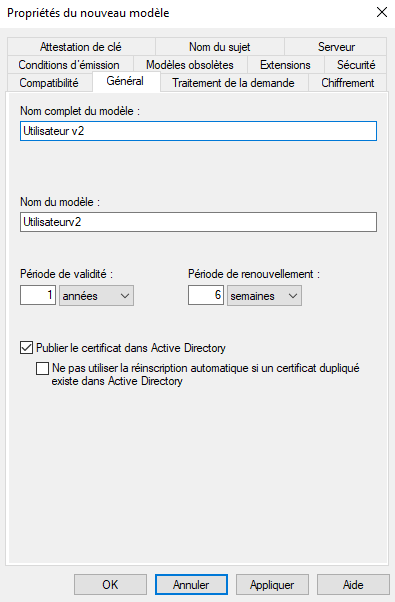
In the "Security" tab, enable the permissions "Read", "Enroll", and "Autoenroll" for domain users.
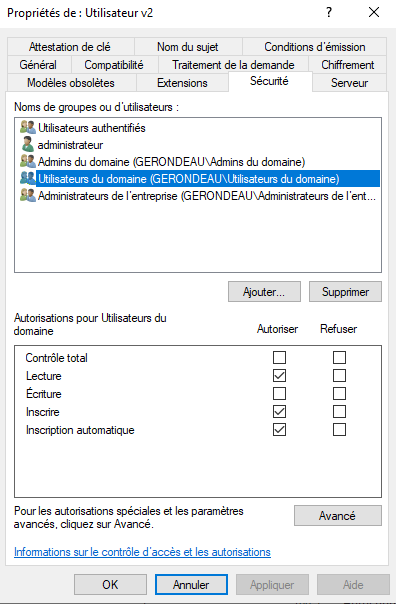
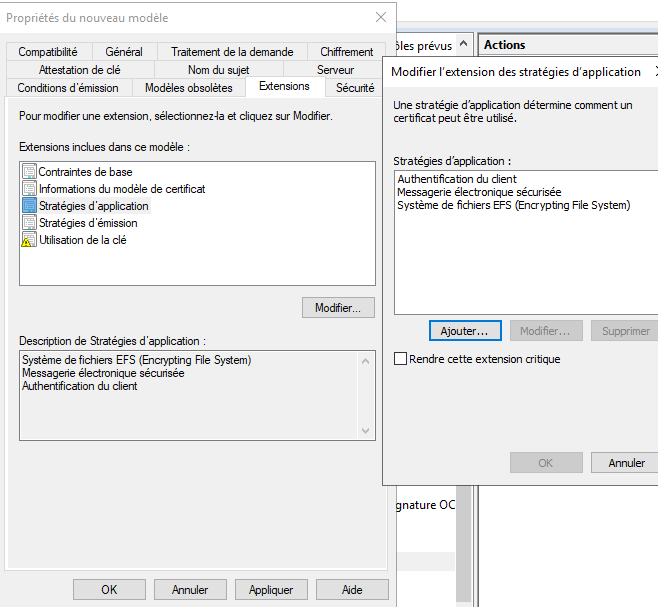
If necessary, the application policy of this new template can be modified. In most cases, these certificates will be used for user authentication, so verify that the application policy includes "Client Authentication". You may remove other application policies if desired.
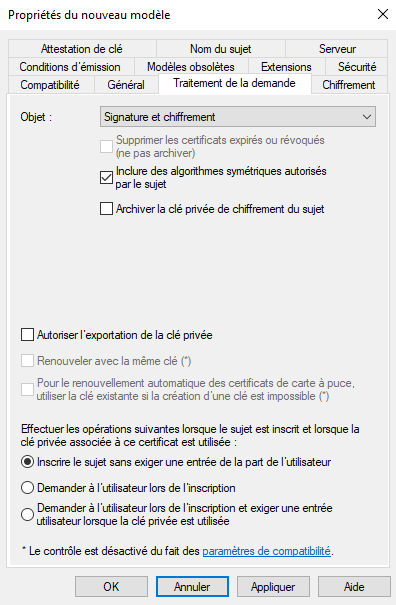
In the "Request Handling" tab, uncheck the option "Allow private key to be exported".
Confirm the creation of this new template.
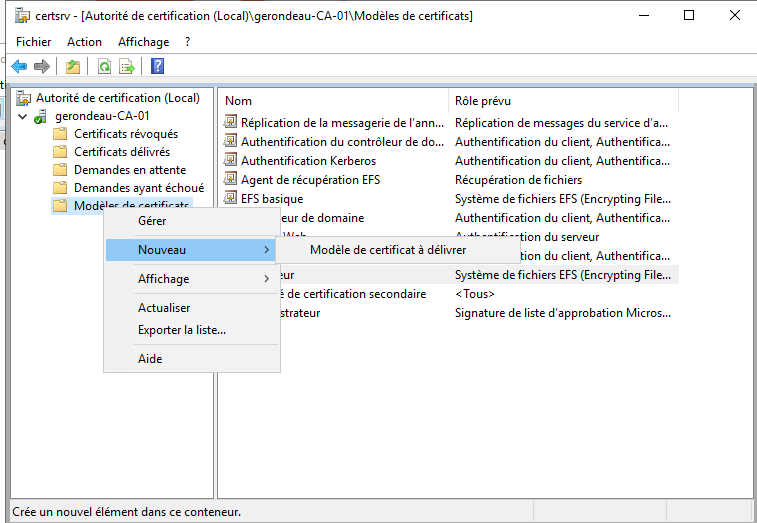
Return to the Certification Authority window (certsrv), right-click on "Certificate Templates", then select "New", and finally "Certificate Template to Issue".
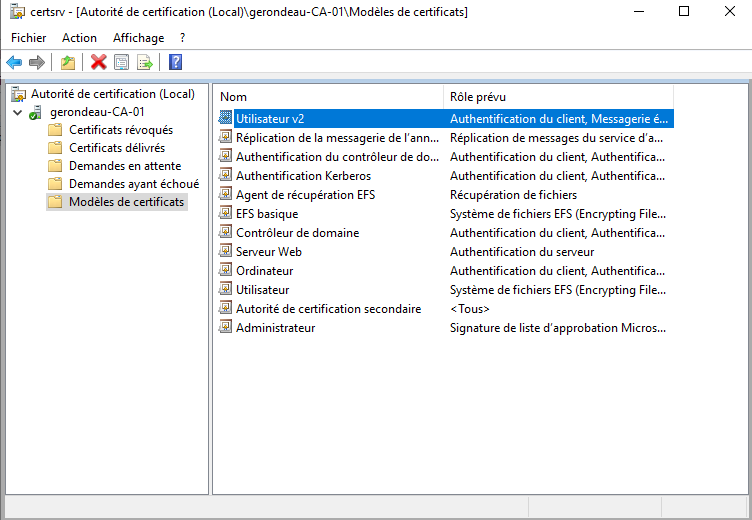
Select the newly created template and click OK.
The new template should now appear in the current window.
Enabling Auto-Enrollment for Domain Users
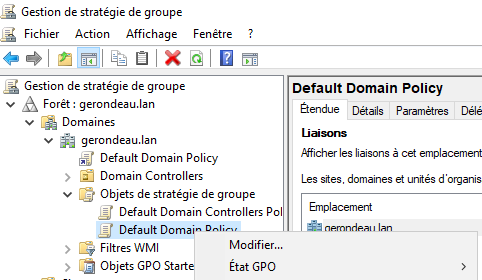
Log in to a domain controller and open the Group Policy Management tool. Expand the domain for which you want to enable auto-enrollment, then open the "Group Policy Objects" folder. Right-click on "Default Domain Policy" and click "Edit".
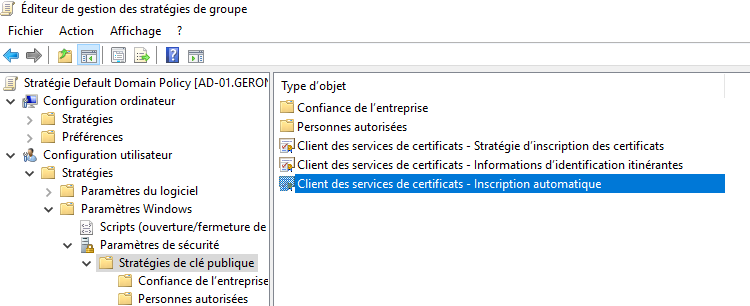
Go to: "User Configuration" → "Policies" → "Windows Settings" → "Security Settings" → "Public Key Policies", then click on "Certificate Services Client – Auto-Enrollment".
Select "Enabled" for the "Configuration Model" option and check the first two boxes:
"Renew expired certificates [...]"
"Update certificates [...]"
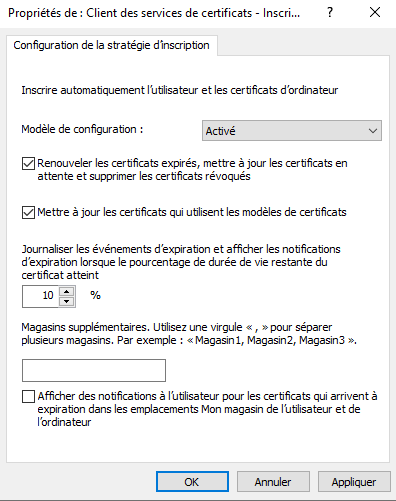
Then click OK.
Simply click OK again and close the GPO.
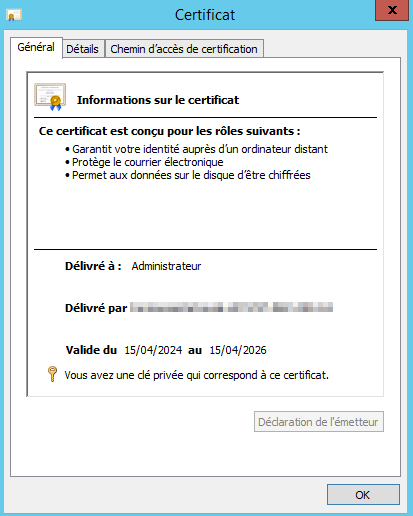
From a domain user session, type "gpupdate /force" and wait for the GPO to apply. A certificate should then appear in your certificate store. If not, use the command "gpresult /r" to ensure that the GPO has been applied correctly.
In the image below, the certificate of the user "Administrator" is visible.
Last updated
Was this helpful?