

Cloud backup solutions
In this article:
Degraded Solution (without SCP rights)
Google Drive and OneDrive
Google Drive and OneDrive environments do not have native features allowing them to restore their data following a ransomware attack that has deleted their previous versions. Therefore, it is necessary to consider certain solutions in order to regularly back up their data and protect it.
Several solutions can be considered to achieve this objective, each with its advantages and disadvantages.
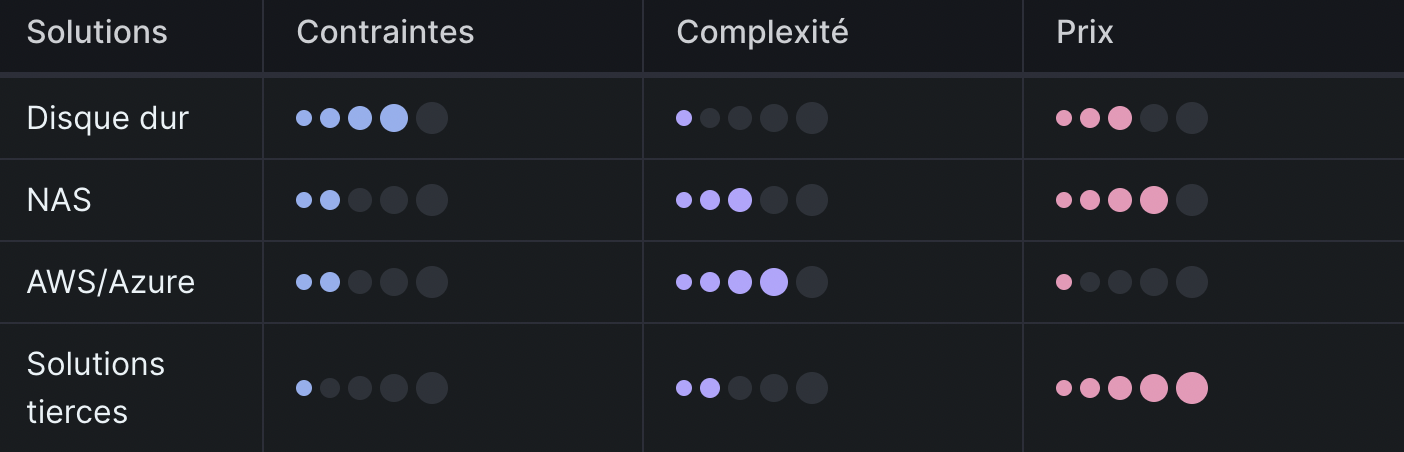
Solution #1: Hard Drive
This solution consists of manually backing up files from the Google Drive or OneDrive environment onto an external hard drive. Ideally, a backup of a OneDrive or Google Drive environment should be performed on at least two external hard drives in order to prevent data loss in case one of the hard drives fails. Although this solution is the simplest to implement, it is also the most restrictive.
Solution #2: NAS
A NAS (Network Attached Storage) is a physical network storage server. This solution consists of installing a synchronization application on the NAS — namely Google Drive Desktop for a Google Workspace environment and OneDrive for an O365 environment — in order to regularly synchronize shared drives (Google Drive) and SharePoint sites (OneDrive), and perform backups onto the NAS disks. It is also possible to use certain types of RAID to improve disk security or fault tolerance on the NAS.
Solution #3: AWS/Azure Storage Space
Azure (Microsoft) and AWS (Amazon) offer affordable Cloud storage spaces to store backups. The idea is to regularly transfer all data from Google Drive and OneDrive environments to one of these storage spaces, either manually or automatically using a script and a machine subscribed to one of these environments. Several free tools are developed and frequently updated for this purpose, namely rclone and duplicity, which are designed to enable this type of transfer.
Solution #4: Third-Party Solutions
Certain third-party solutions may be considered if none of the previous solutions are suitable. These solutions make backups very easy to use, but come with a significant financial cost. This type of solution involves granting a third-party service access to your Google Drive and OneDrive environment so that it can automatically retrieve data on a regular basis. These solutions also provide data restoration features. Examples include Afi, Backupify, Spanning, and SpinBackup.
Summary Table
By analyzing all these scenarios, it is possible to define certain criteria and classify all these solutions accordingly, as illustrated in the following table:
Azure
Azure Immutable Backups
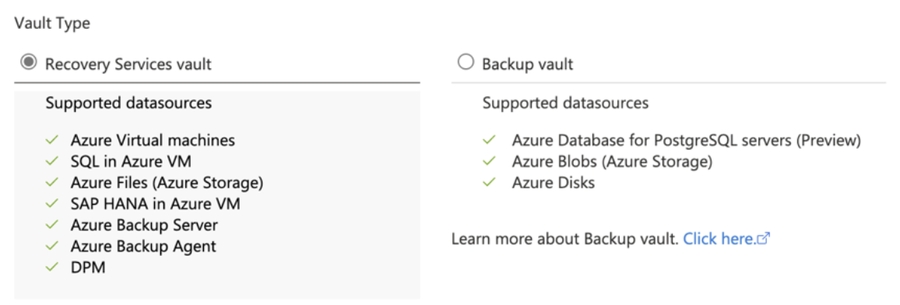
Azure backups can be of two types, Backup Vault or Recovery Services, depending on your data models:
There are 2 methods to guarantee the immutability of these backups:
Verify that the Soft Delete feature is enabled. By default, Soft Delete is enabled on Azure Recovery Services vaults. This feature protects backups from accidental or malicious deletion for a period of 14 days at no additional cost. If backups are deleted and Soft Delete is not enabled, neither you nor Microsoft can recover the deleted data. It is necessary to implement the following protection to avoid the following scenario:
Compromise of the Azure tenant and the Vaults;
Disabling Soft Delete;
Deletion of backups;
Restoration;
Permanent deletion.
Use Multi User Authorization (MUA) on the Soft Delete feature. MUA for Azure Backup uses a new resource called Resource Guard to ensure that critical operations, such as disabling Soft Delete, stopping and deleting backups, or reducing retention of backup policies, are performed only with proper authorization. To understand the process, it is necessary to understand 2 roles that must be defined within the Azure organization:
Backup Administrator: Owner of the Recovery Services Vault or Backup Vault who performs administration and management operations on them;
Security Administrator: Owner of the Resource Guard, acting as the guardian of critical operations on the vault. Therefore, the Security Administrator controls the permissions that the Backup Administrator needs to perform critical operations on the vault.
To configure MUA, you must:
Verify that Resource Guard and Azure Recovery Services Vault are in the same Azure region;
Verify that the Backup Administrator does not have contributor rights on Resource Guard. You may have Resource Guard in another Subscription of the same Tenant or in another Tenant;
Follow the official Azure procedure.
Protecting Your Azure Critical Operations
Configuring immutable vaults enables the following protections:
Recovery Services: Protects data against deletion;Prevents modification or deletion of the backup policy in order to reduce data retention duration.
Backup Vaults: Protects data against deletion
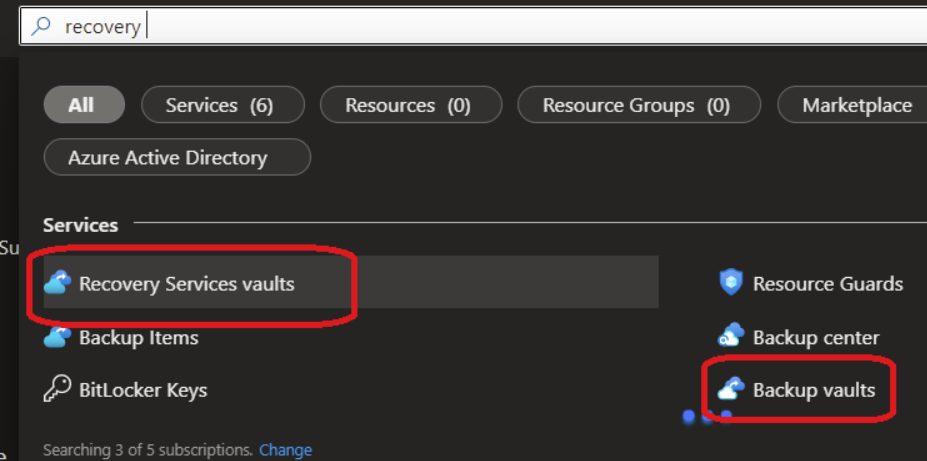
Log in to your Azure Portal and search for Recovery Services Vaults, Backup Vaults, or the vault you wish to protect:
Click on the Properties tab to enable immutable vault and lock the vault for the duration of the backup policy
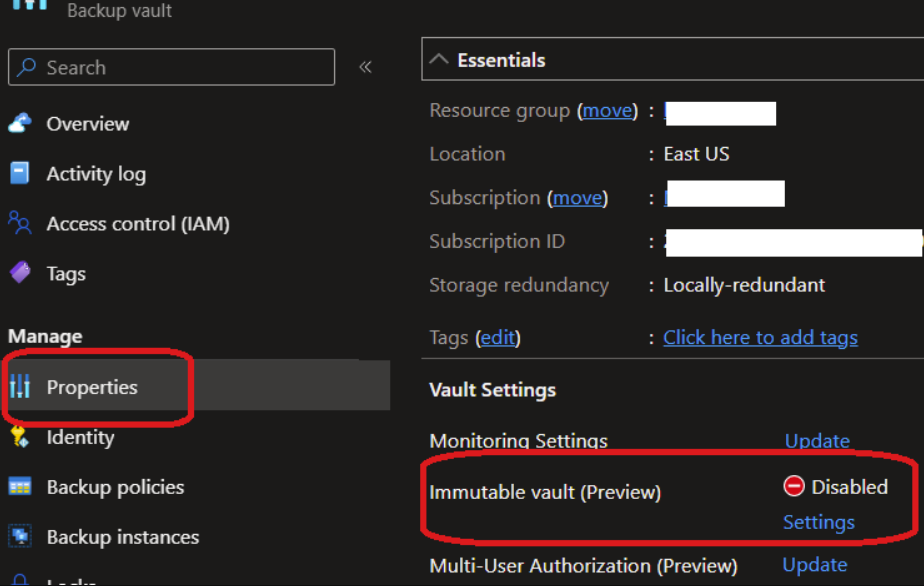
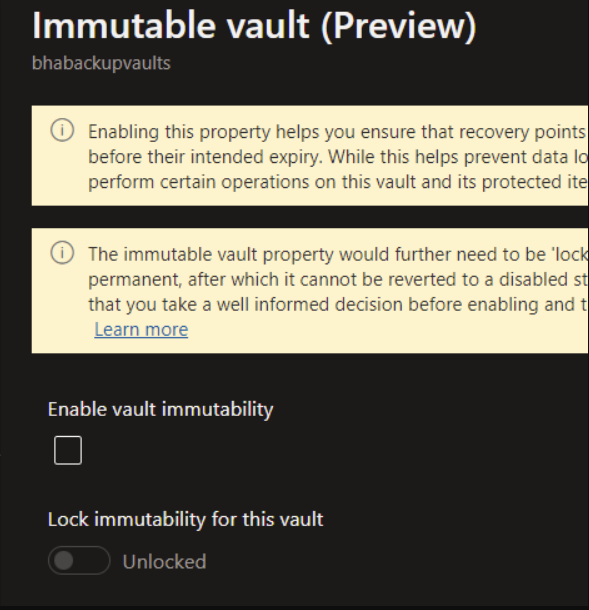
Note: this step cannot be undone, use with caution for sensitive data.
Repeat this operation for the other vaults required for business continuity.
AWS
Degraded Solution (without SCP rights)
Note: The first step must be repeated for each S3 bucket containing sensitive or technical data that may be required for production.
Create an S3 bucket policy that prevents deletion of S3 bucket versions.
In your S3 management console, click on the desired bucket, then the Permissions tab:

b. Under the Bucket Policy section, click Edit.
c. Replace the existing bucket policy (if any) with the following JSON policy:
Note: Replace your-bucket-name with the ARN names of your S3 bucket.
Create an alert mechanism to detect any modification or deletion of this bucket.
First, you must enable CloudTrail if it is not already enabled.
Go to the CloudWatch console, click Events > Rules.

Then click Create Rule, select the CloudTrail service from the drop-down menu and AWS API Call via CloudTrail as the event type.

Finally, click Specific operations and add:
PutBucketPolicy
DeleteBucketPolicy
DeleteBucketLifecycle
DeleteBucketPublicAccessBlock
PutBucketPublicAccessBlock
DeleteBucket as the operations for which we want to be alerted.
Add the following JSON code to configure the alert:
Note: you must replace my-bucket-stoik with the name of the bucket you wish to protect.
e. The final step is to configure the alert target. You can choose an SNS topic to send a notification to an SNS topic, or choose a Lambda function to trigger a Lambda function.
Last updated
Was this helpful?