

Immutable S3 backups
You can use S3 Object Lock to
Store objects using a WORM (Write-Once-Read-Many) model. Object locking can help prevent objects from being deleted or overwritten for a specified period of time or indefinitely.
Meet regulatory requirements that mandate WORM storage, or to add an extra layer of protection against changes and deletion of backups.
AWS permissions required to perform the operation:
s3:PutObjectLockConfiguration
s3:PutBucketVersioning
Enabling the Object Lock feature
Object Lock can only be enabled for new S3 buckets. To enable Object Lock for an existing bucket, you must contact AWS Support for a price quote.
When you create a bucket with Object Lock enabled, Amazon S3 automatically enables versioning for the bucket.
If you create a bucket with Object Lock enabled, you cannot disable Object Lock or suspend versioning for the bucket.
Case N°1: The S3 bucket does not exist
When you are in the S3 bucket management centre, click Advanced Settings and then select Enable:
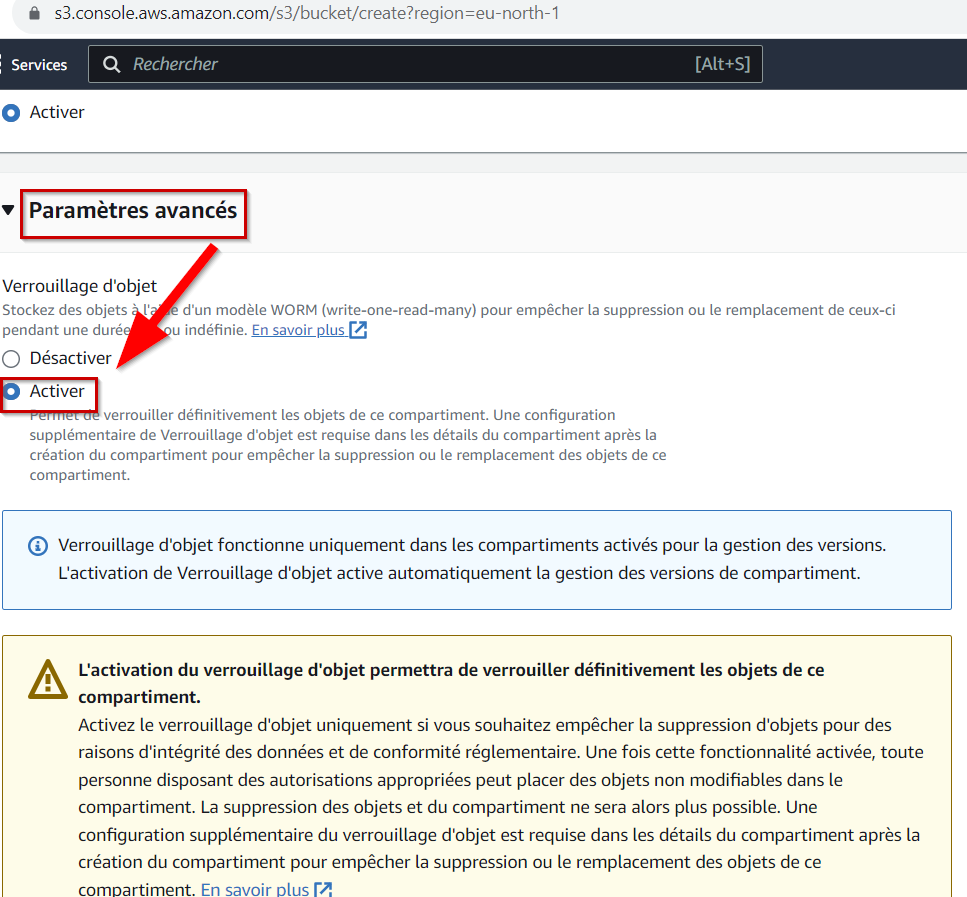
Then configure the rest of your bucket. You then have two choices for configuring Object Lock:
Governance mode: Objects in the compartment cannot be deleted without elevated privileges and the AWS s3:BypassGovernanceRetention permission.
Compliance Mode: This mode provides the highest level of immutability available. It is impossible to delete buckets configured in this mode, even with AWS root account privileges.
We recommend that you configure your essential backups using Compliance Mode.
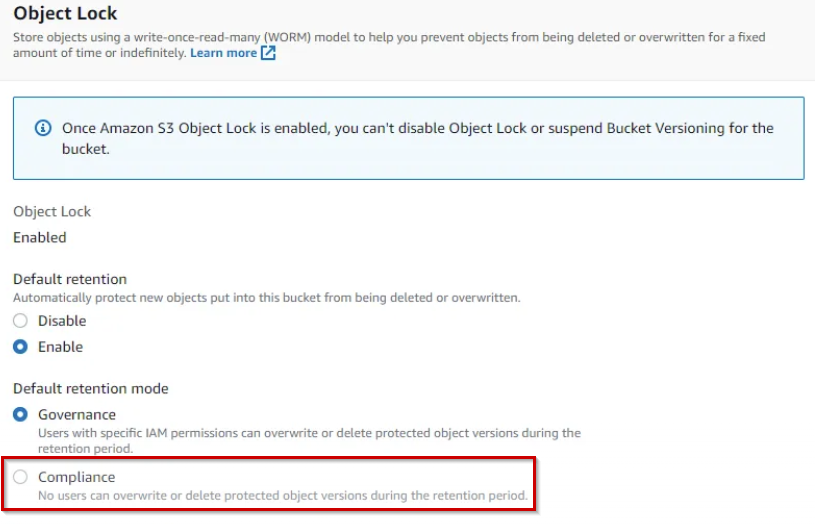
Finally, choose your object retention period by configuring it according to your backup policy.
Sources:
https://docs.aws.amazon.com/AmazonS3/latest/userguide/object-lock-overview.html
https://aws.amazon.com/fr/blogs/storage/how-to-manage-retention-periods-in-bulk-using-amazon-s3-batch-operations/
Case N°2: The S3 bucket exists
You have contacted AWS Support and copying objects from your existing bucket to the bucket with Object Lock enabled is too costly.
We recommend that you configure your future backups using step 1 of this guide and apply the following security measures to your previous backups:
Once you have enabled MFA delete, only the root user can permanently delete S3 objects or change the versioning configuration on your S3 bucket. The root user must be authenticated by an MFA device to perform this action.
To enable MFA delete for your bucket, follow these steps:
Generate an access key and secret key for the root user.
Configure an MFA device for the root user (if you haven't already done so).
Configure the AWS Command Line Interface (AWS CLI) with the root user's credentials.
Use the PutBucketVersioning API to enable the MFA delete feature.
aws s3api put-bucket-versioning --bucket mybucketname --versioning-configuration MFADelete=Enabled,Status=Enabled --mfa "arn:aws:iam::(accountnumber):mfa/root-account-mfa-device (pass)"Then verify that the configuration was successful:
Check the Amazon S3 console to ensure that versioning is enabled for the bucket.
Verify that MFA deletion is enabled, by using the GetBucketVersioning API:
aws s3api get-bucket-versioning --bucket mybucketname
{
"Status": "Enabled",
"MFADelete": "Enabled"
}
If the result of the MFADelete JSON object is Enabled, the configuration has been completed successfully.
Last updated
Was this helpful?