> For the complete documentation index, see [llms.txt](https://docs.stoik.io/llms.txt). Markdown versions of documentation pages are available by appending `.md` to page URLs; this page is available as [Markdown](https://docs.stoik.io/onboarding/account/users.md).
# User access management
## Invite a user
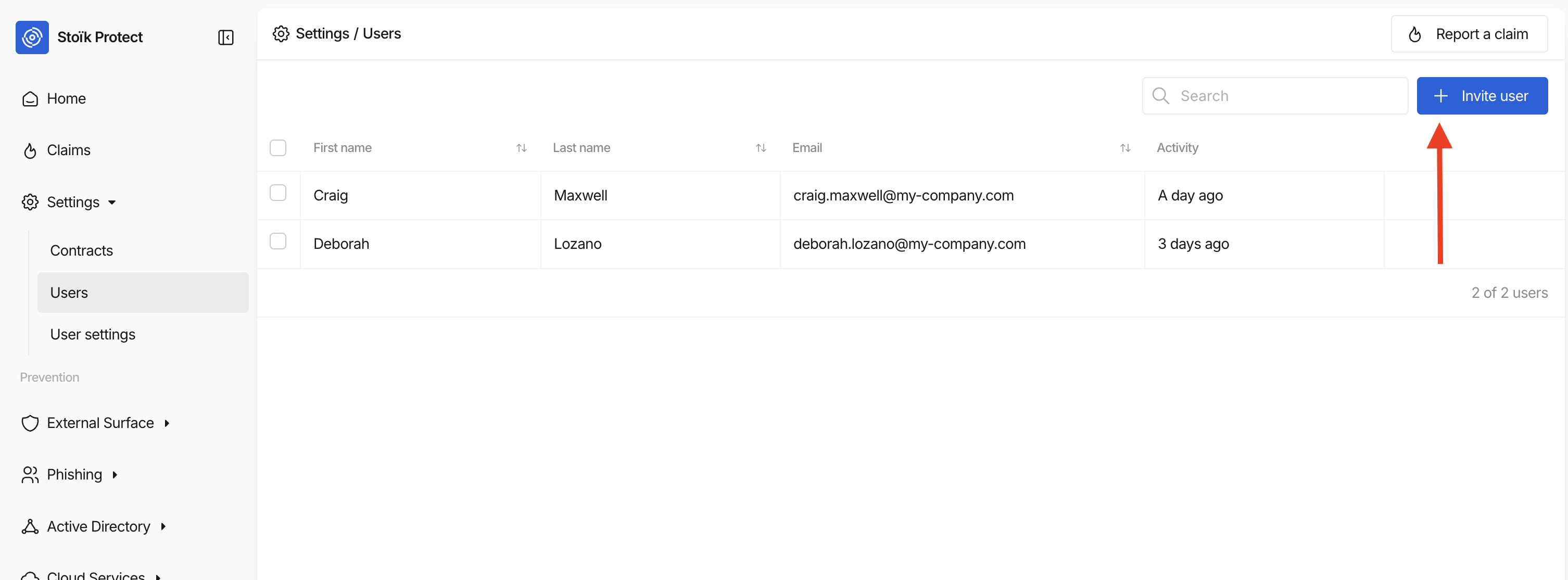
A user can be invited to Stoik Protect from `Settings` > `Users` and by clicking the `Invite a User` button. You must:
* Enter the invitee's first name, last name, email address, and phone number.
* Grant them at least one access right ("Administrator," "Contract," or "Cyber," see below). The user will then receive the following invitation email:
Until the user accepts the invitation, its status will be `Invitation Pending`.
## Monitor your users' 2FA status
The `Settings > Users` table includes a `2FA` column showing, for each user, whether they have two-factor authentication enabled on their Stoïk Protect account:
* :check: : the user has 2FA enabled.
* :xmark: : the user has not enabled 2FA yet.
To get a quick view of who is unprotected, use the `2FA` filter at the top of the table and select `No`. You'll get the full list of users you should follow up with, or directly enforce MFA on (see [Requiring MFA](/onboarding/account/require-mfa.md)).
The 2FA status is read in real time from each user's account. If a user enables or disables 2FA from their own `User settings`, the column updates accordingly.
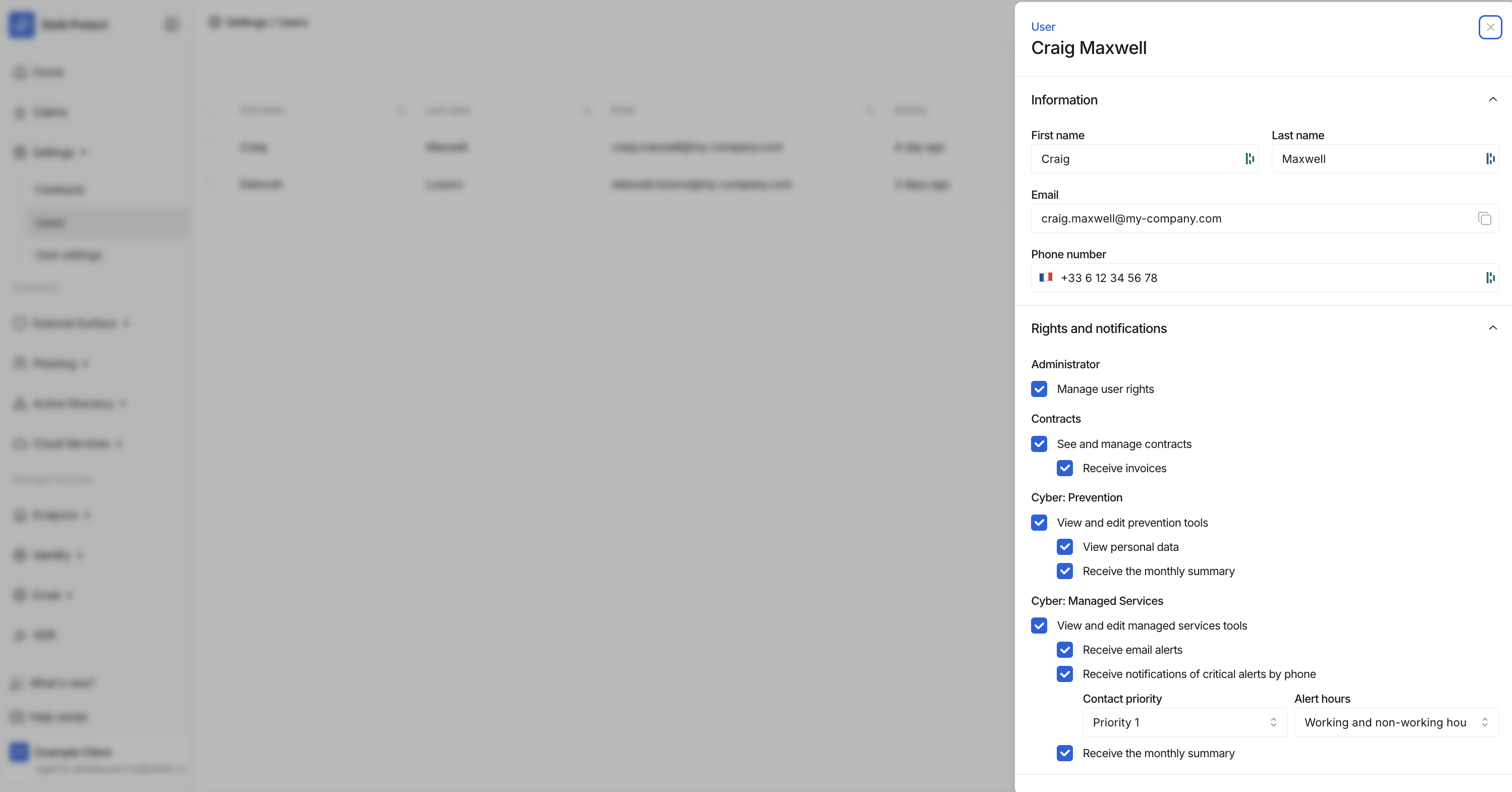
## User rights and notifications
### Admin
* Manage user rights: This right allows the user to modify (add or remove) the rights of other Stoik Protect users, including their own. In other words, a user without this right cannot modify their own rights or those of other Stoik Protect users.
* Require MFA: This right forces the user to enable multi-factor authentication. The next time they sign in, they are taken to a mandatory MFA setup screen and cannot access Stoïk Protect until MFA is configured. They also cannot disable their own MFA from their user settings as long as the toggle is on.
### Contracts
* View and edit contracts: This right allows the user to access `Contracts` and `Claims`.
* Receive invoices: This right allows the user to receive invoices (payment reminders) by email as soon as they are generated.
### Cybersecurity: Prevention
* View and edit prevention tools: This right allows the user to access the tabs in the `Prevention` section, namely:
* External Surface, with external scan.
* Phishing, with phishing simulation.
* Active Directory, with Active Directory scan.
* Cloud Services, with Cloud scan.
{% hint style="info" %}
In the event of a high or critical vulnerability identified by the external scan, users with this right will receive email notifications from Stoïk SOC.
{% endhint %}
* View personal data: This right allows the user to view:
* `Phishing` > `Results`: the results of employees during phishing simulation campaigns.
* `External Surface` > `Results` > `Data Leaks`: the identifying data of employees whose data may have been leaked.
* Receive the monthly summary: This right allows the user to receive the monthly summary of the results of the prevention tools by email.
* Receive the scan report after each external scan: This option sends the user an automated email (from ) with the External Scan report after every scan. The External Scan runs weekly, on the day and time configured for your organization, and the report summarizes the vulnerabilities detected on your external surface during that run.
### Cyber: Managed services
This section is only available to clients with a Stoïk MDR contract.
* View and edit Stoik MDR tools: This right allows the user to access the tabs in the `Managed Services` section, namely:
* Endpoint
* Identity
* Be notified of alerts by email: the user will be copied on all alerts.
* Be notified of critical alerts by phone
* Users with priority level 1 will be contacted by phone first, etc.
* The concept of contact during business hours and non-business hours can also be selected for each user.
{% hint style="info" %}
If no user is available during non-business hours, but a critical vulnerability appears, Stoik will do its best to neutralize the threat until one of your employees intervenes or becomes available. Indeed, the EDRs used by Stoik allow the analysts at the Stoik CERT to temporarily contain most of the detected threats.
{% endhint %}
* Receive the monthly summary: The user will receive a monthly summary of detected alerts.
## Delete a user
Only administrator users can delete a user. To do so, simply select the user in question, click on `Actions`, then `Delete user`.
Certain permissions are essential for a Stoik Protect space: if the user you wish to delete is the only one with these permissions, you must first assign these permissions to another user.
---
# Agent Instructions
This documentation is published with GitBook. GitBook is the documentation platform designed so that both humans and AI agents can read, navigate, and reason over technical content effectively. Learn more at gitbook.com.
## Querying This Documentation
If you need additional information that is not directly available in this page, you can query the documentation by asking a question.
Perform an HTTP GET request on the following URL with the `ask` and `goal` query parameters:
```
GET https://docs.stoik.io/onboarding/account/users.md?ask=&goal=
```
`ask` is the immediate question: it should be specific, self-contained, and written in natural language.
`goal` is what the user is ultimately trying to achieve, the reason they need the answer. Sharing it helps GitBook give you a better, more relevant answer. A goal is most helpful when it describes the outcome the user wants rather than restating the question. For example, with `ask=how do I create an API token`, a goal like `automate deployments from our CI pipeline` lets GitBook tailor the answer to that use case.
The response will contain a direct answer to the question and relevant excerpts and sources from the documentation.
Use this mechanism when the answer is not explicitly present in the current page, you need clarification or additional context, or you want to retrieve related documentation sections.