

How to manage a BAD TENANT error on Microsoft Azure?
When running the automatic script for the ‘Cloud Scan’ tool, the following error may appear:
BAD TENANT - Stoik Cloud Scanner application not found, please see this link for more information :
This error occurs when the Stoik application has not been registered correctly on your Azure environment. The main reason for this is that a different environment was selected during the first stage of setting up the cloud scan and when the script was run.
Example
The example below illustrates a problematic setup:
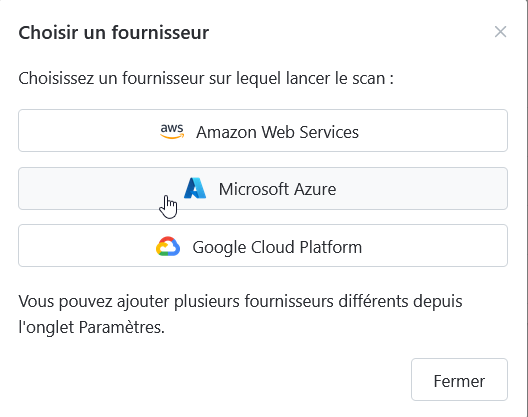
Selecting the provider
The user selects the provider ‘Microsoft Azure’.
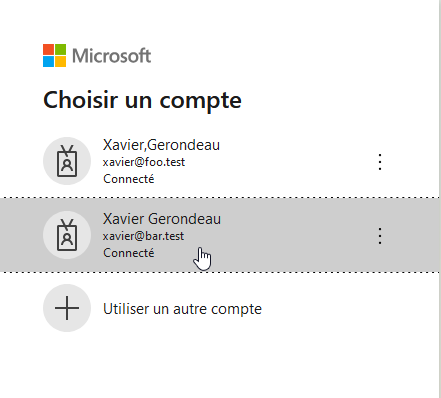
Choosing the account
The user selects their ‘[email protected]’ account associated with the tenant bar.test.
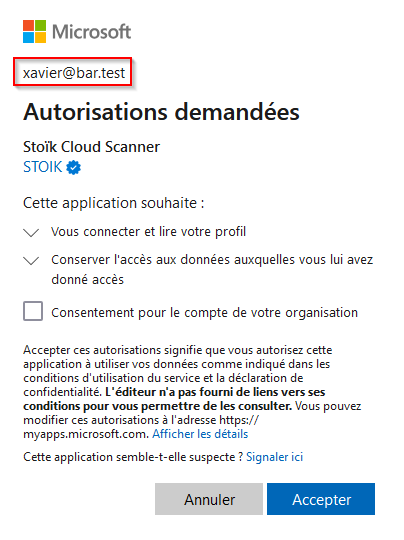
Application registration request
The ‘Stoïk Cloud Scanner’ application asks to register on the tenant bar.test.
Running the script on a different tenant
The user tries to run the script on the tenant ‘foo.test’ (shown at the top right of the image). Because the Stoïk Cloud Scanner application was authorised on a different tenant (bar.test), the script cannot assign the necessary roles on foo.test.

Solutions
Run the script on the same Azure tenant that was used when authorising/registering the Stoïk application (the tenant selected in step 2 above).
If you are unsure which tenant was used, first disconnect from all your accounts on https://portal.azure.com and restart the installation of the tool on StoikProtect or contact Stoik support.
Last updated
Was this helpful?